How to add your first subject in Katav
After the course comes the subject: set its name, code, status, dates, schedule, professor and cover to keep your classes and notes organized.
William
In Katav everything works by context: every class and every note lives inside a subject, which works like an advanced notebook. After creating your first course (university, technical or school, from elementary to high school), the next step is to add a subject.
▶ Watch the video tutorial on YouTube
1. Open the Subjects menu
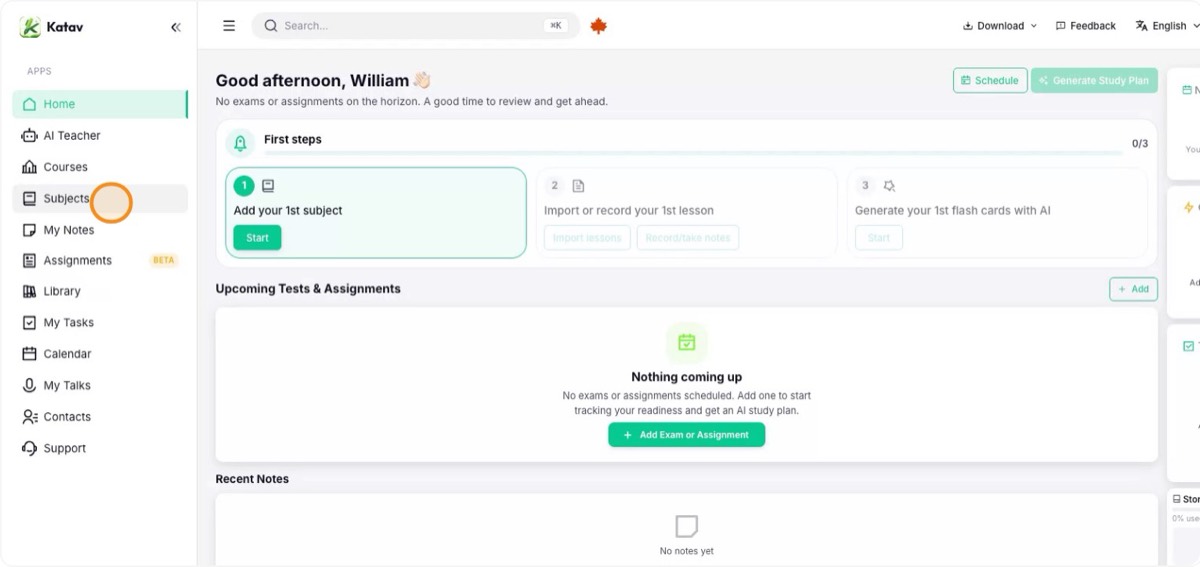
You can create a subject by following the "First steps" of a new account or straight from the side menu. Click Subjects.
2. Start a new subject
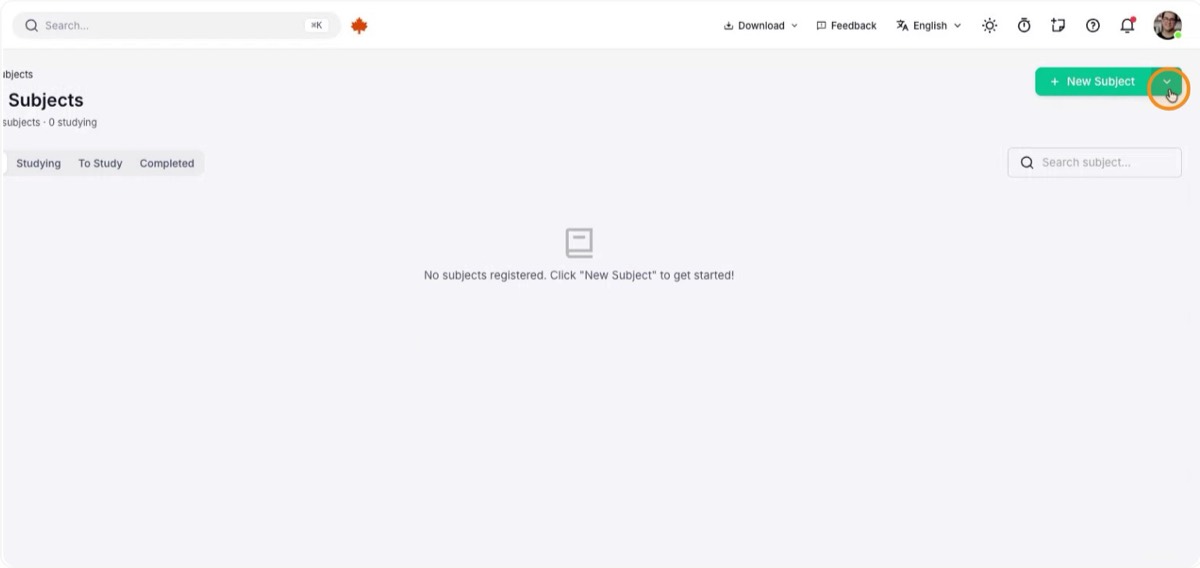
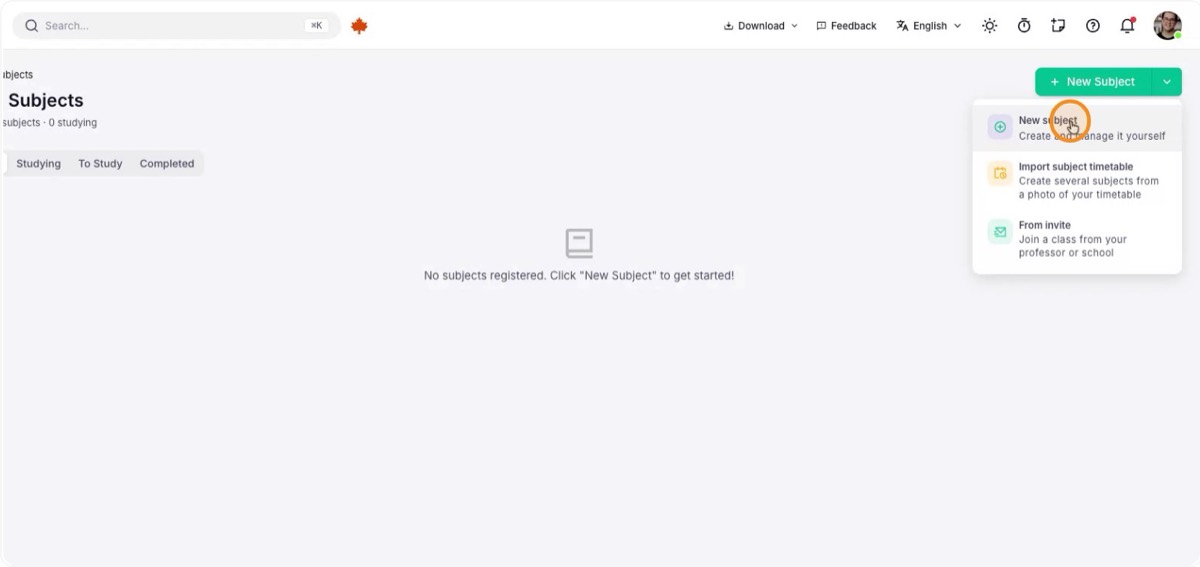
On the subjects screen, click New Subject. There are three ways to create one:
- Import subject timetable: create several subjects from a timetable, if your institution provides one.
- From invite: join a subject when a professor who uses Katav invites you.
- Create from scratch, the option used in this tutorial.
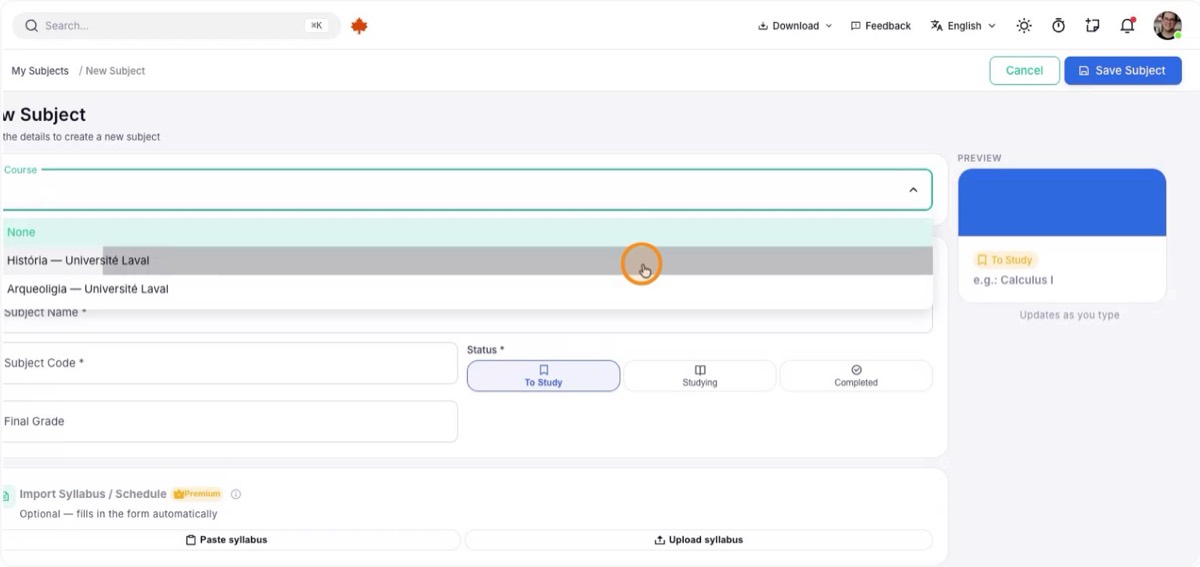
3. Select the course and name the subject
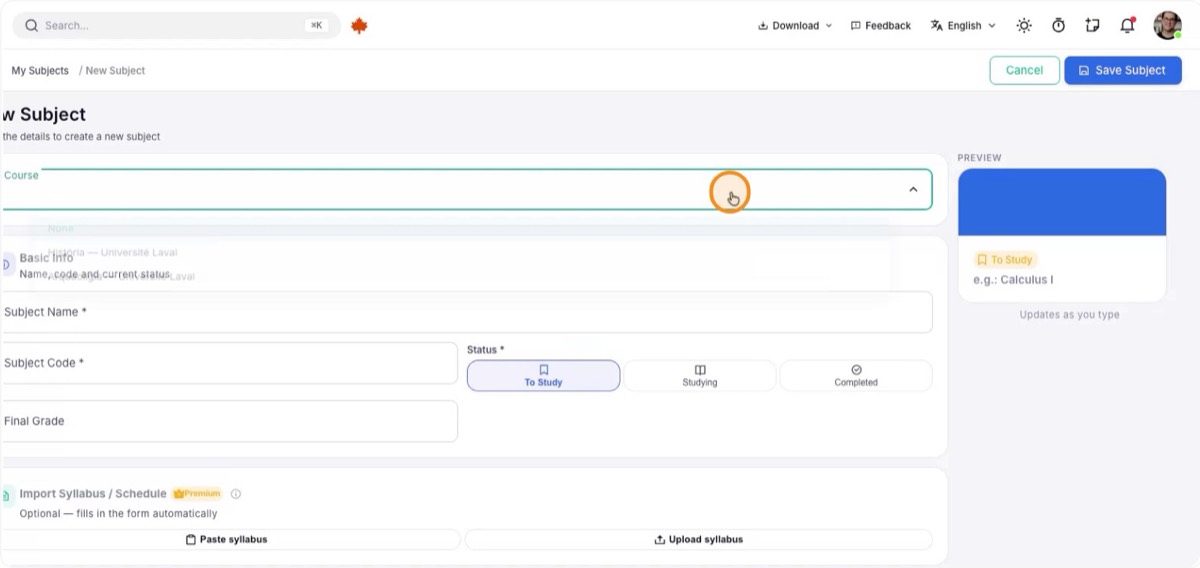
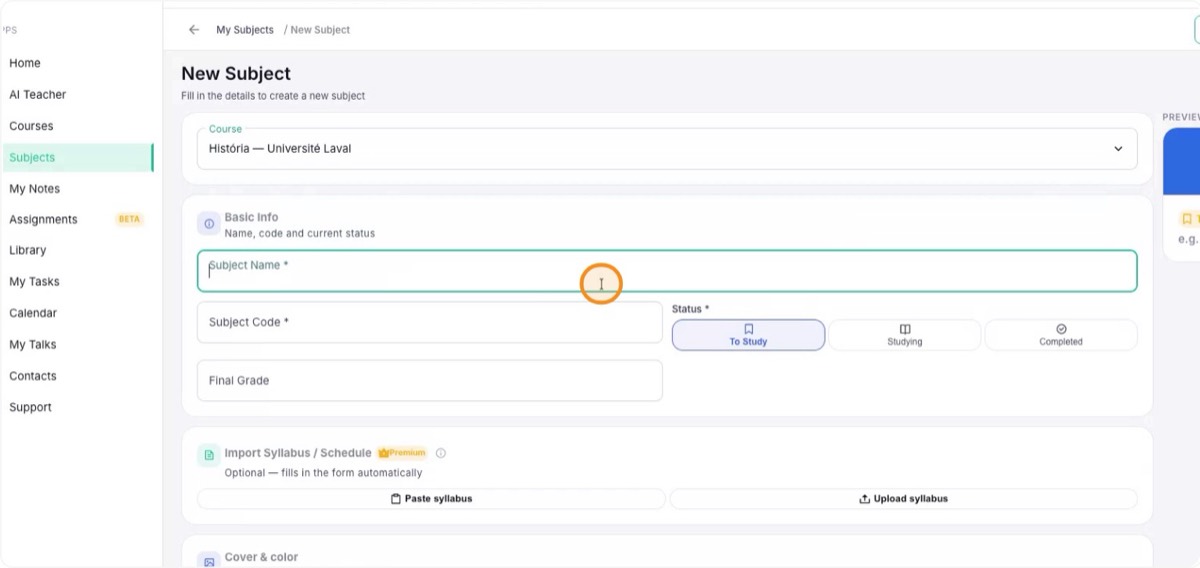
Choose the course the subject belongs to (for example, History) and type the subject name, such as "History of History".
4. Check the code and set the status
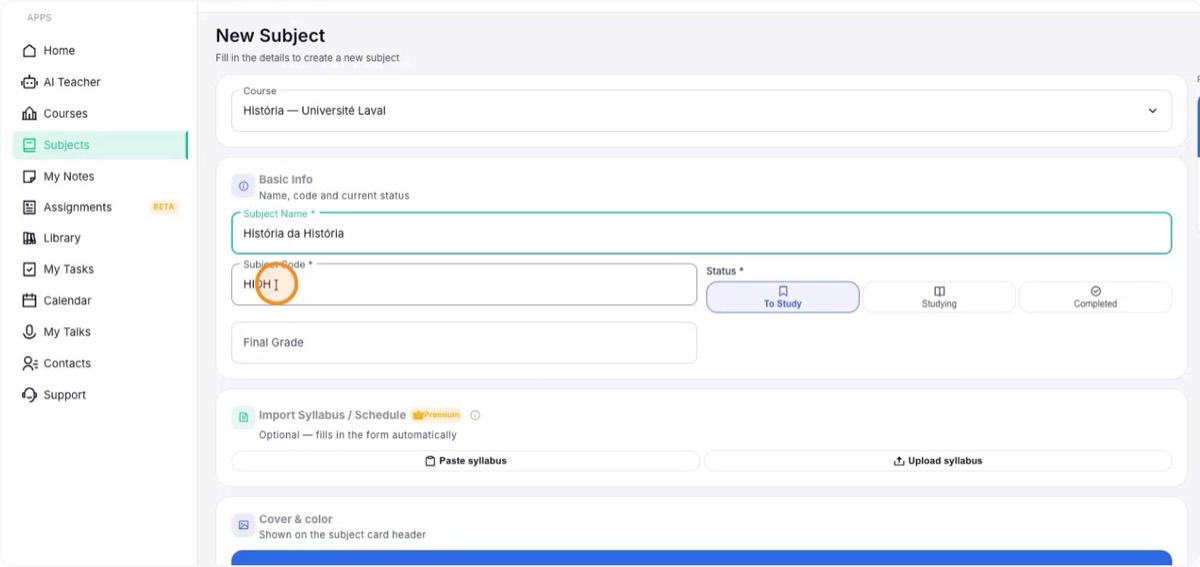
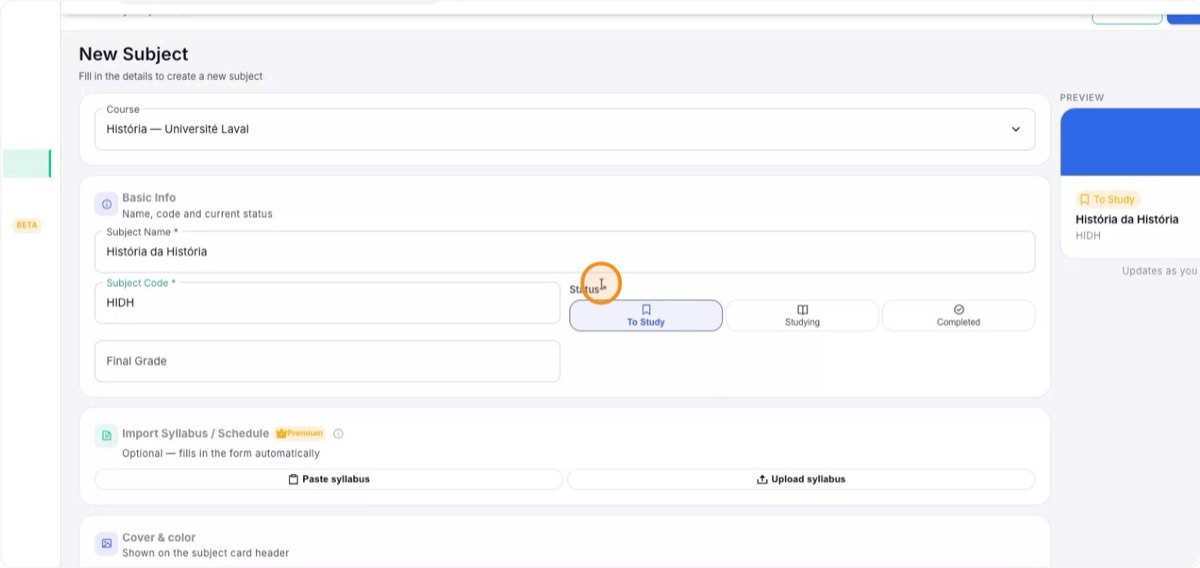
The Code field is filled in automatically, but you can change it if your institution assigns its own code to each subject.
Then pick the Status. It matters because, when you create new classes, Katav lists only subjects with the Studying status:
- To Study: creates the subject but does not yet let you add content to it.
- Studying: for subjects in progress this semester or period. This is where you work actively.
- Completed: the subject is finished; you can still read all of its content, but you can no longer edit it.

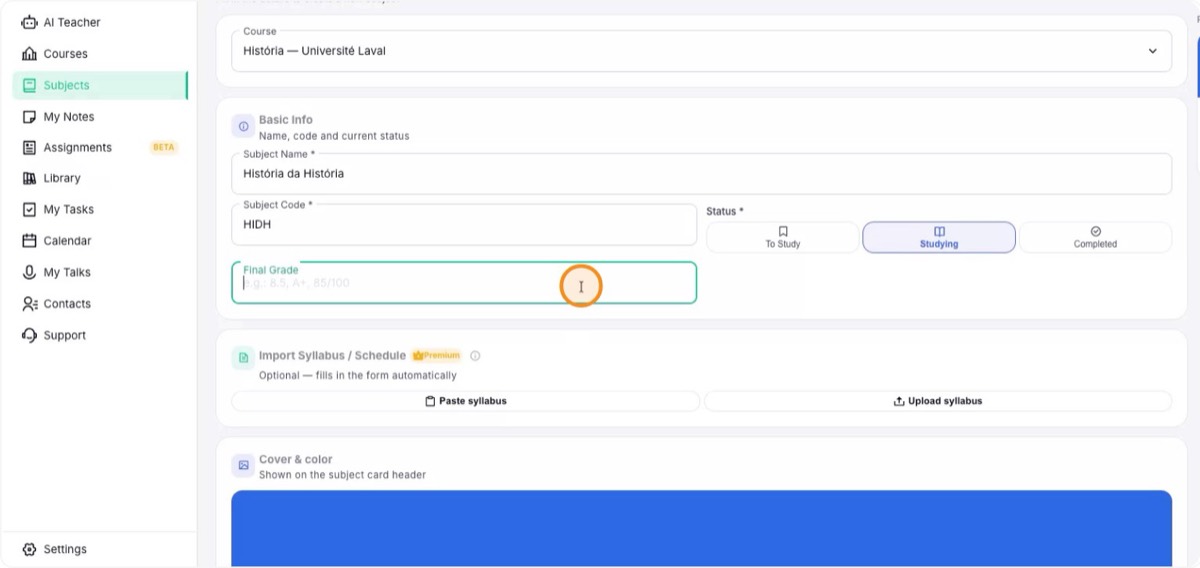
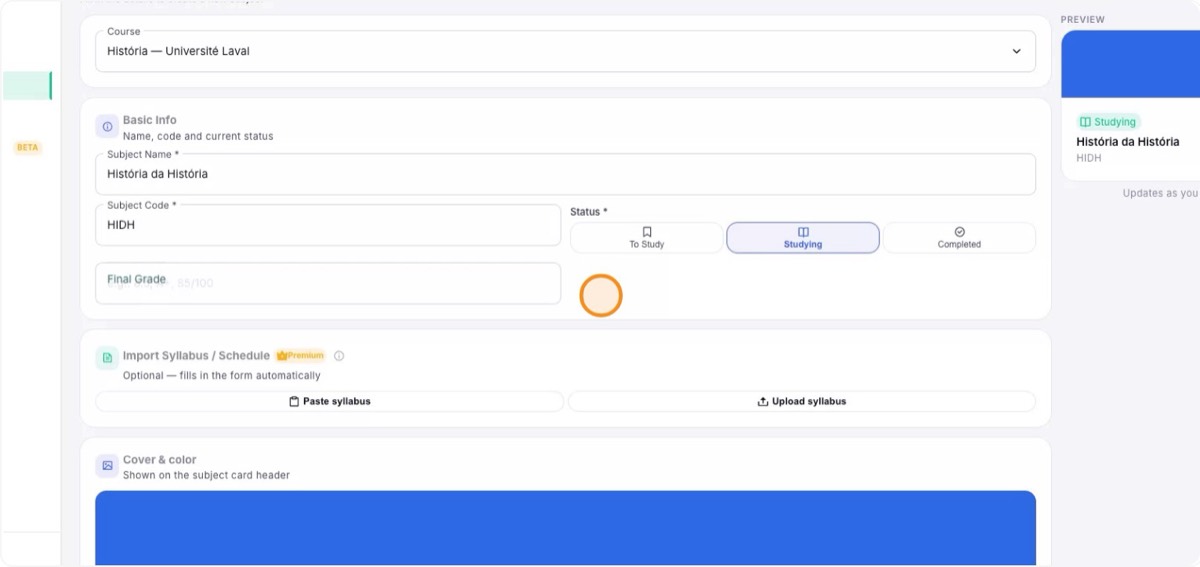
5. Record the final grade (optional)
You can enter the subject’s final grade, mainly after finishing it, to keep a record of your report card or academic résumé. It also feeds your performance overview.
6. Import the syllabus or schedule
Use the option to import the Syllabus or Schedule. Some professors provide a plan with the topics of each class. You can paste the text you received (by email or a virtual learning environment) or upload the PDF.
This helps Katav understand the content and planning of the subject, enriching the context of AI answers and the organization of your classes.
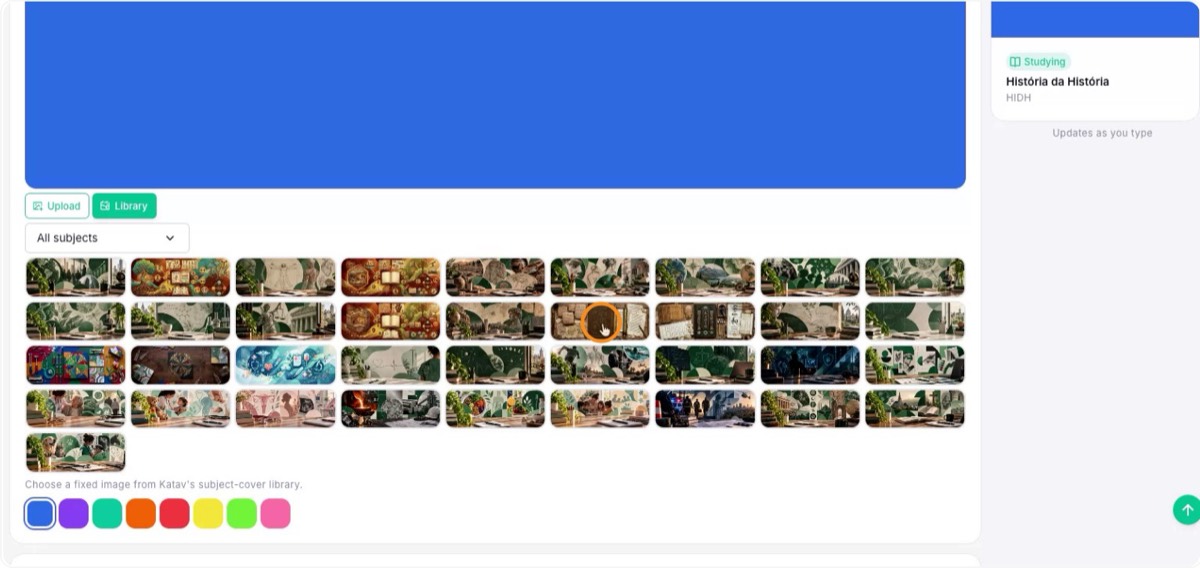
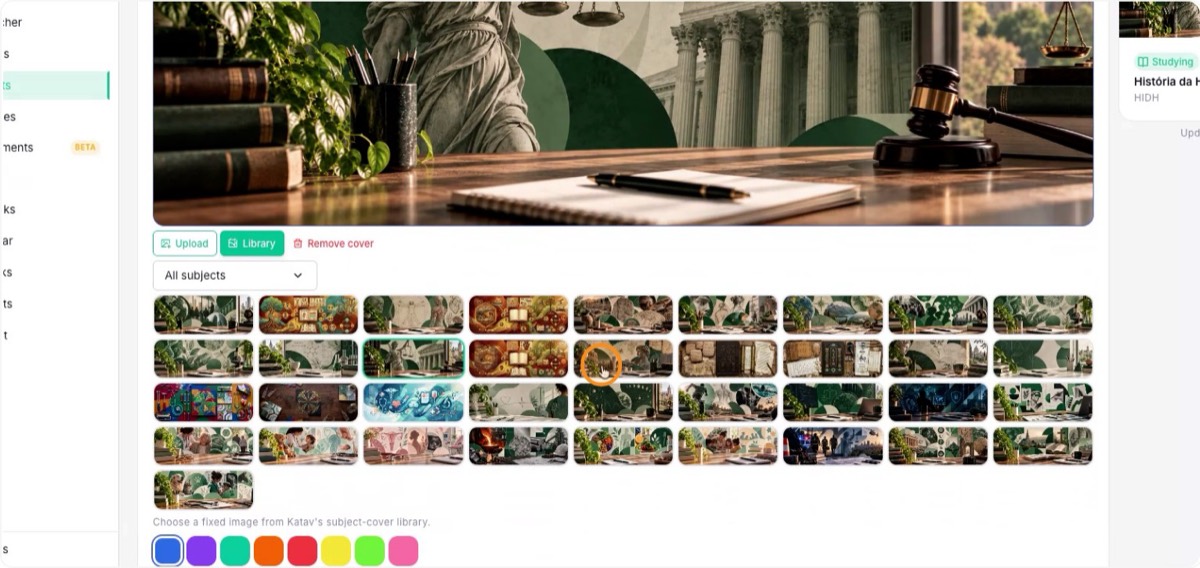
7. Customize the color and cover
Pick a color for quick visual identification, or a cover that shows as the subject’s main image. Choose a picture that fits the topic, such as a History one, and confirm it.


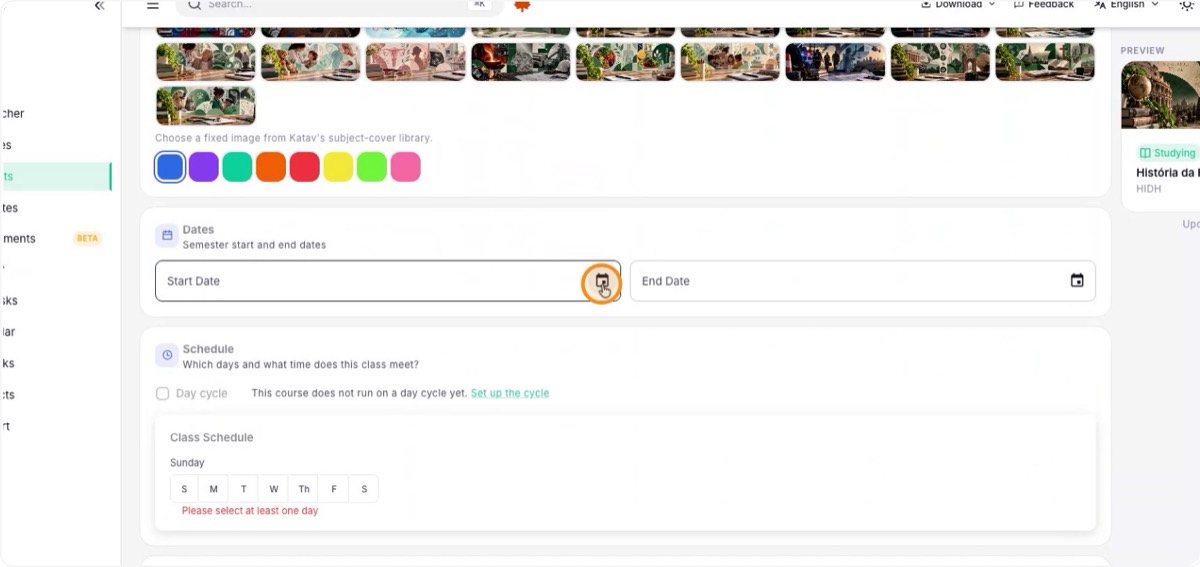
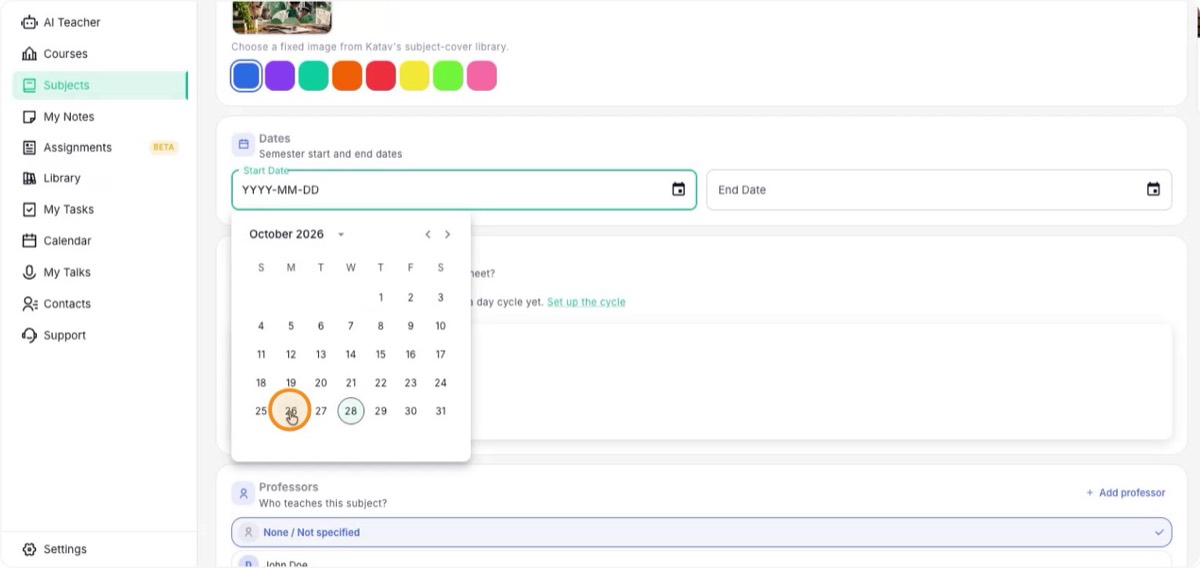
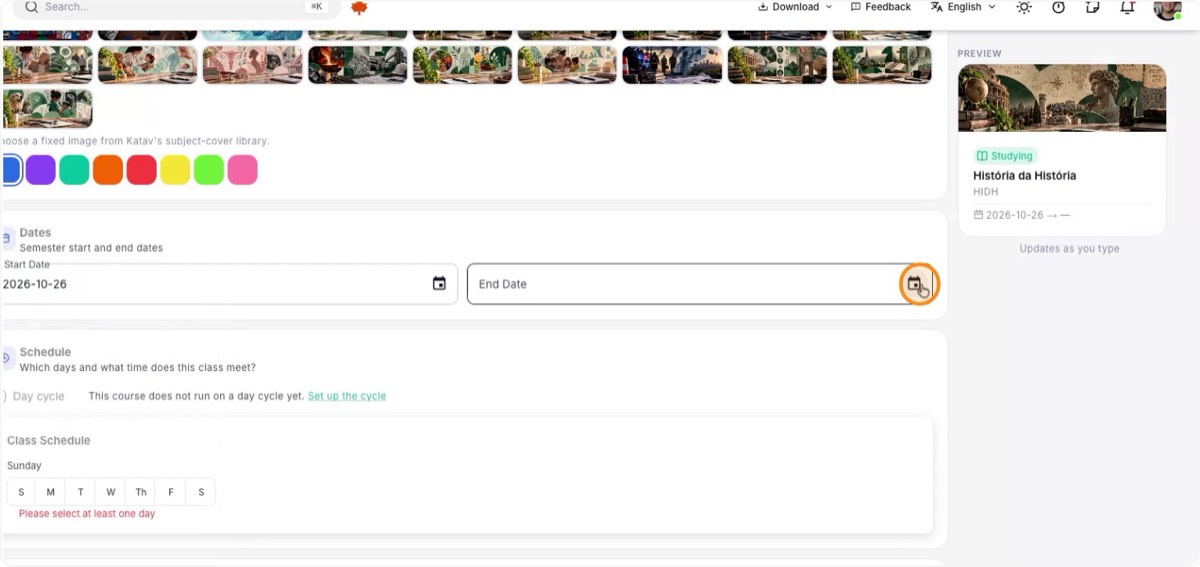
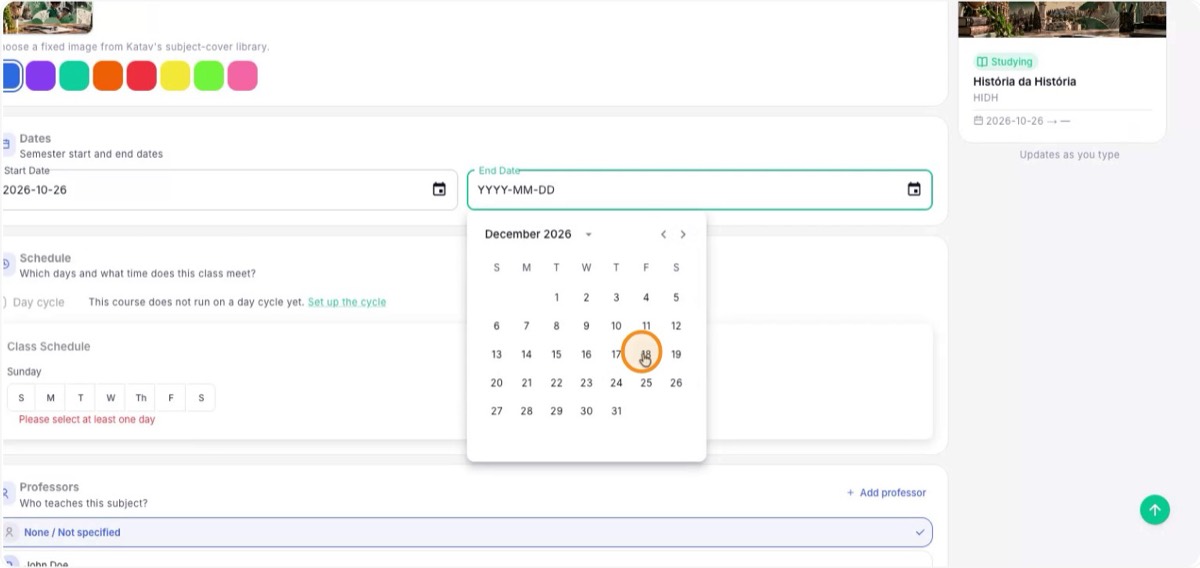
8. Set the subject period
Enter the start date (for example, October 26) and the end date (December 18). These dates are used to calculate the subject’s progress over time and to trigger progress notifications.
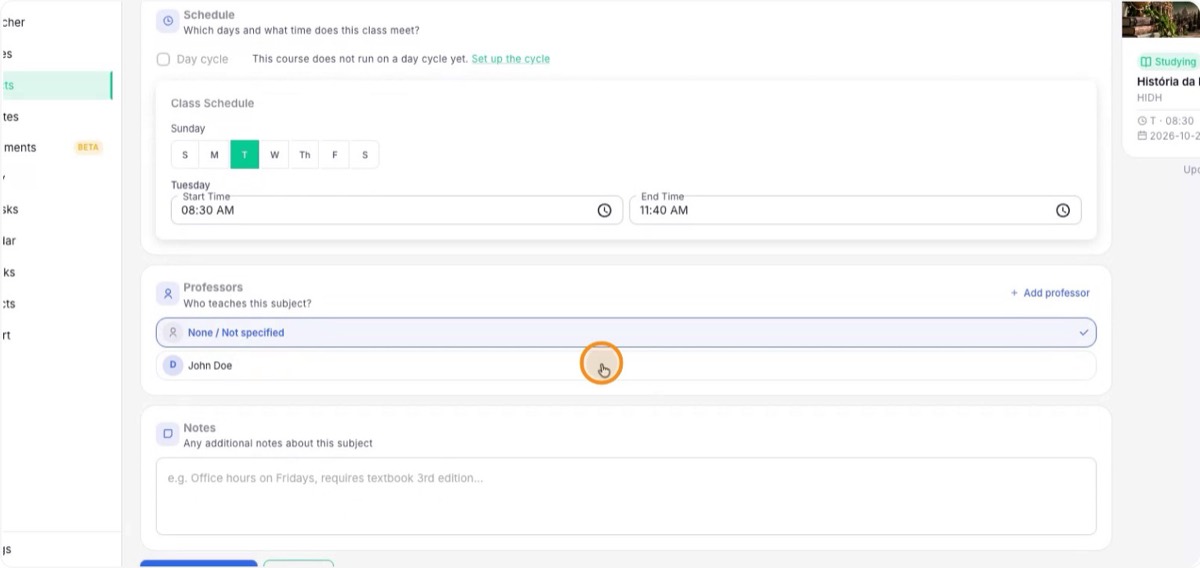
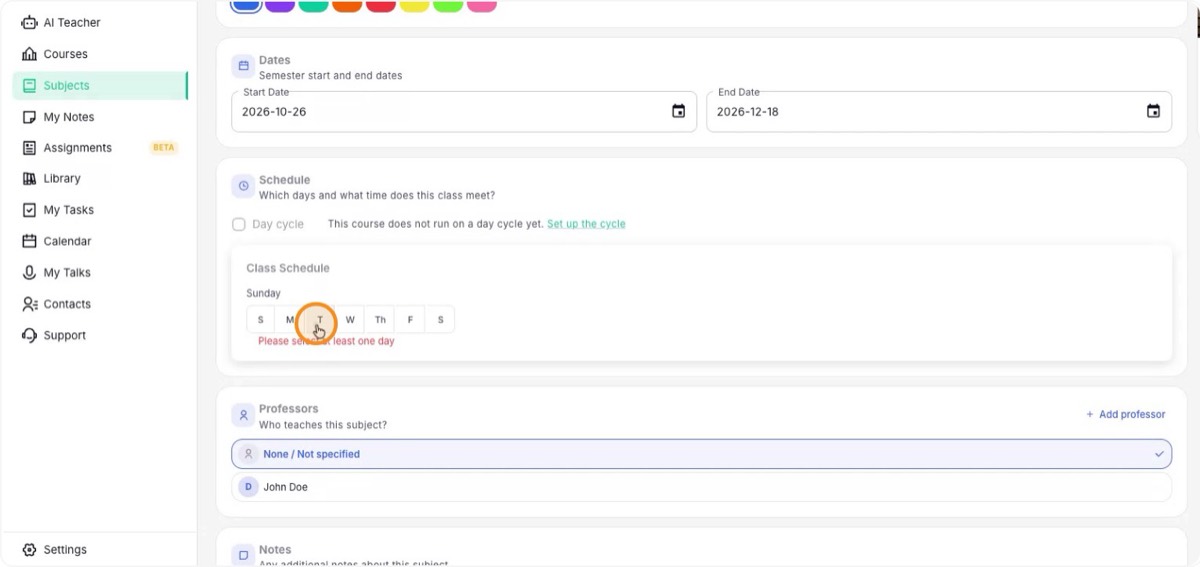
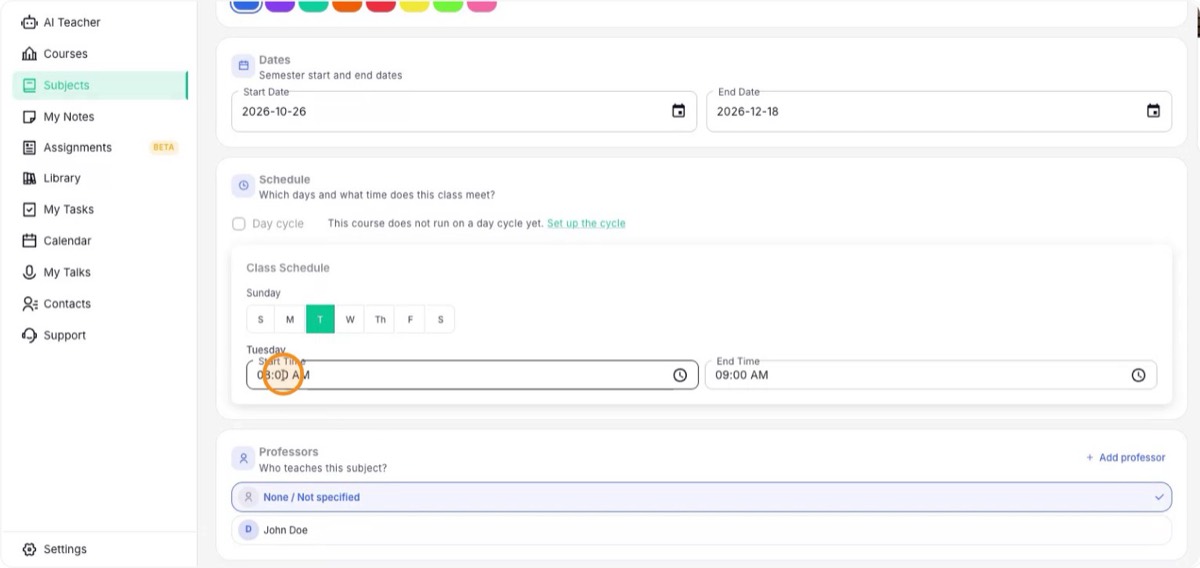
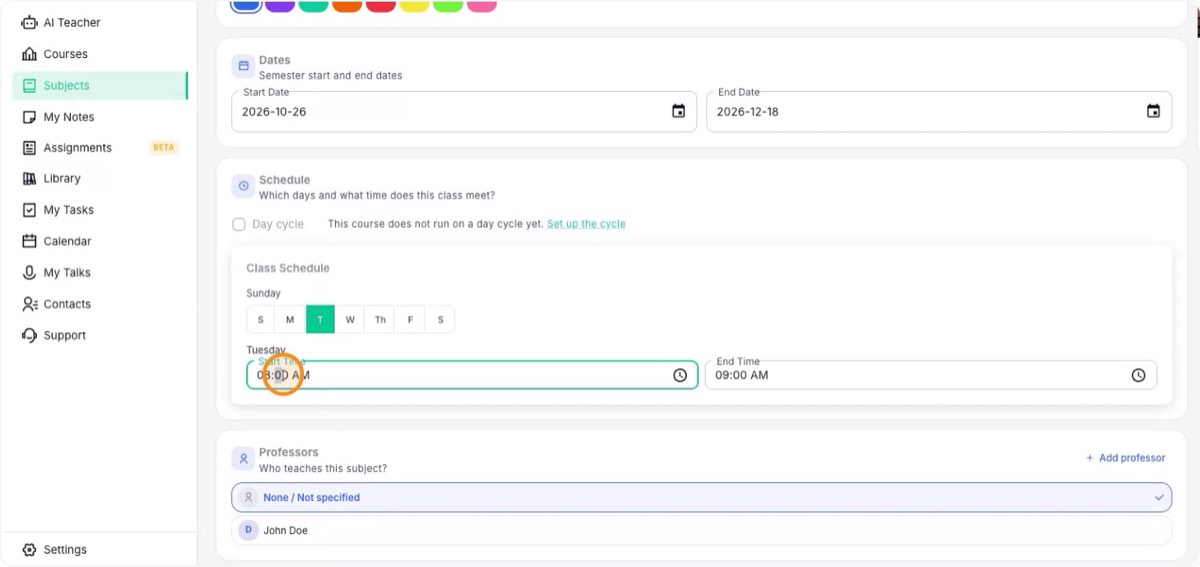
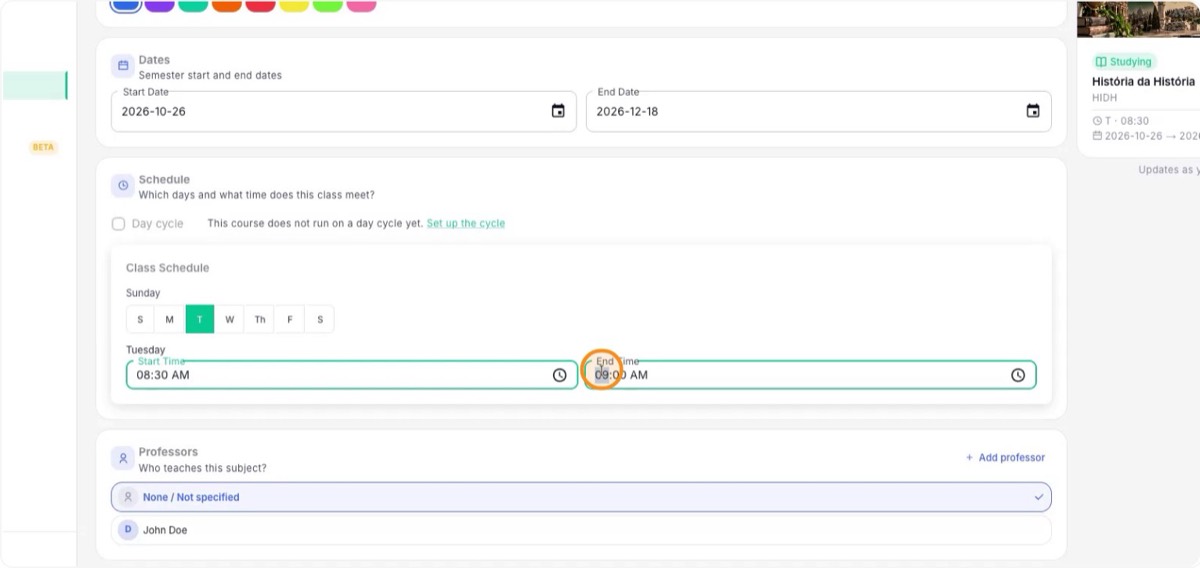
9. Set the weekday and time
Choose the weekday the subject takes place, such as Tuesday, and the time, for example from 8:30 AM to 11:40 AM.
This matters because Katav sends a notification when the class ends, reminding you to add notes, files and tasks.
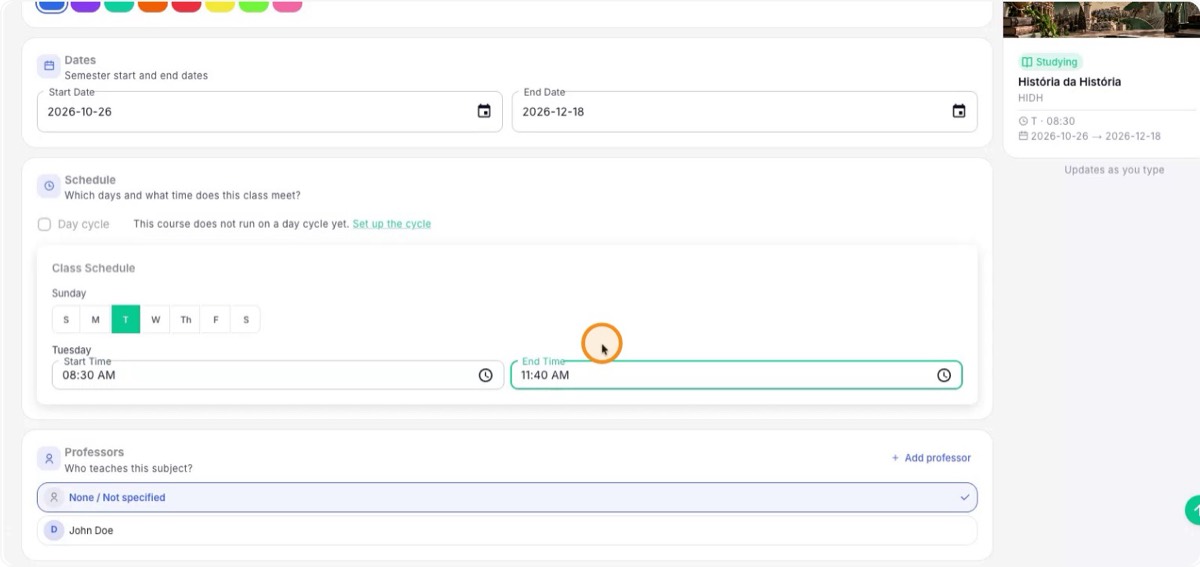
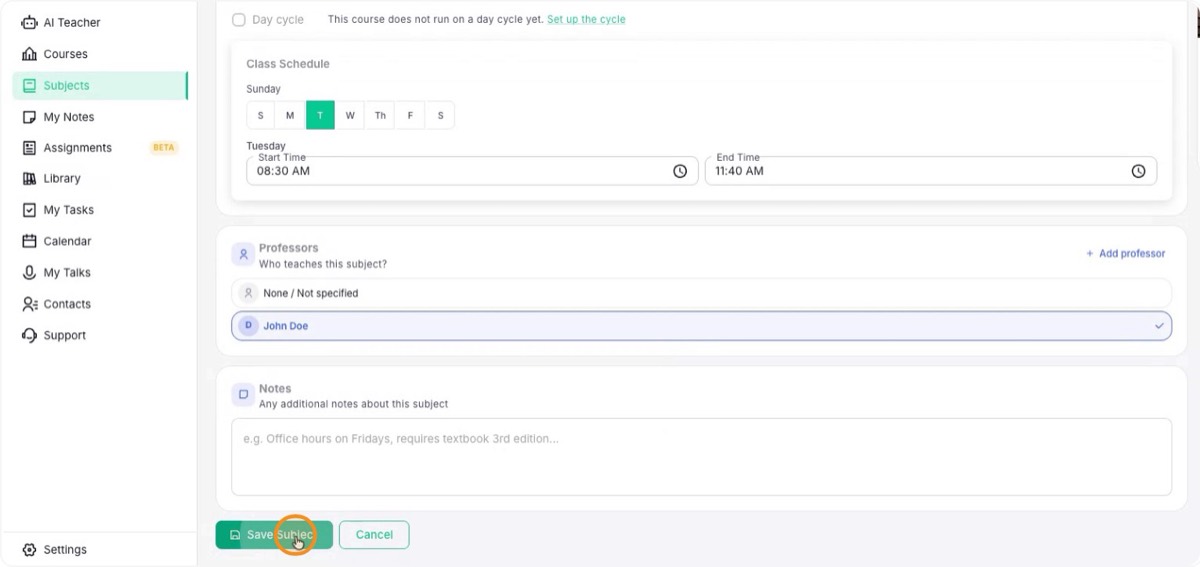
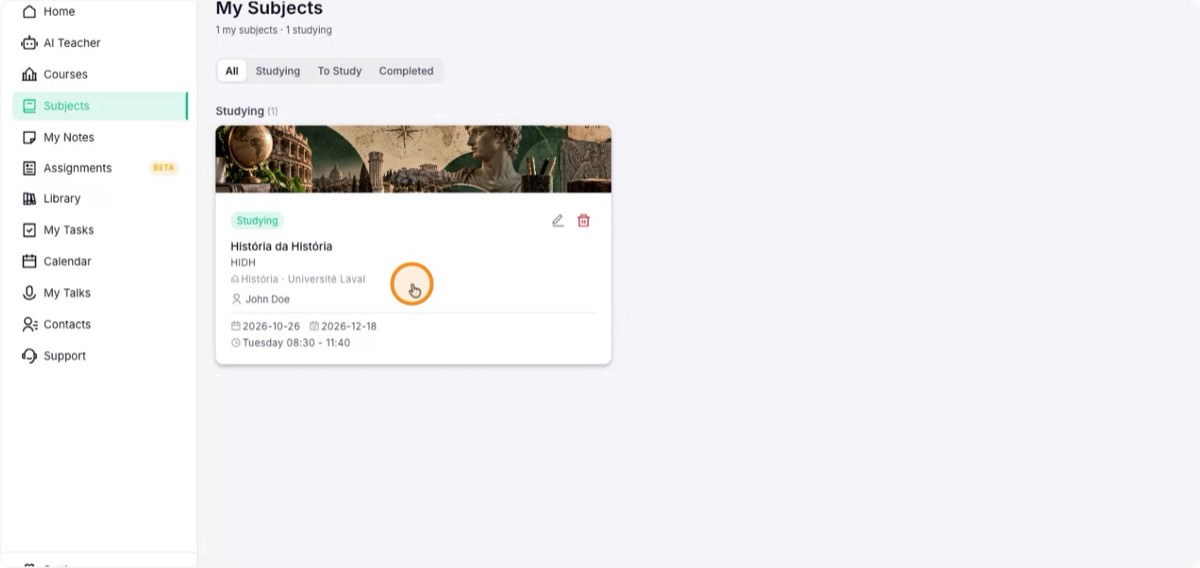
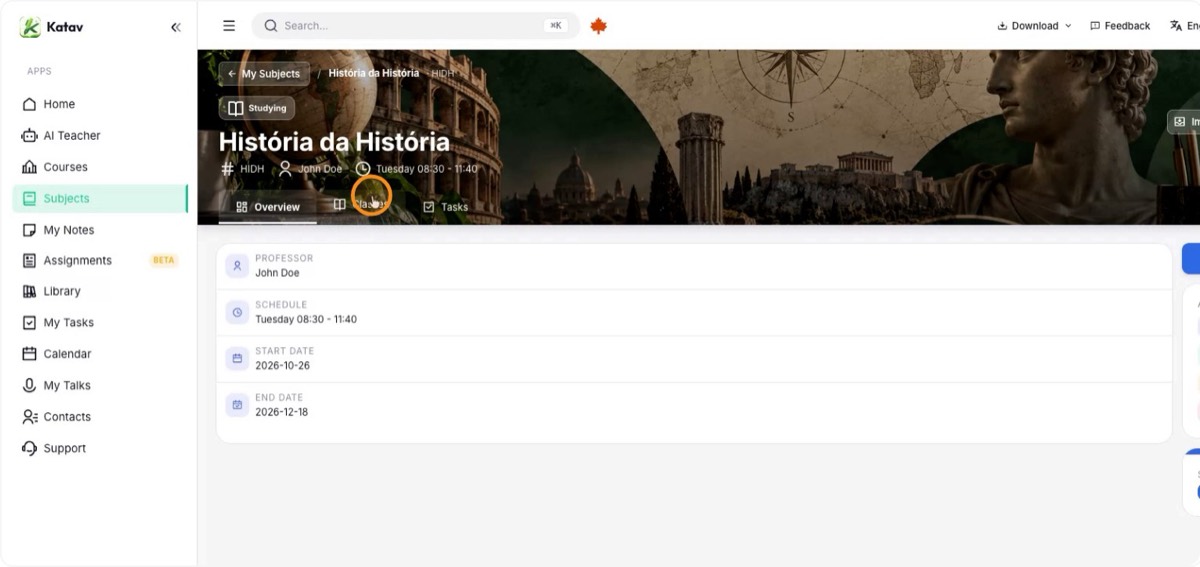
10. Choose the professor and save
Select the professor in charge from the list and click Save. Since subjects work like notebooks, you will see the list of subjects; open the new one to enter it. From there, or from the list, you can create new classes.