How to create a course in Katav
The first step to organizing your studies: learn how to add a course in Katav with its name, institution, degree, department, color and dates.
William
In Katav everything starts with a course (or program of study): it groups your subjects, classes and notes. In this tutorial you will create a new course, from its name to saving it, in a few minutes.
▶ Watch the video tutorial on YouTube
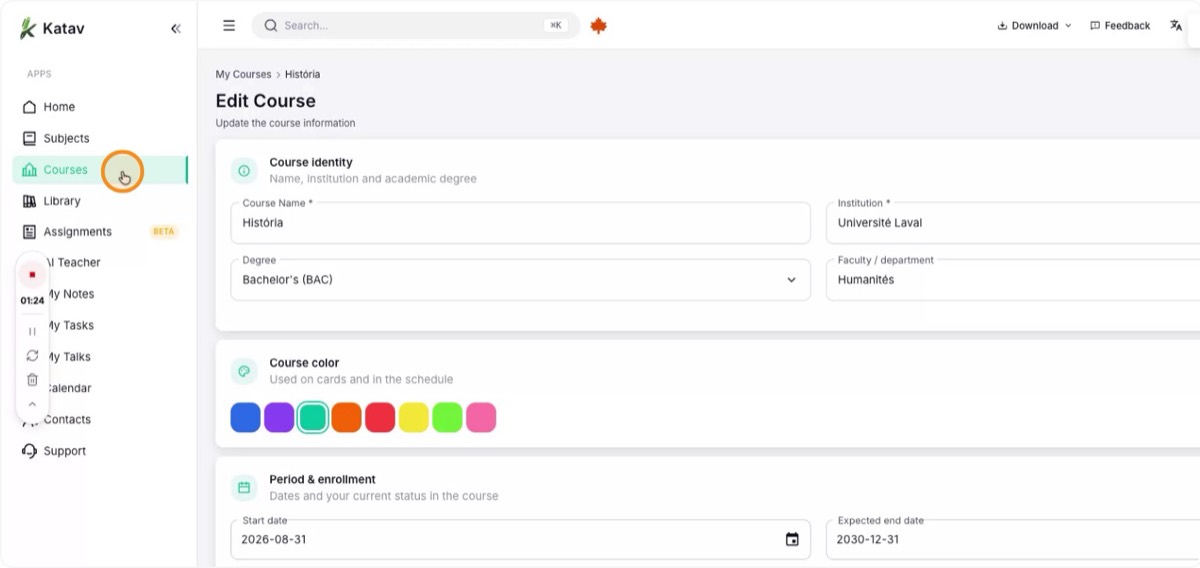
1. Open the courses area
Open Katav and go to the Courses section in the side menu. You will see the courses you already have, and this is where you create a new one.

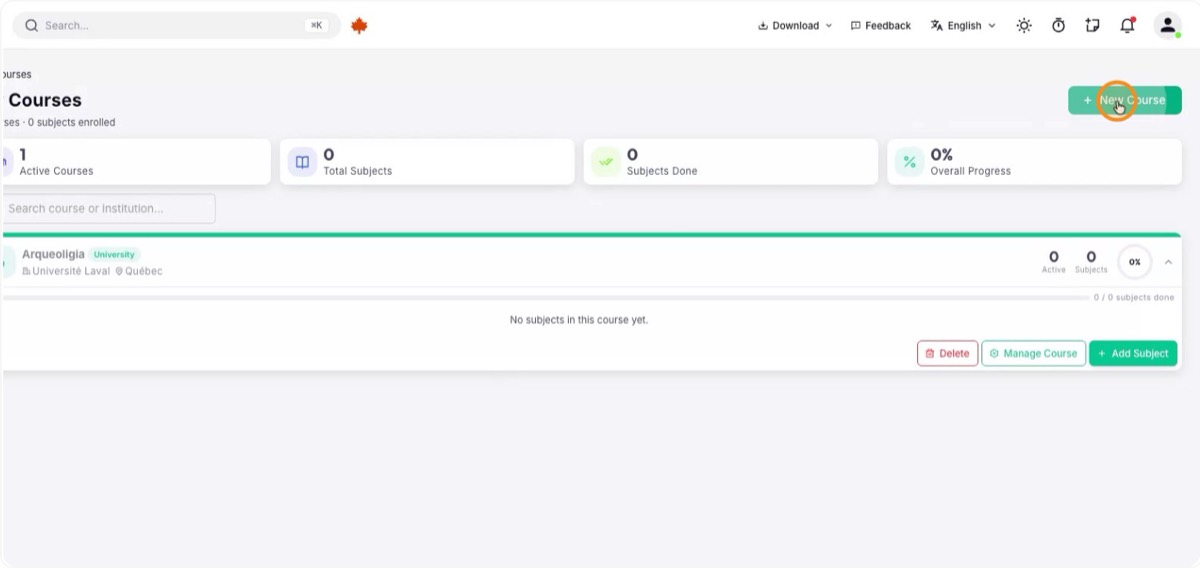
2. Start a new course
On the courses screen, click "New course" to add a course or program of study.
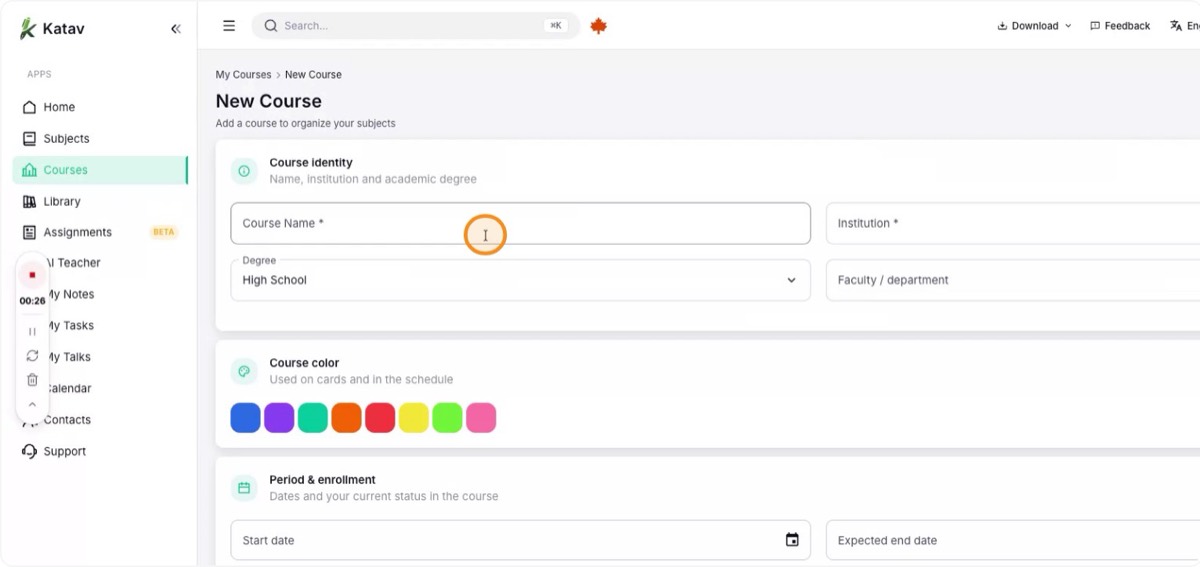
3. Name the course
Type the name of the course or program in the field, for example "History". Pick a title that clearly describes its content.
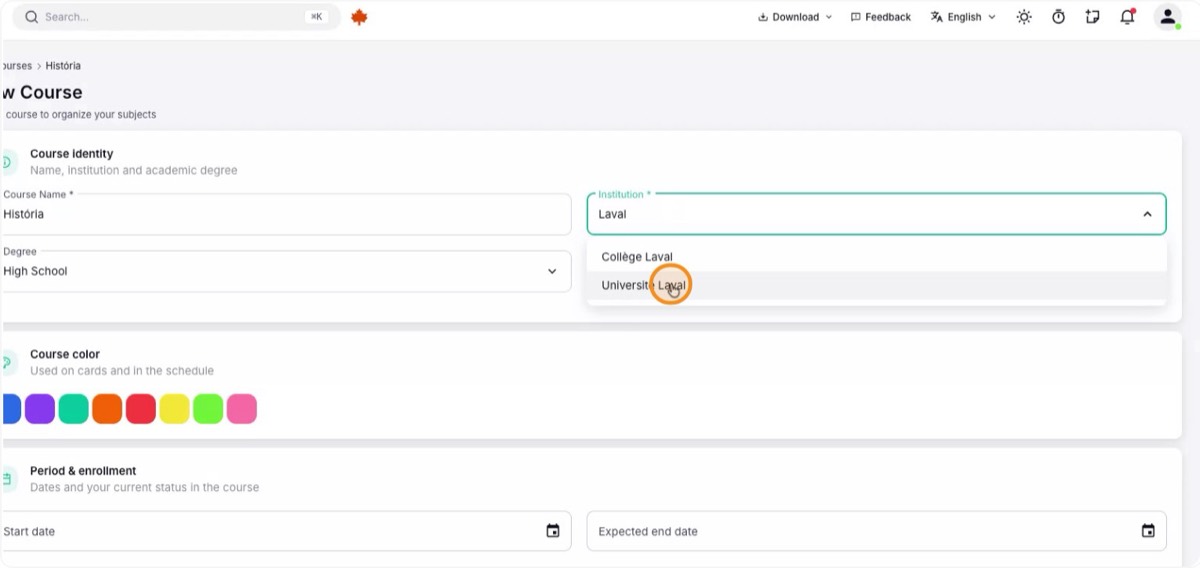
4. Select the institution
In the institution field, choose the school or university that offers the course, such as Université Laval.
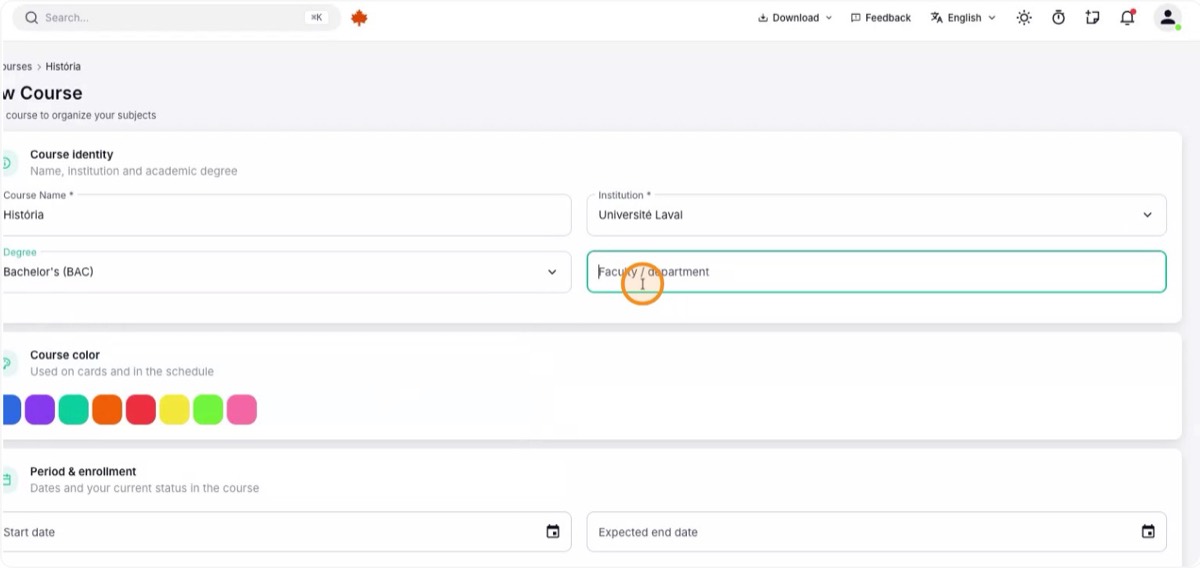
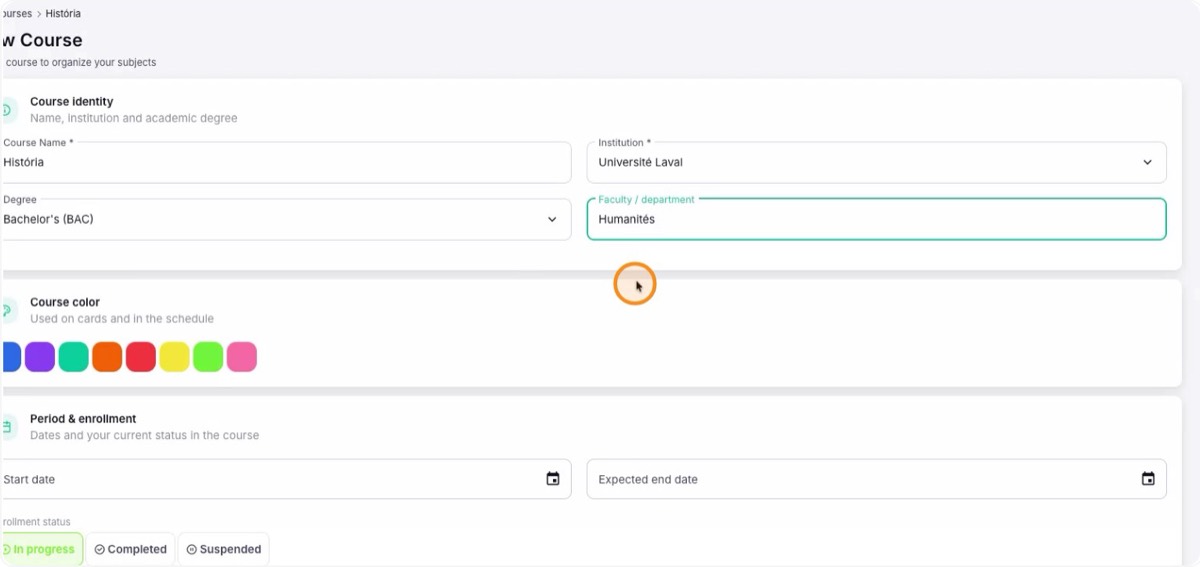
5. Choose the degree and the department
Select the academic degree (for example, Bachelor) and then the faculty or department that matches the course.

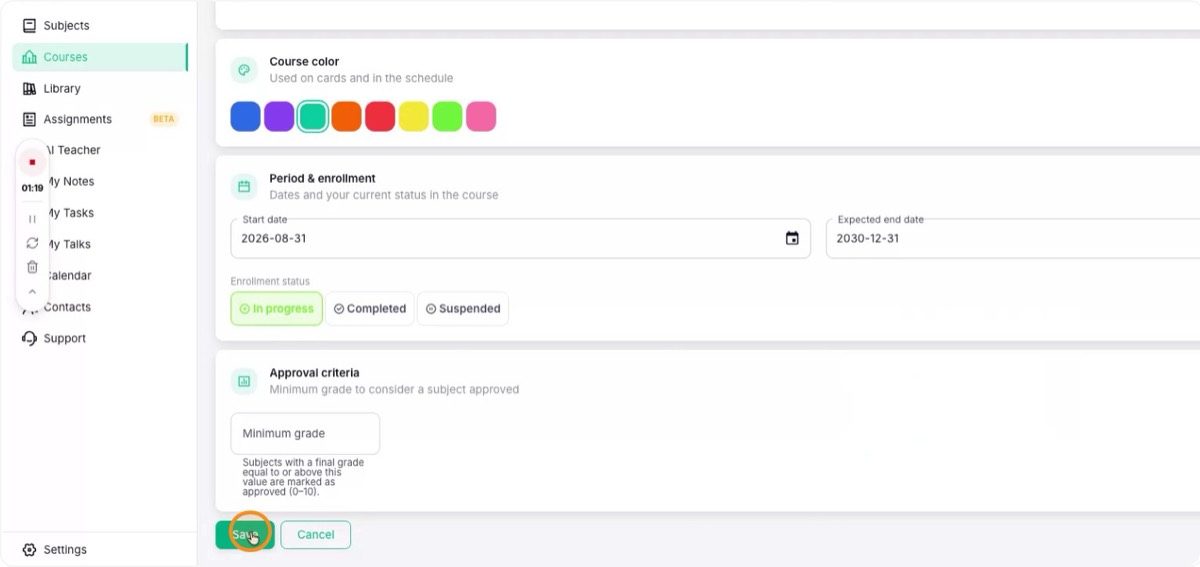
6. Pick a color
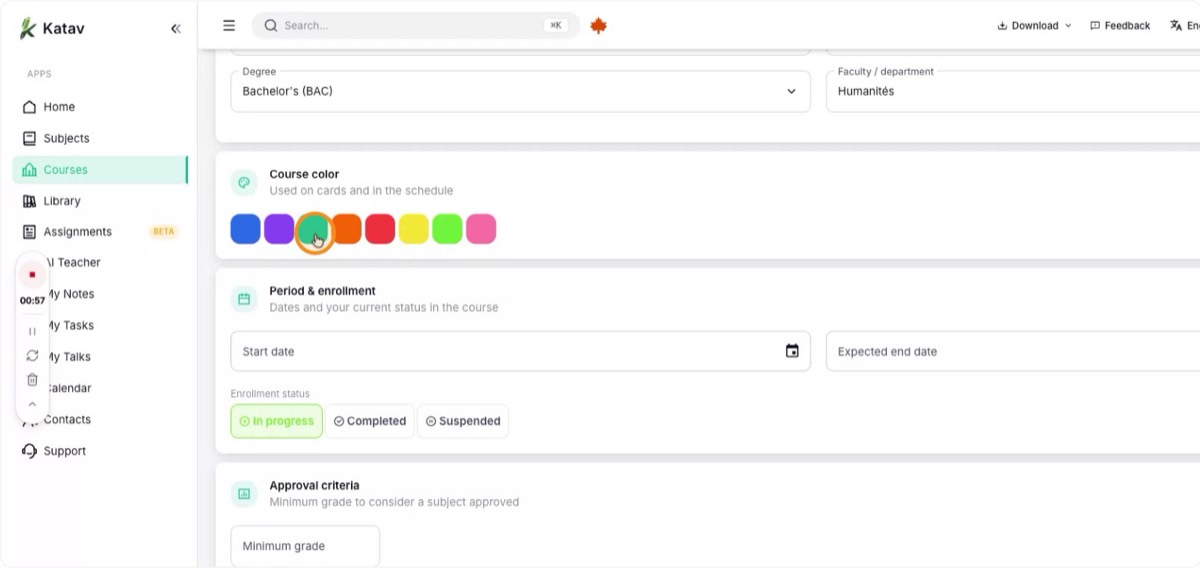
Optionally, choose a color. It identifies the course on cards and in the schedule, making Katav easier to scan.
7. Set the course period
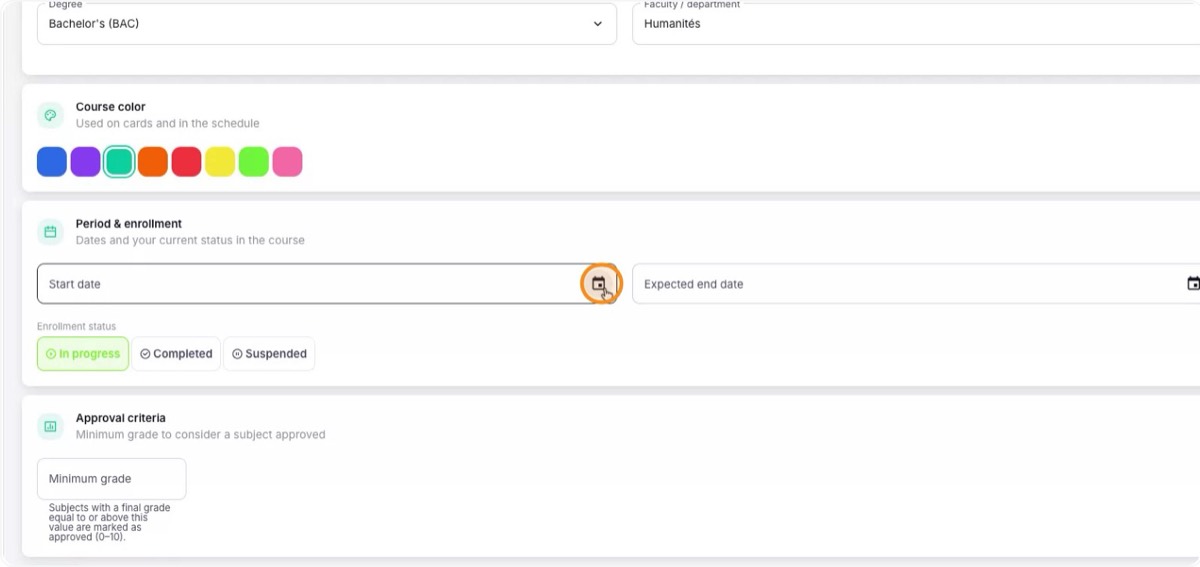
Enter the start date and the expected end date. For example, starting on August 30 and ending sometime in 2030, depending on your plan.

8. Choose the status and save
Pick the status of the course, such as "In progress", and click Save to keep all your settings.
9. Check the new course
After saving, find the new course in the list. You can open it to see its details and keep configuring it.