How to record a class and complete your notes with transcription in Katav
Record the class while you take notes, bookmark the important moments, transcribe the audio and let AI fill the gaps in your notes.
William
In this tutorial you will record a class while taking notes, bookmark the important moments and, after class, transcribe the audio and use Katav AI to complete and correct your notes.
▶ Watch the video tutorial on YouTube
1. Open the class and the recordings sidebar
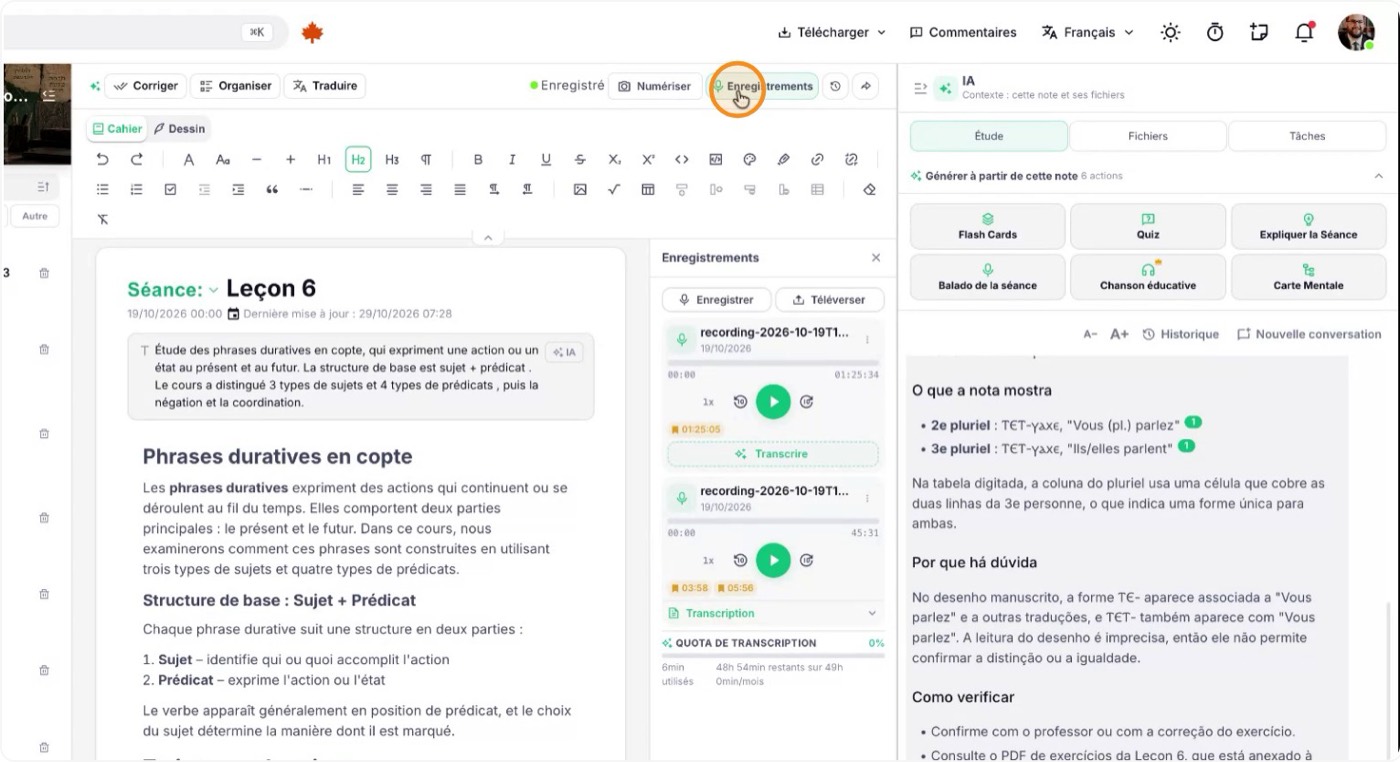
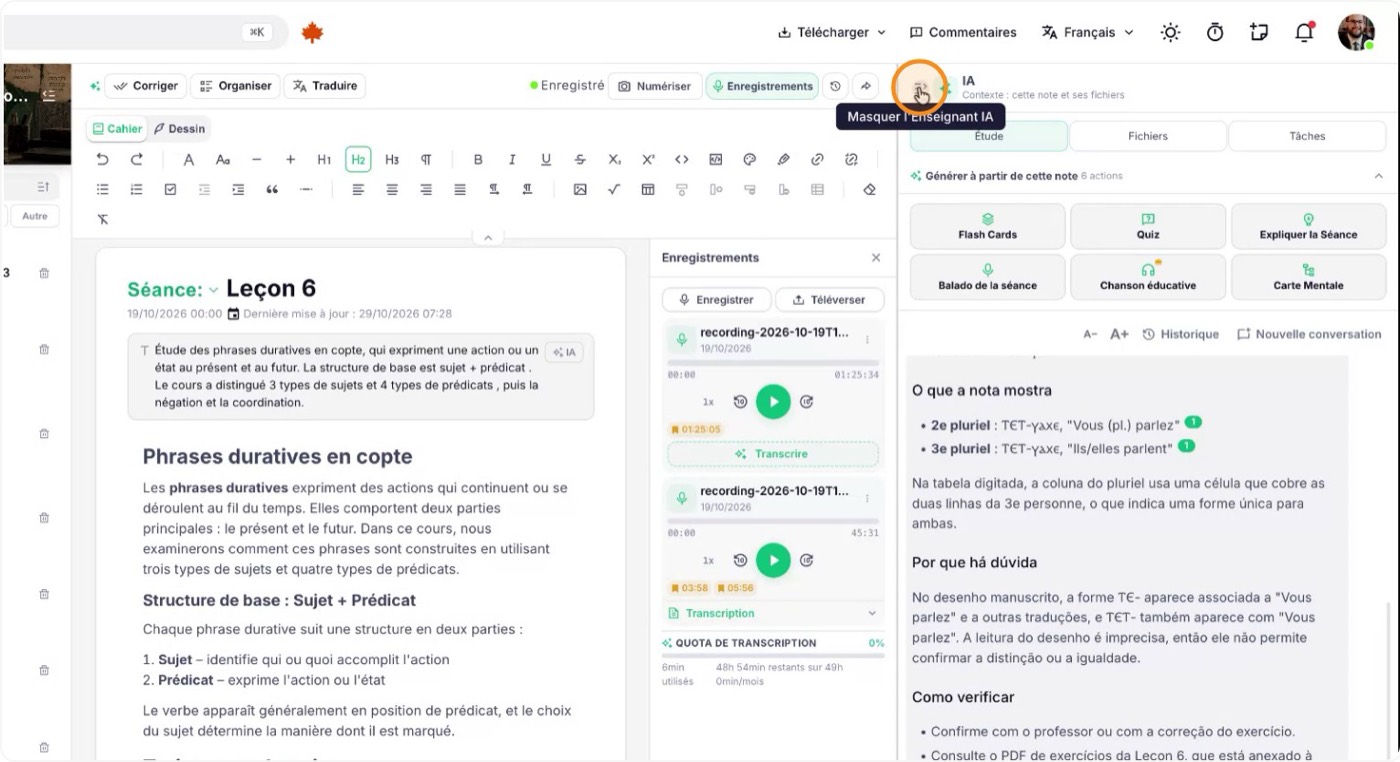
Create or open the class where you want to take notes. While your teacher is speaking and you are typing, open the recording tools so you do not miss anything.
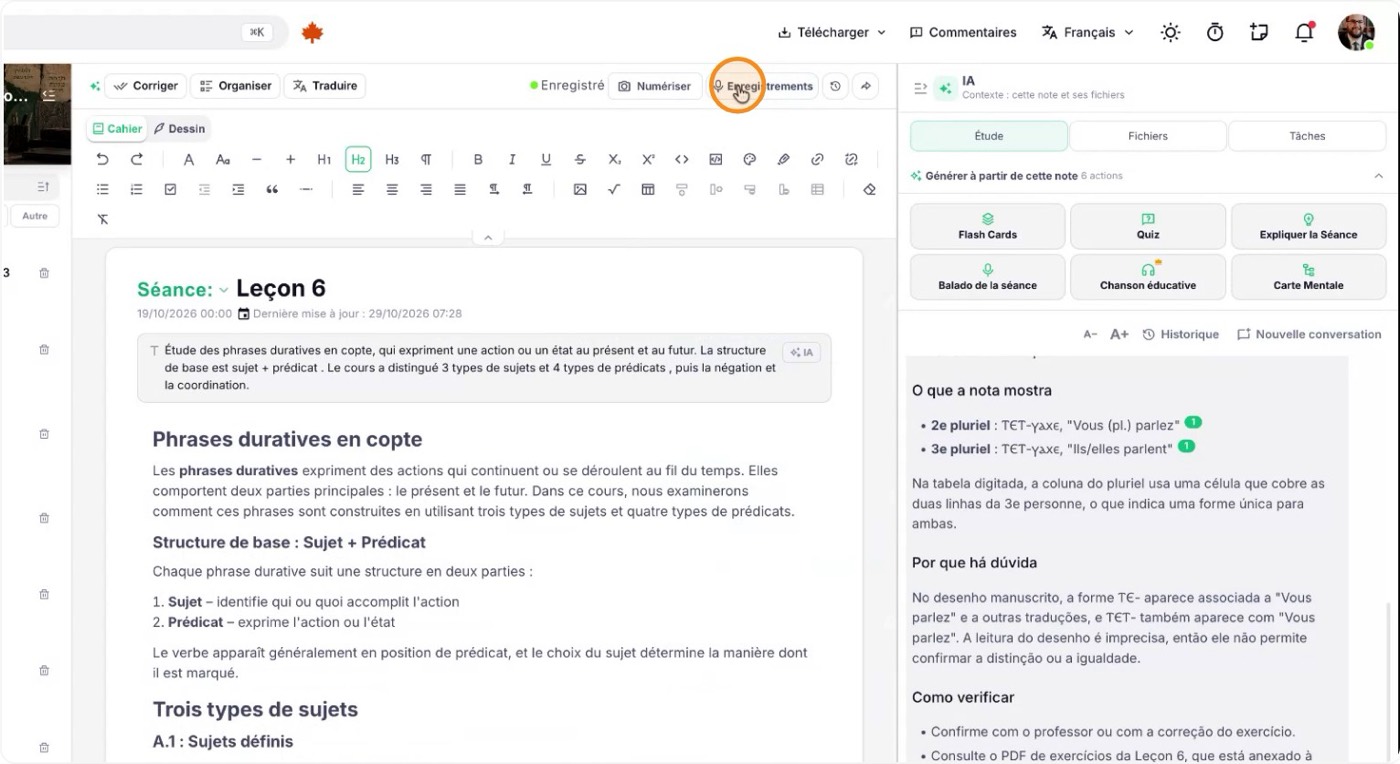
Click "Recordings" to open the recordings sidebar.
2. Prepare your workspace and start recording
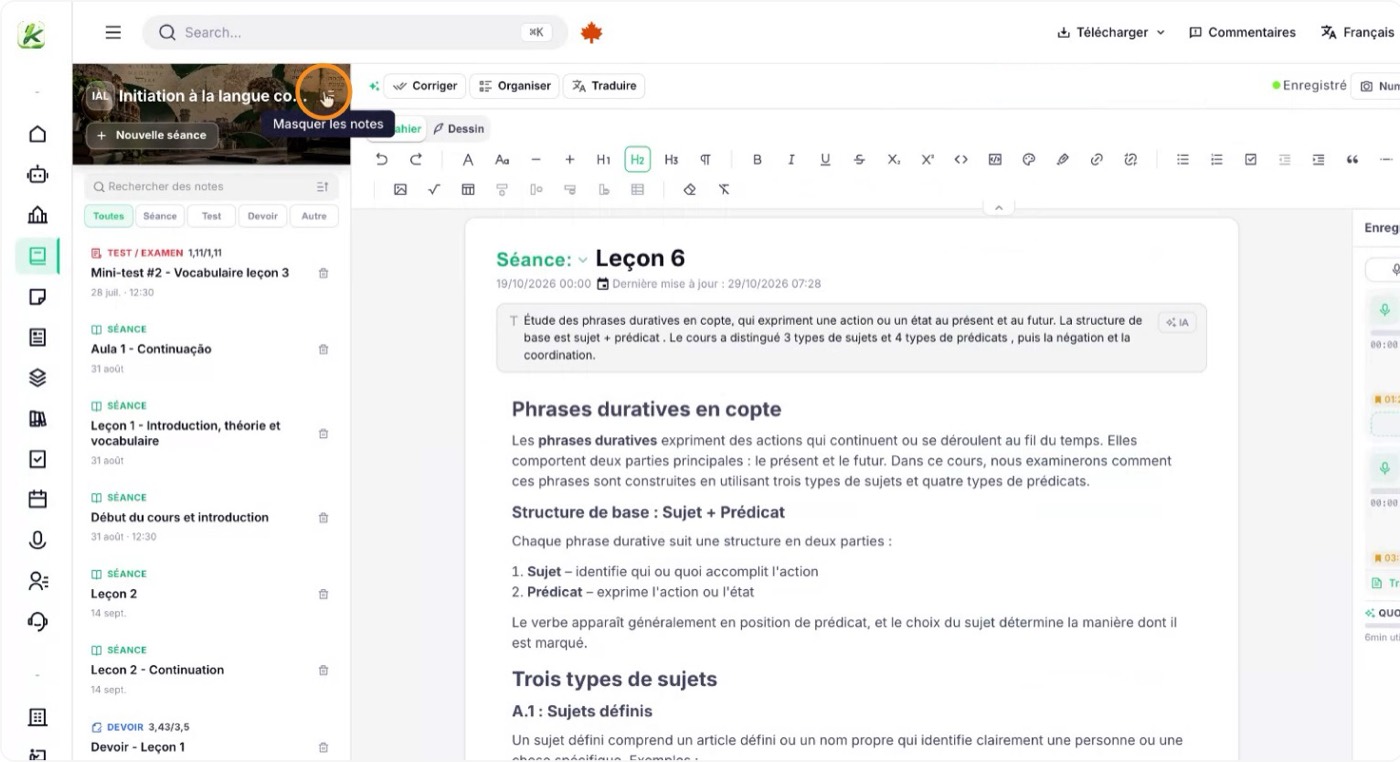
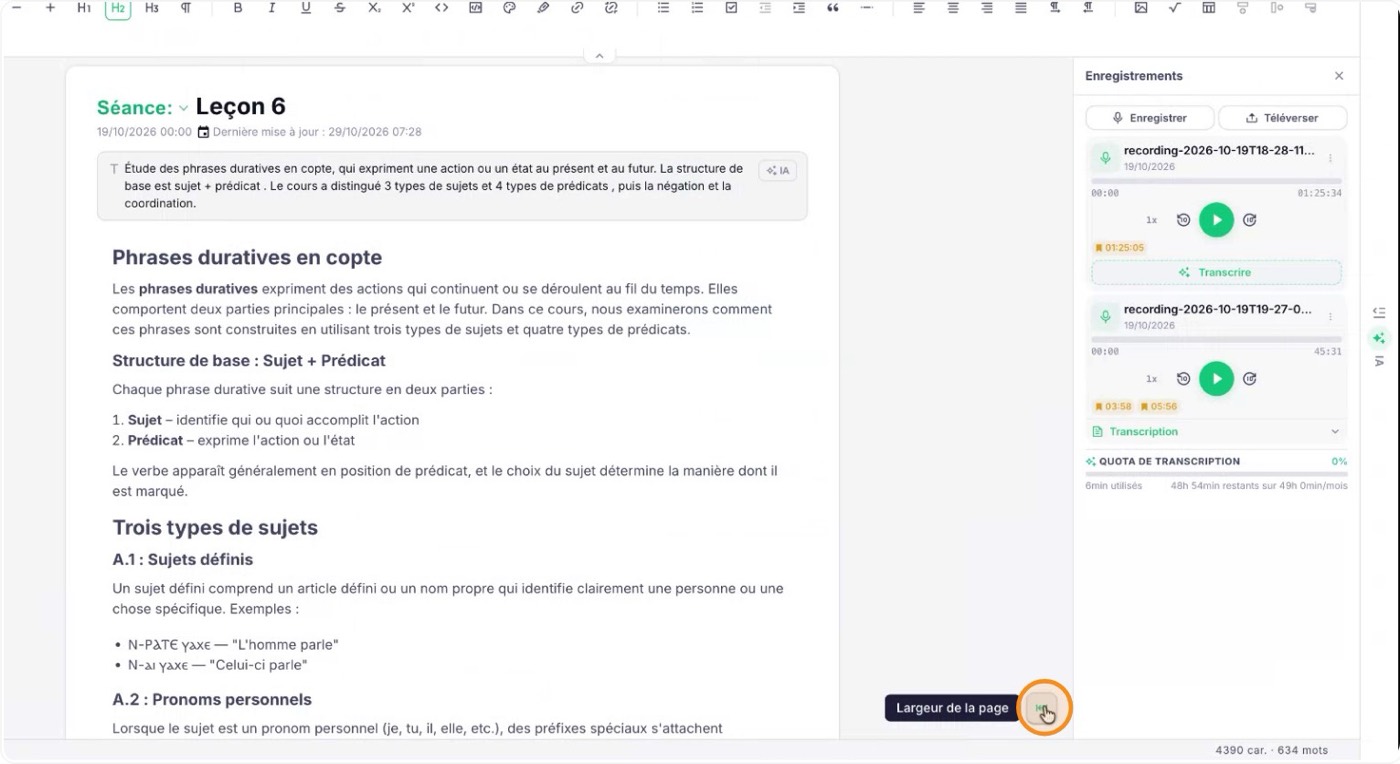
To get more room, close any windows or panels you do not need. Adjust the lesson content area so you can see your notes and the recordings sidebar together.
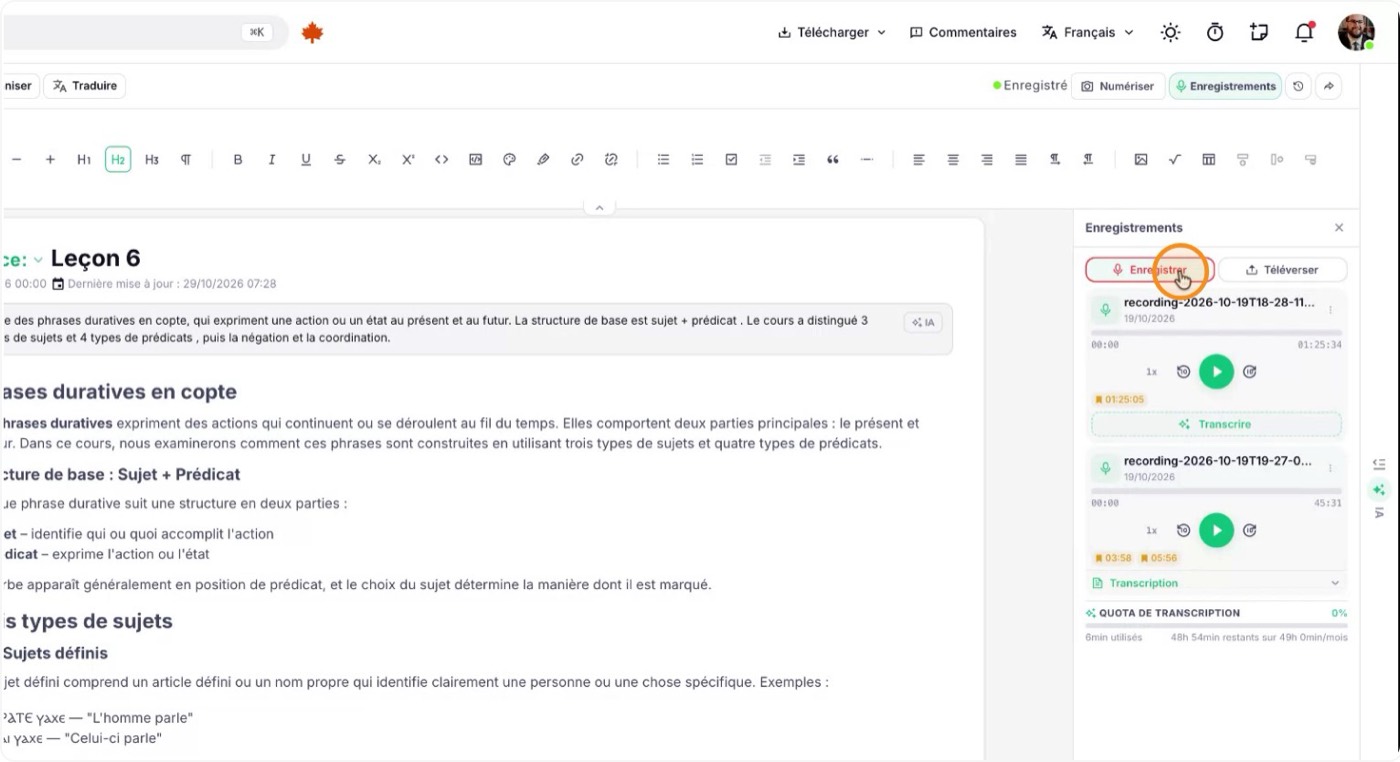
When you are ready, click "Record" to start recording the class audio.
You can change pages or navigate elsewhere in Katav while recording: it keeps going in the background, and an indicator shows that the class is being recorded.
3. Add bookmarks during the recording
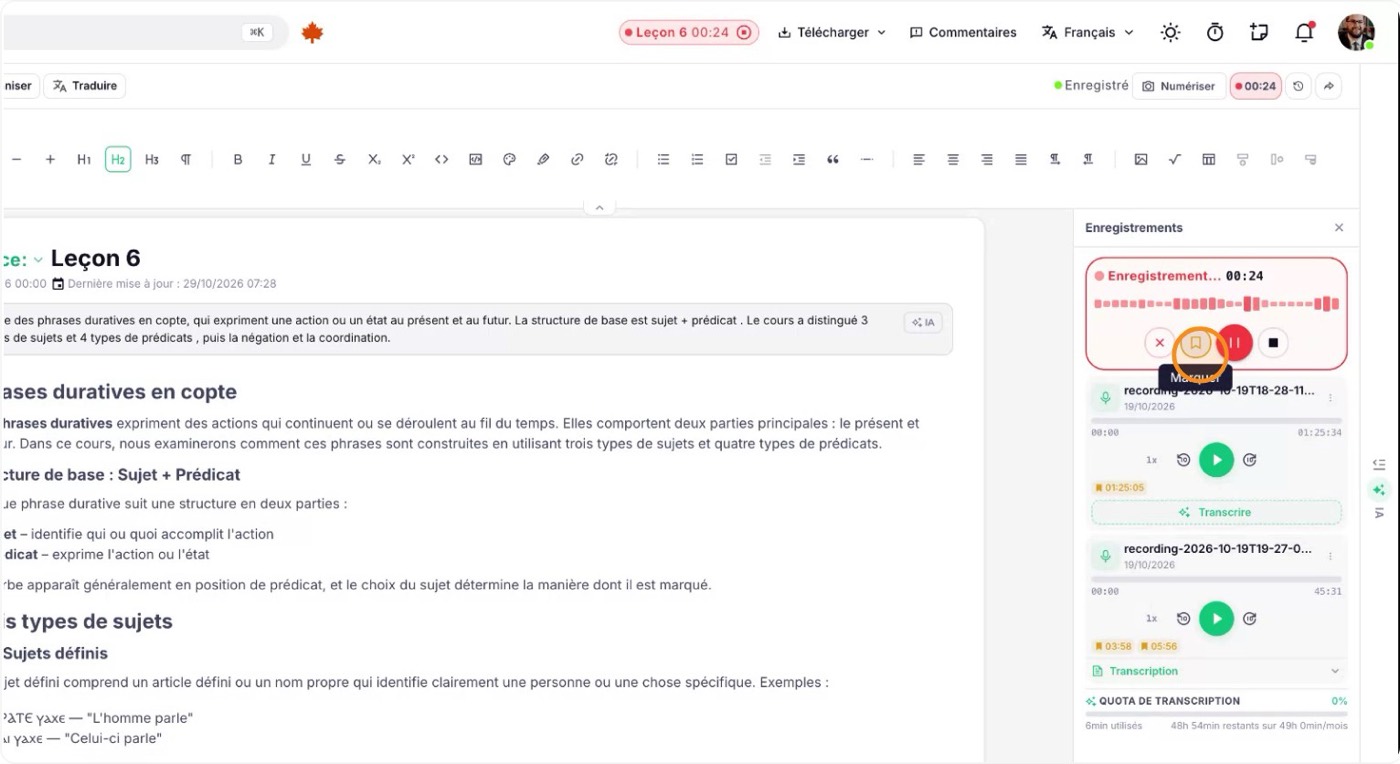
When the teacher explains something important that you want to revisit easily, click "Bookmark" in the recording panel to mark that moment.
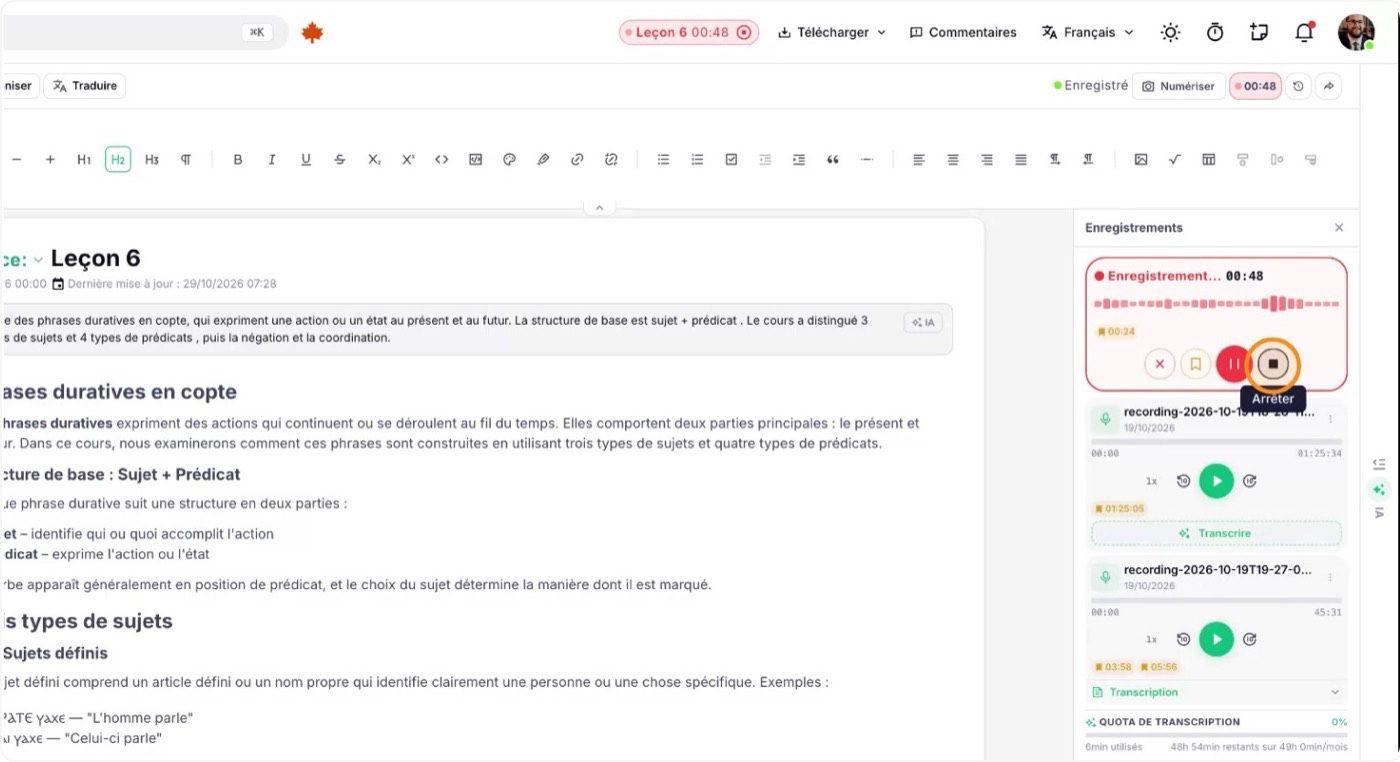
Later you can click a bookmark and hear exactly what was said at that point. When you are done, stop the recording so you can work with it.
4. Manage and select recordings
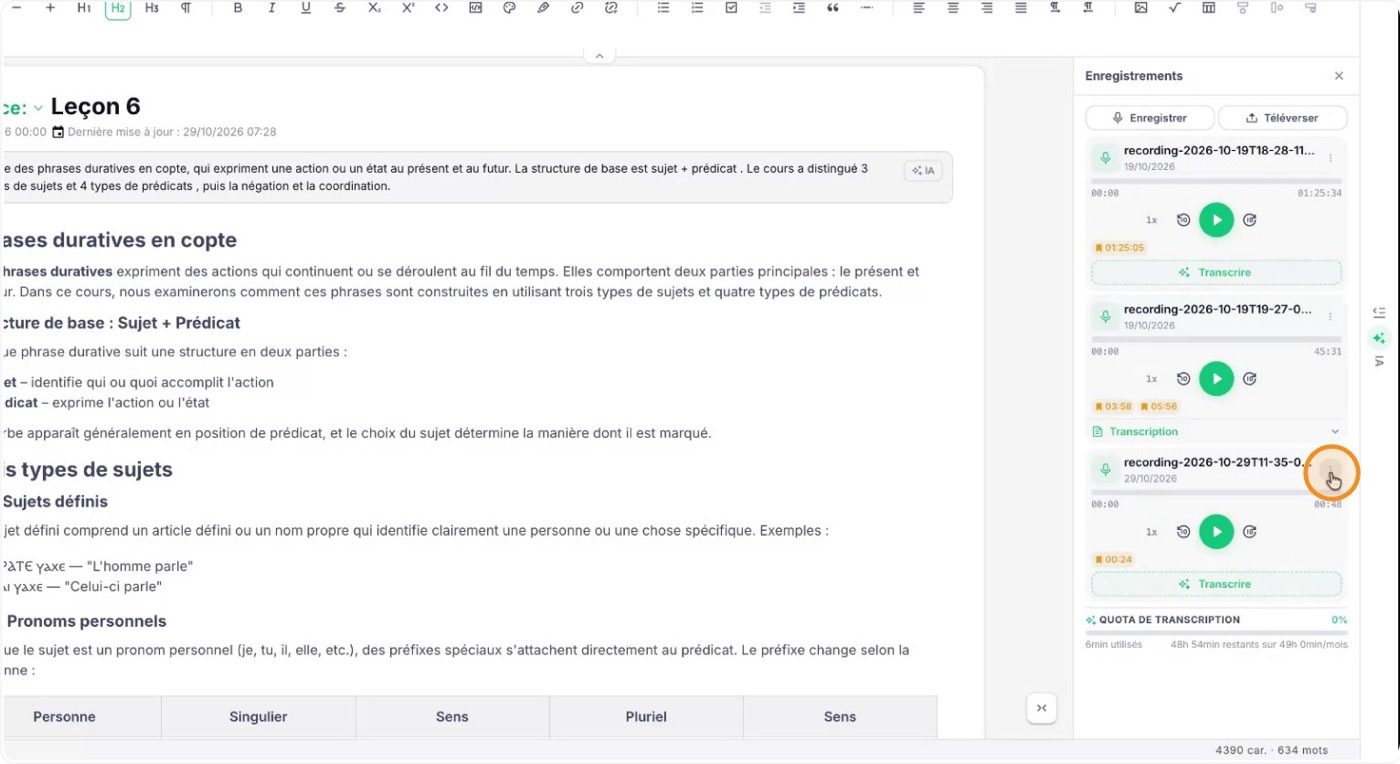
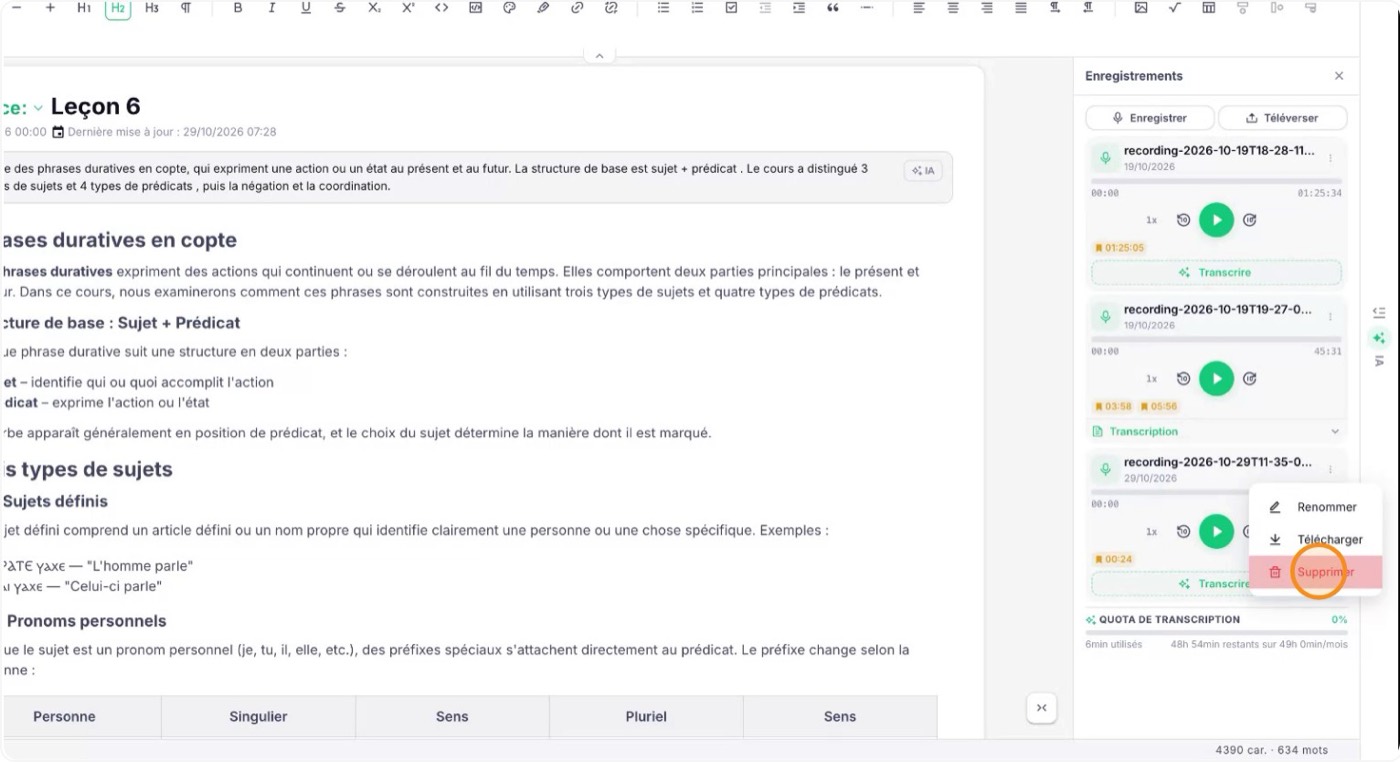
If you made a test recording, select it and delete it so only the relevant recordings stay in the list. Then continue with the ones you want to use.
5. Transcribe a recording
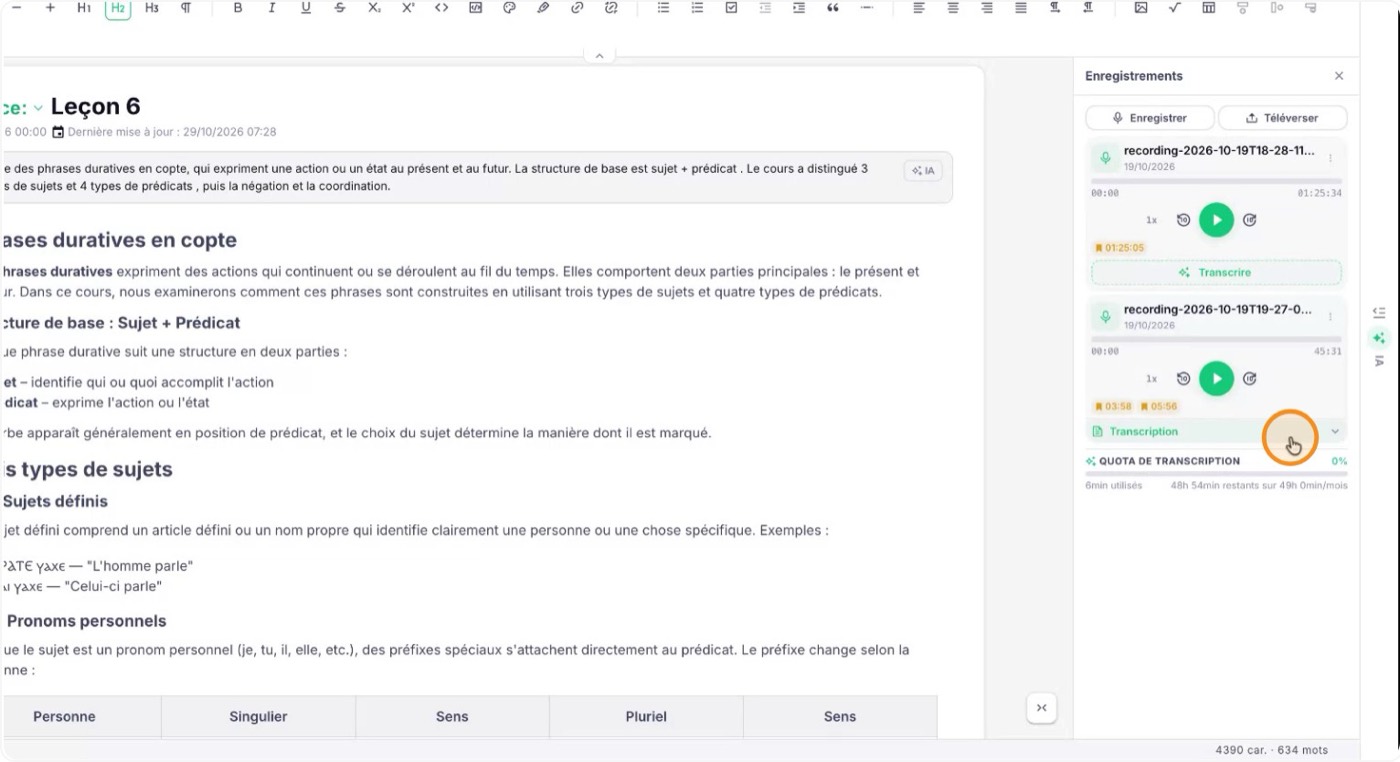
In the list of recordings, find the one you want to turn into text and click "Transcribe" to send the audio to Katav. When it finishes, you will see the full text of the class.
If the class was given in another language, such as French, the transcription will be in that language.
6. Search and summarize the transcription
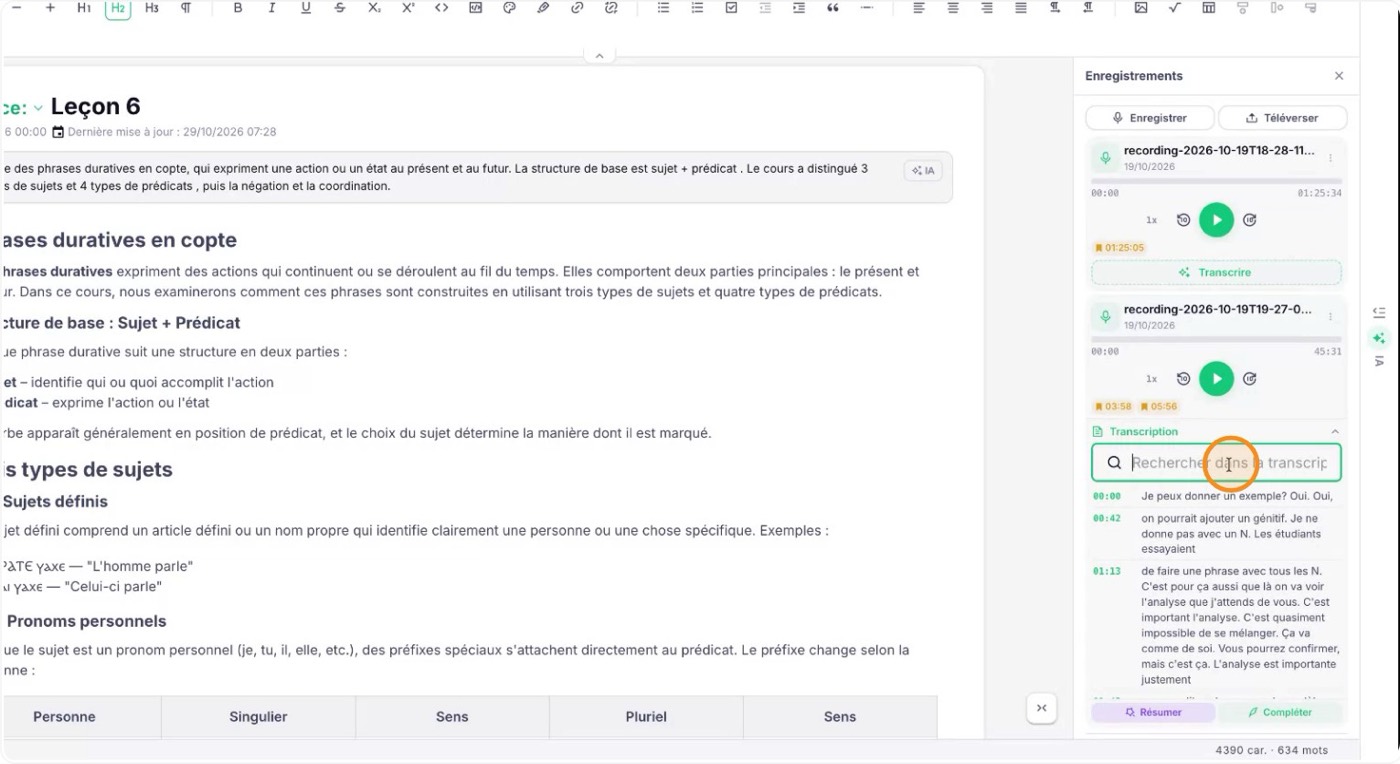
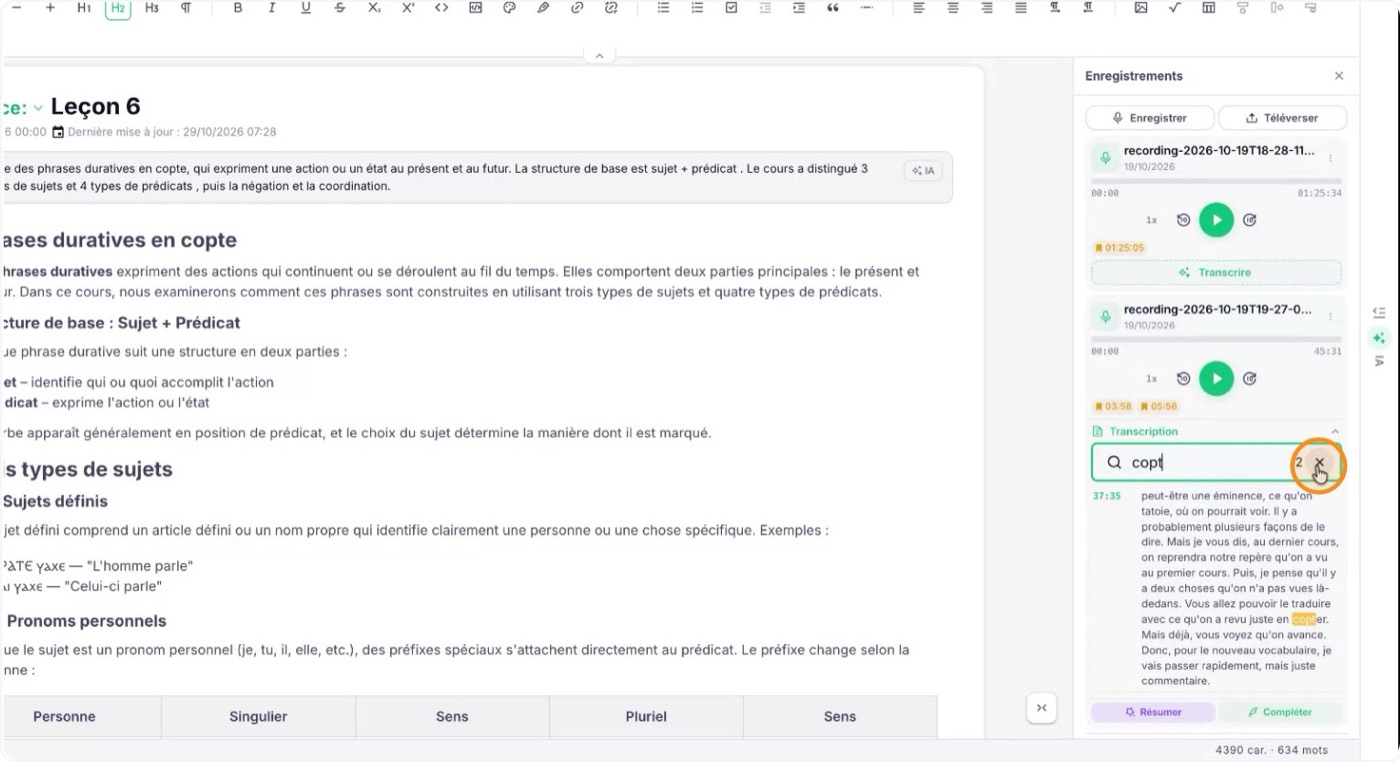
Use the search inside the transcription to quickly find a term or expression from the class: type the word or phrase and the matches are highlighted in the text.
You can also summarize the transcription to get a condensed overview of the class.
7. Use AI to complete and improve your notes
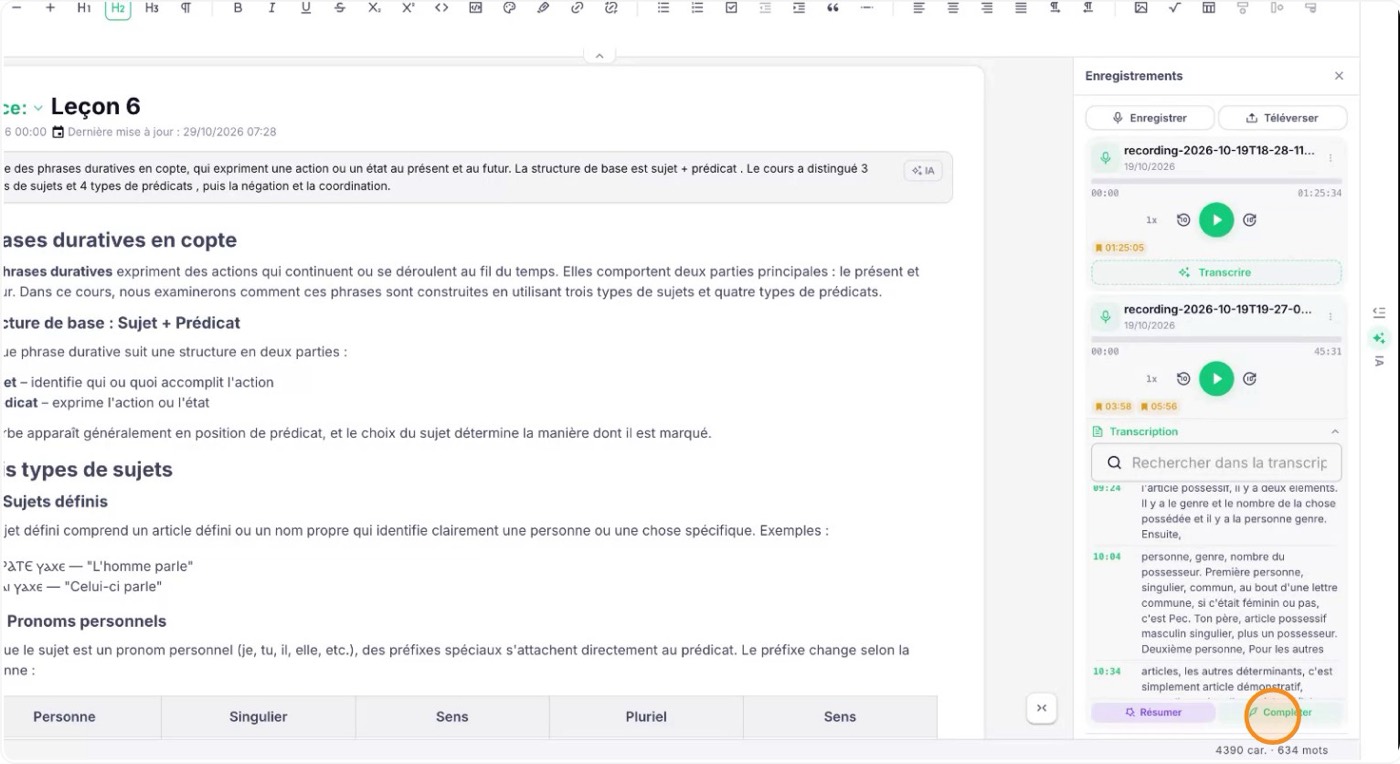
With your notes and the transcription open, click "Complete" so AI fills the gaps in your notes. Katav compares what you wrote with the transcription and finds what is missing or misunderstood. This can take a little while.
When it finishes, the AI shows its suggestions:
- parts of the class you missed appear as additions, highlighted in green;
- anything that does not match what the teacher said appears as a correction, highlighted in red.
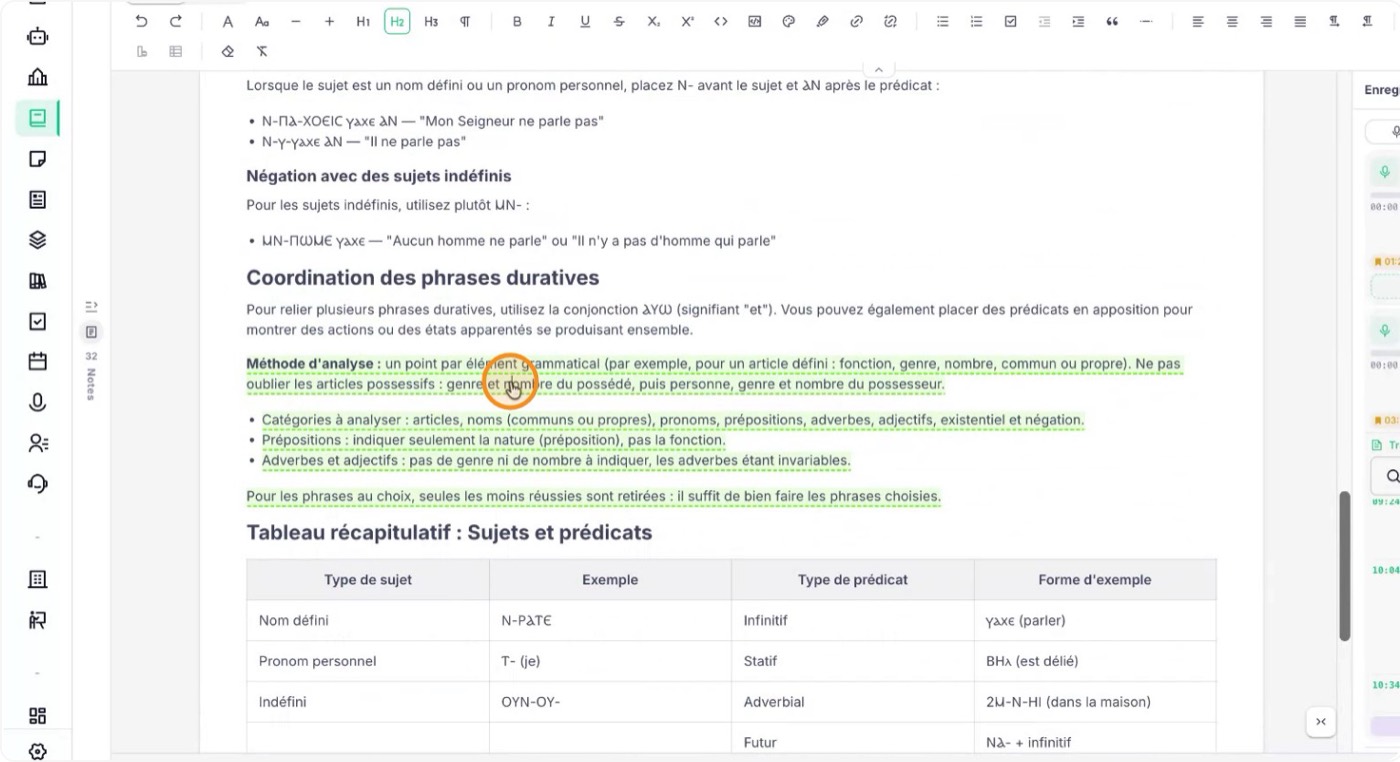
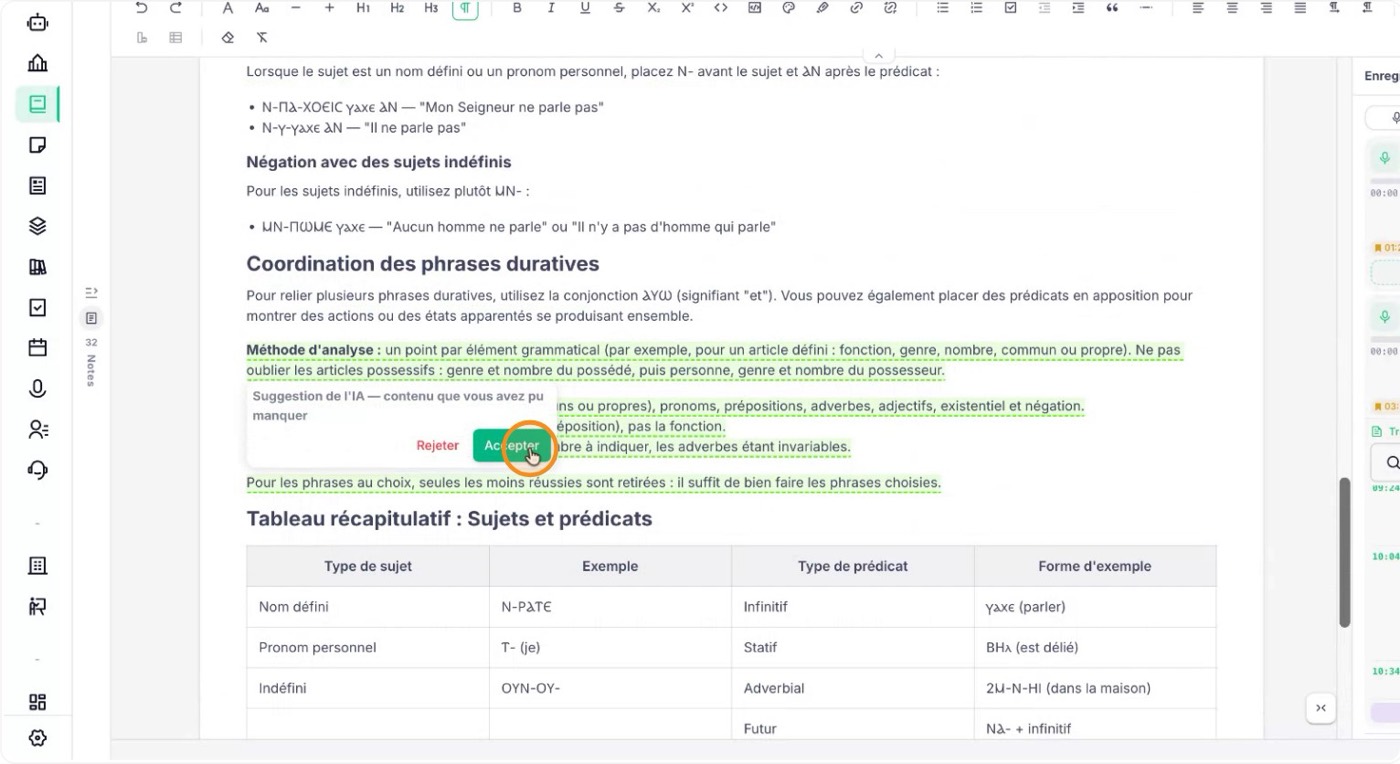
8. Accept the suggestions
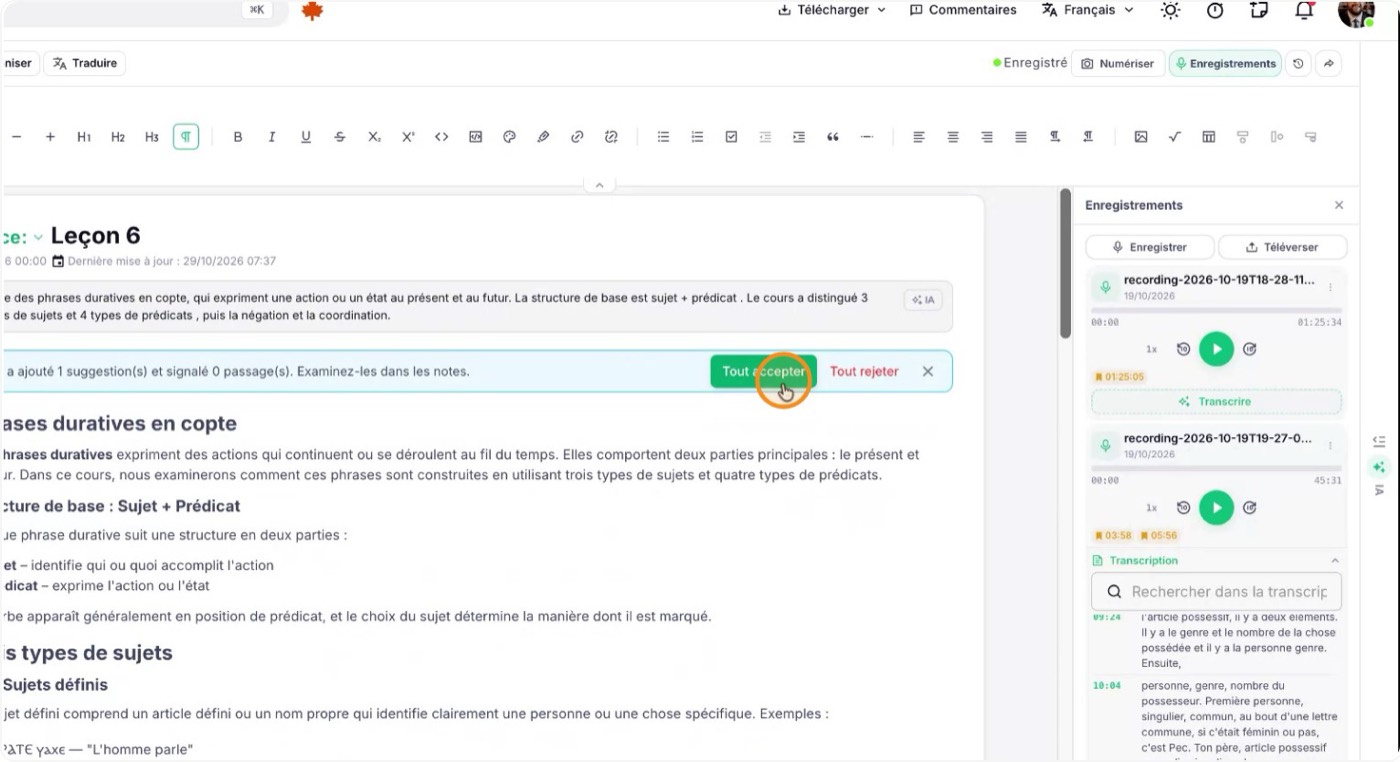
Review the suggestions one by one and accept the ones that make sense by clicking "Accept" on each. If you trust all of them, use "Accept All" to apply them at once.
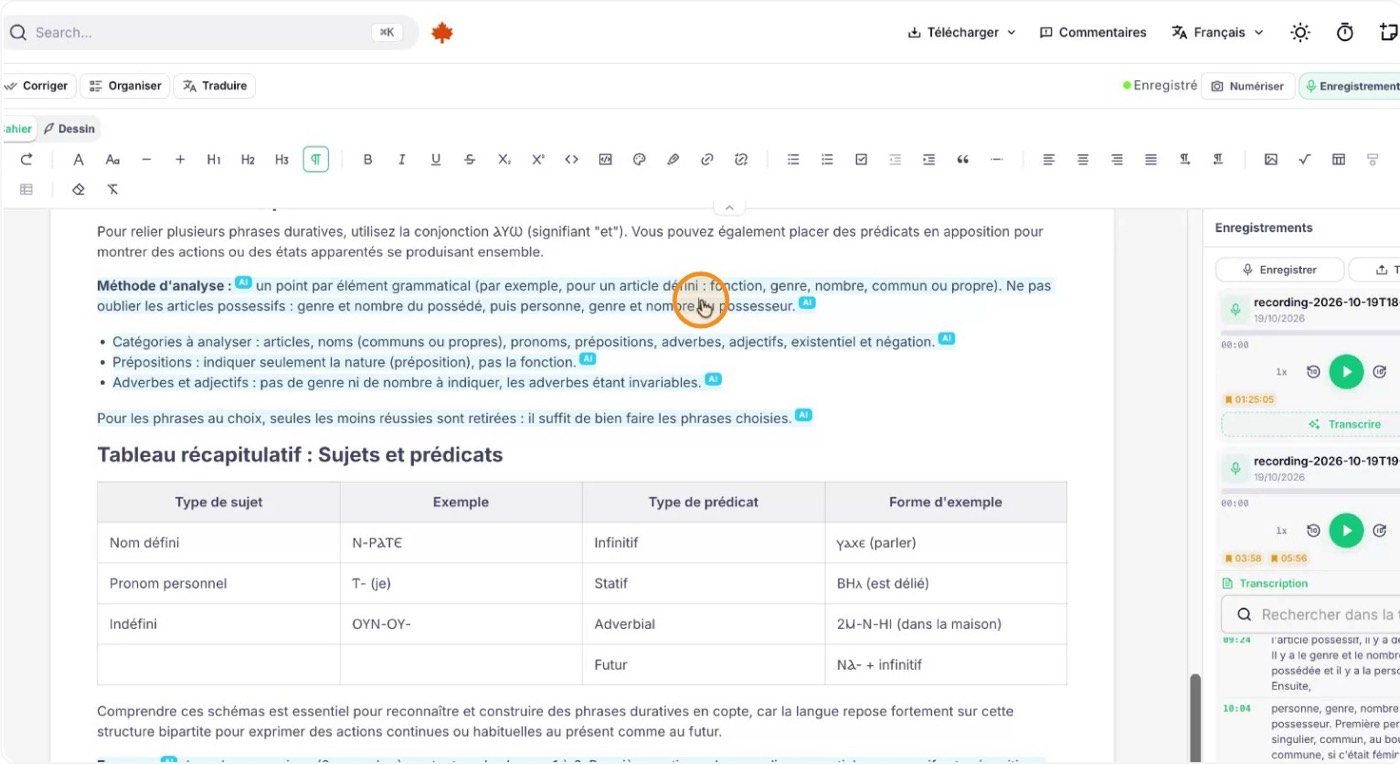
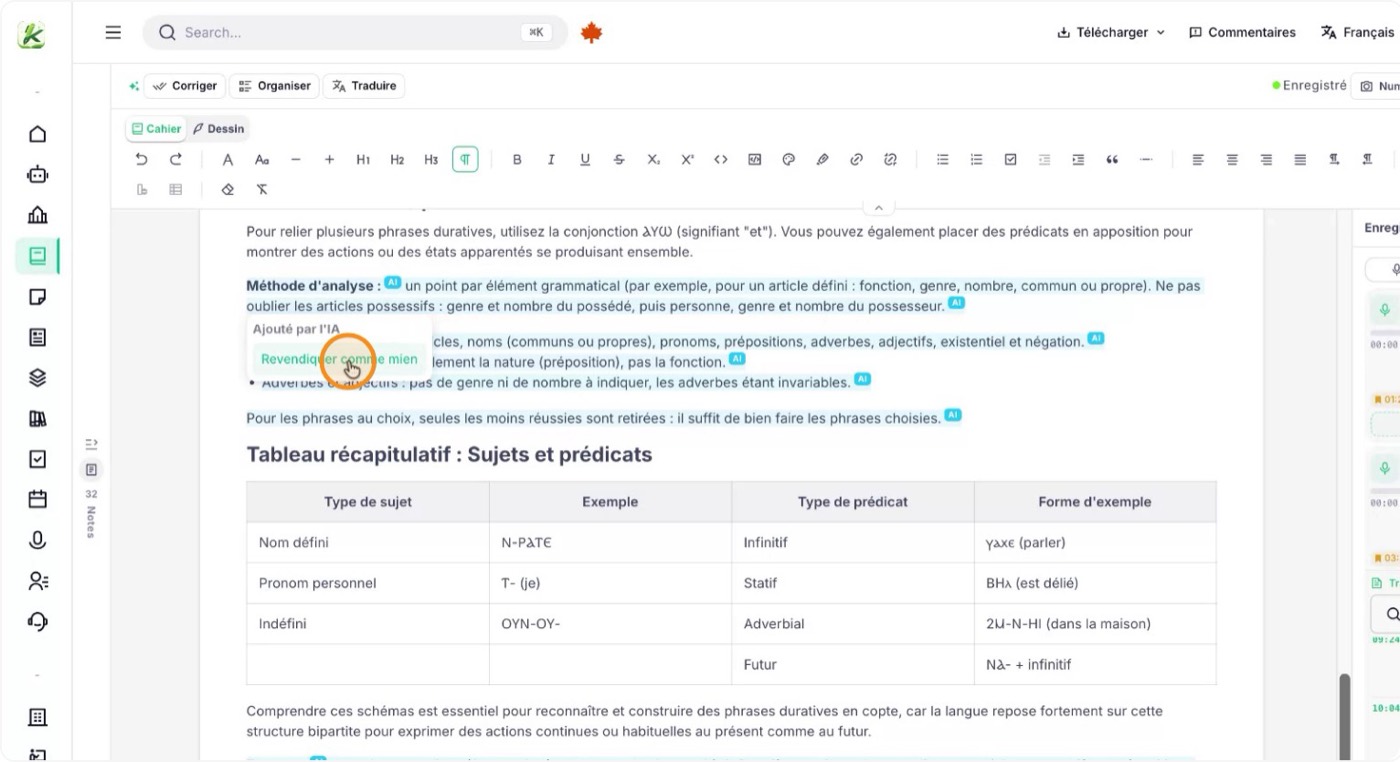
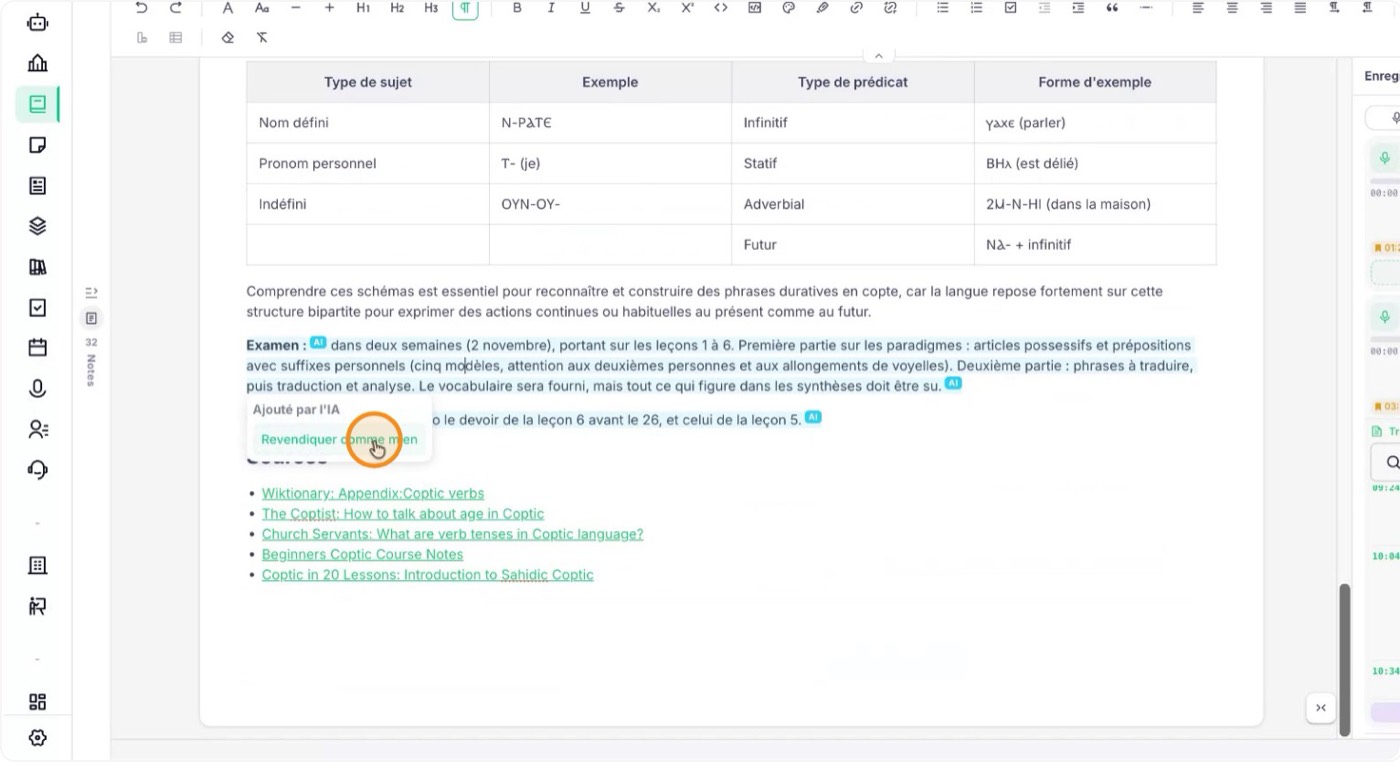
9. Confirm AI-suggested content as your own
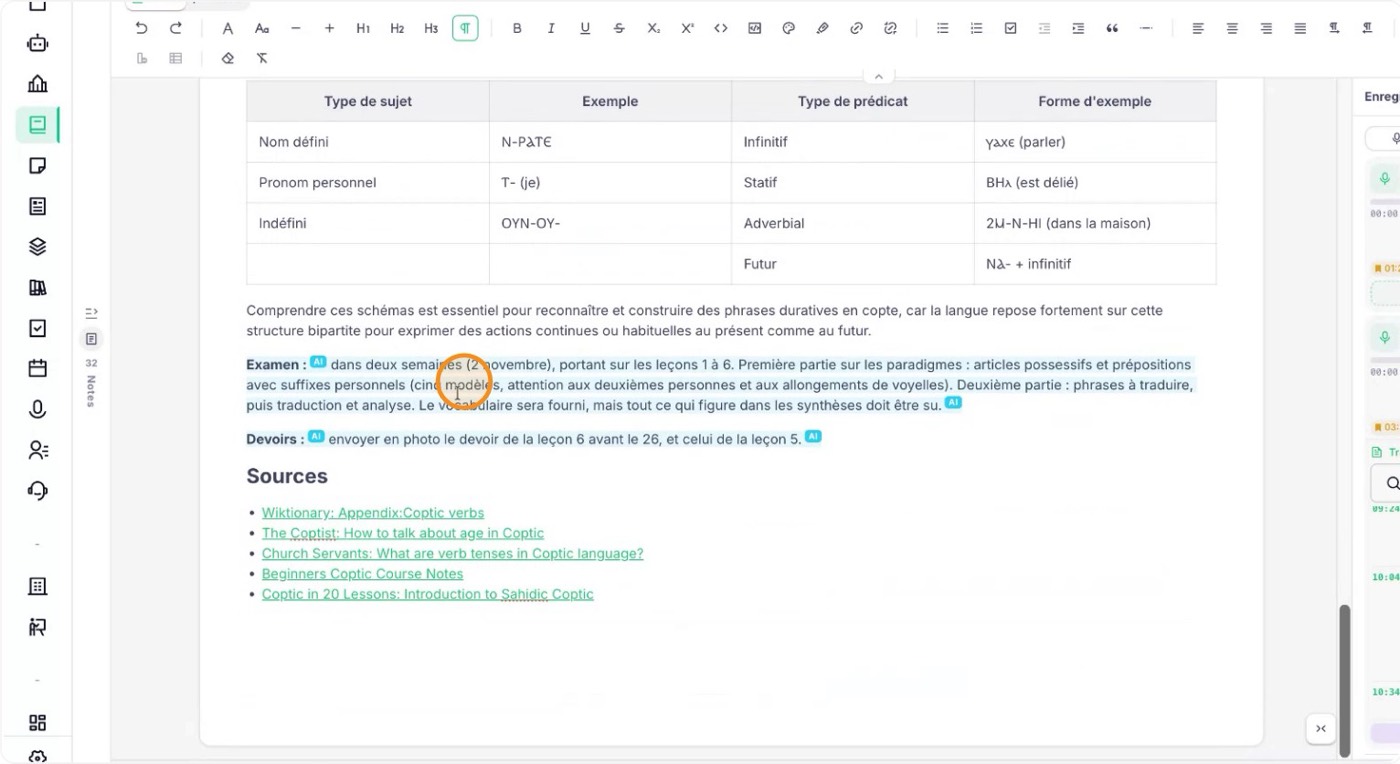
Even after you accept them, the AI-generated parts stay marked in your notes. To confirm that a passage is now your own note, click the marked text and mark it as yours.
Once confirmed, the passage no longer carries the AI label and is treated as your own note in the document.
10. Review the recording any time
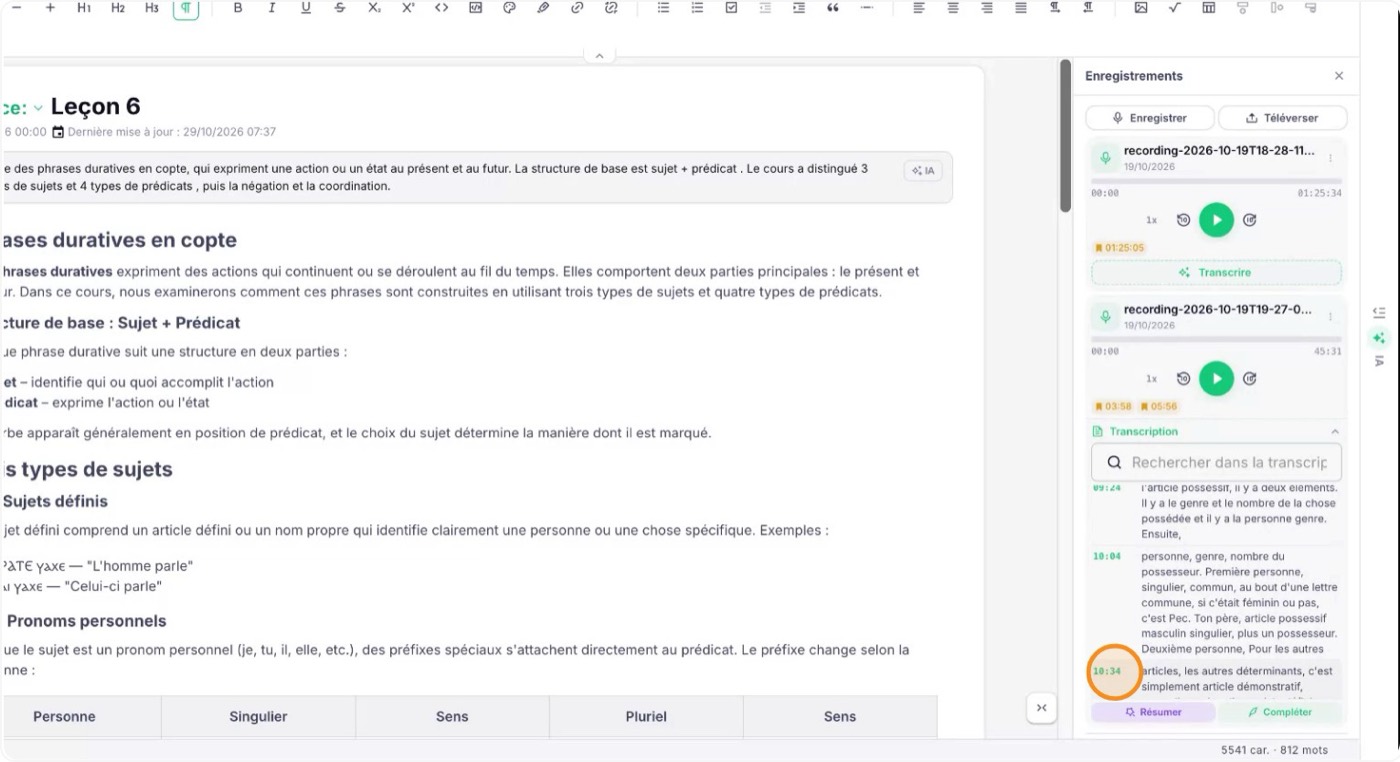
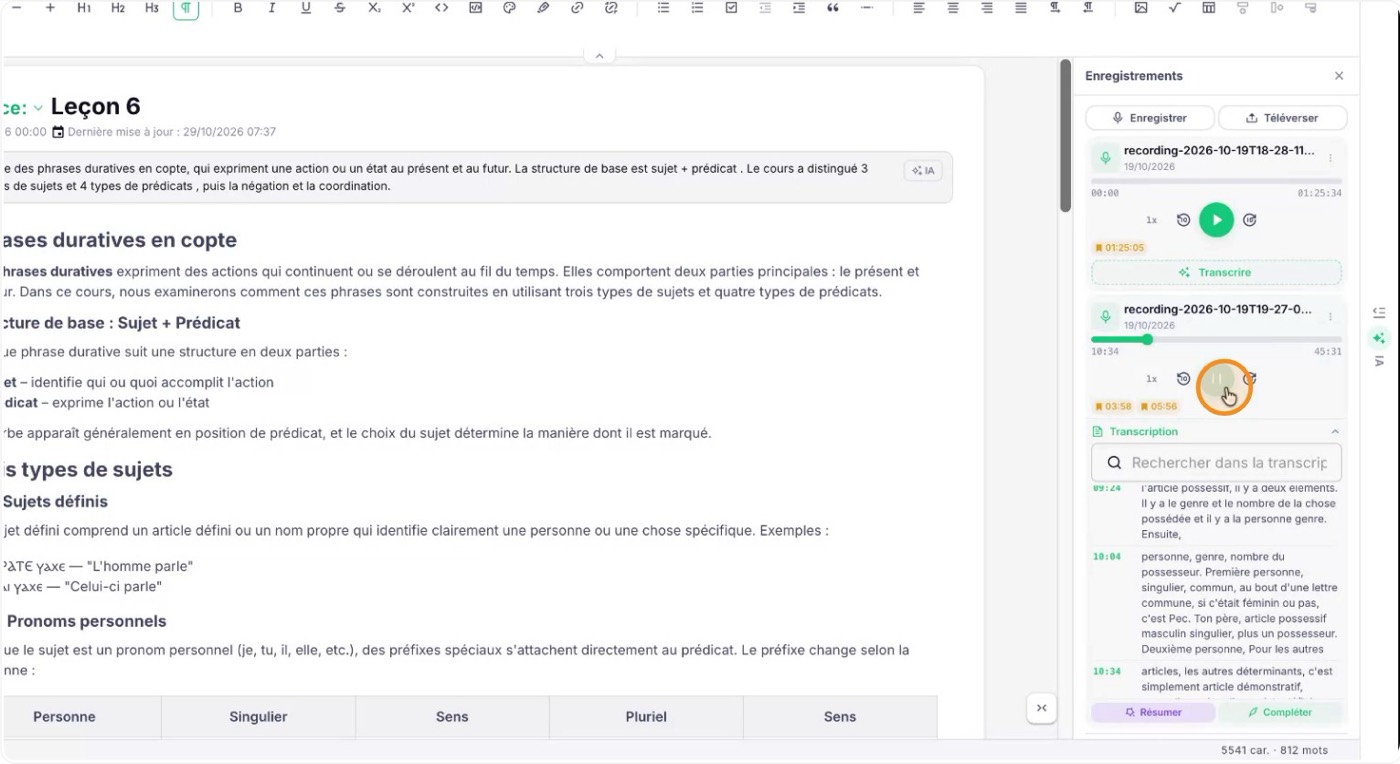
In the recording and transcription screen, click any timestamp or minute marker to listen again to what the teacher said at that point. It makes it easy to revisit important explanations and check your understanding.