How to create your first note in Katav
Create your first class by typing, importing from Word or OneNote, and discover AI summaries, drawing, recording, history and sharing.
William
In Katav, each class is a note linked to a single subject. In this tutorial you will create your first class and meet the features that help you study: AI summaries, drawing, notebook scanning, recording, history and sharing.
▶ Watch the video tutorial on YouTube
1. Understand how classes work
A class is always created inside a specific subject. Before you start, make sure the subject exists and open it so your classes stay organized.
2. Create a class with the New Note button
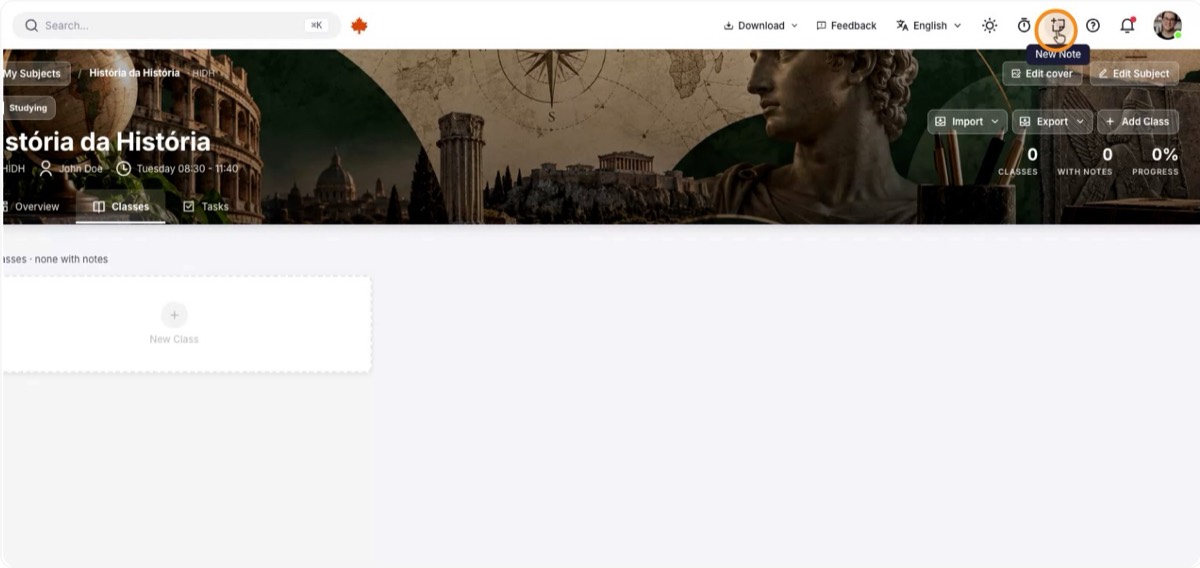
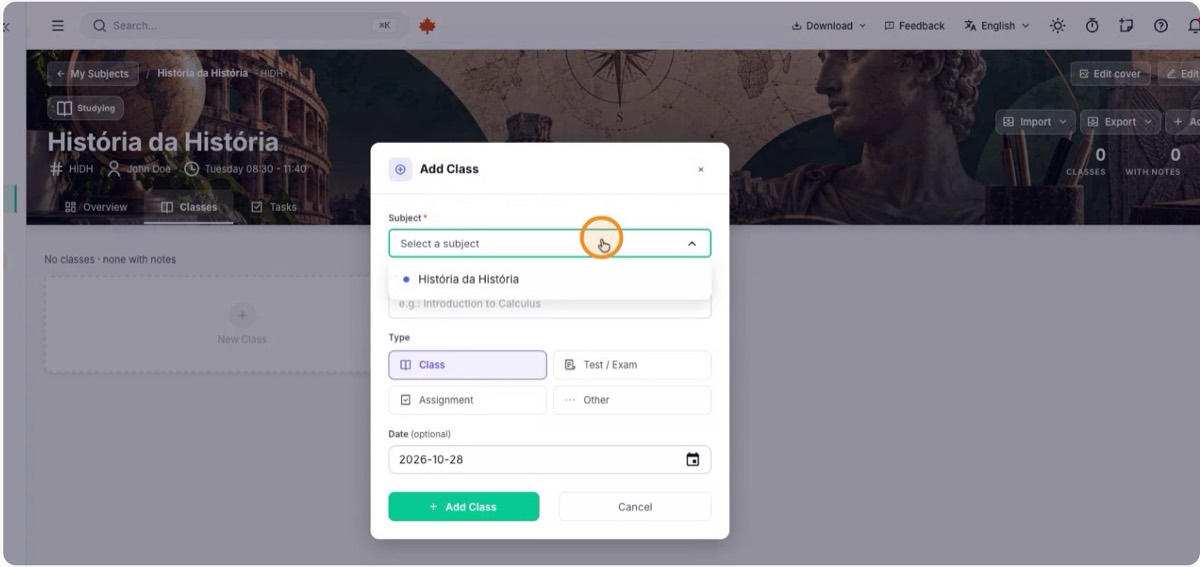
At the top of the interface, click New Note and choose the subject the class belongs to, for example History. Then set the title and write the content of the note.
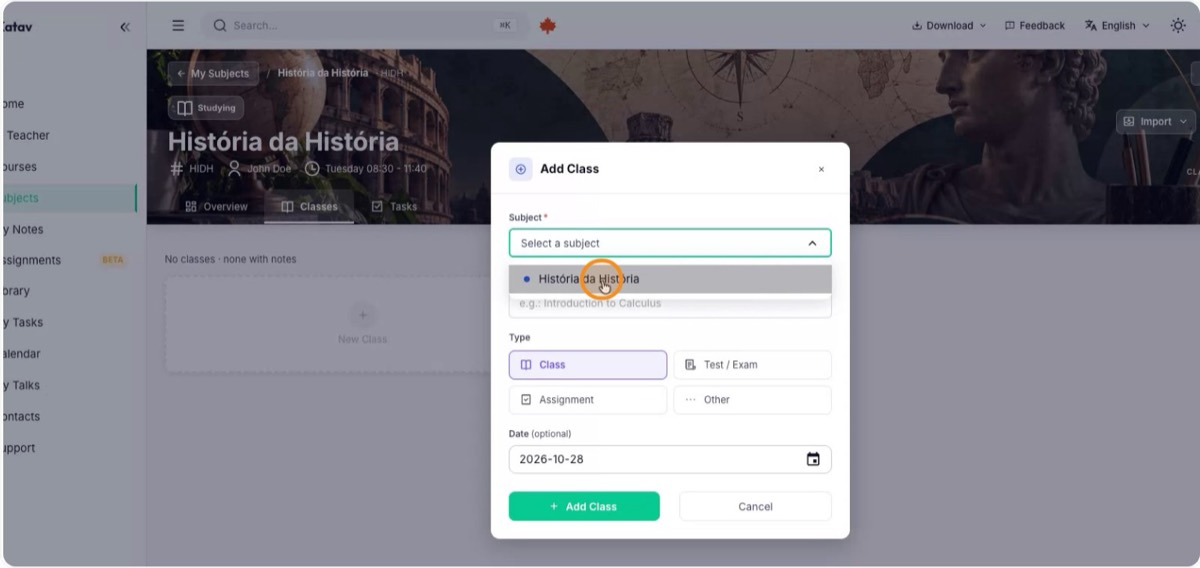
3. Or create it from the subject’s Classes tab
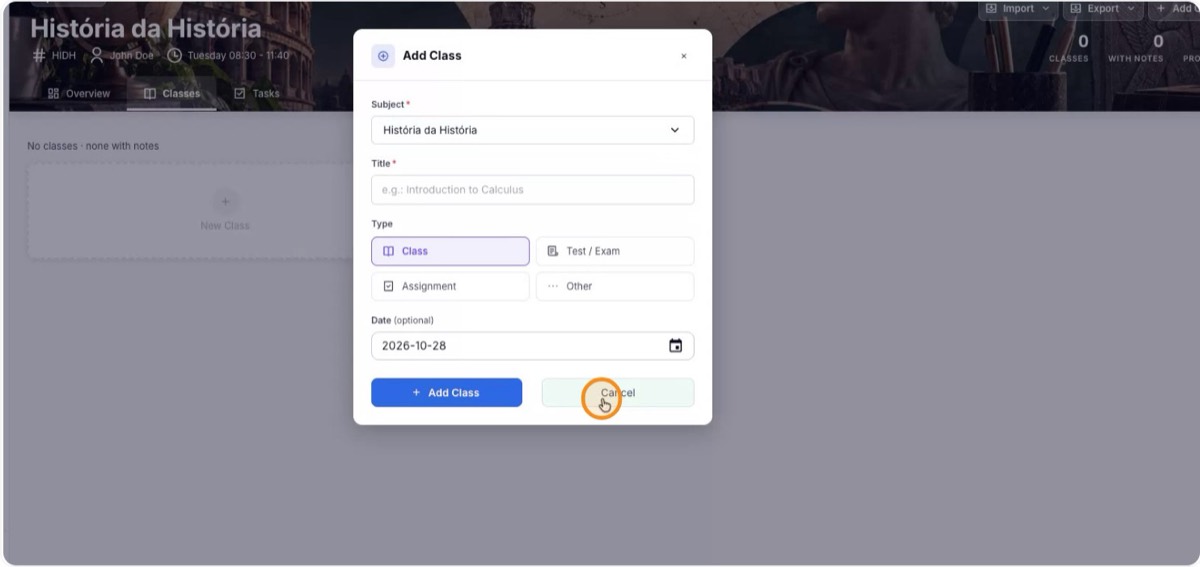
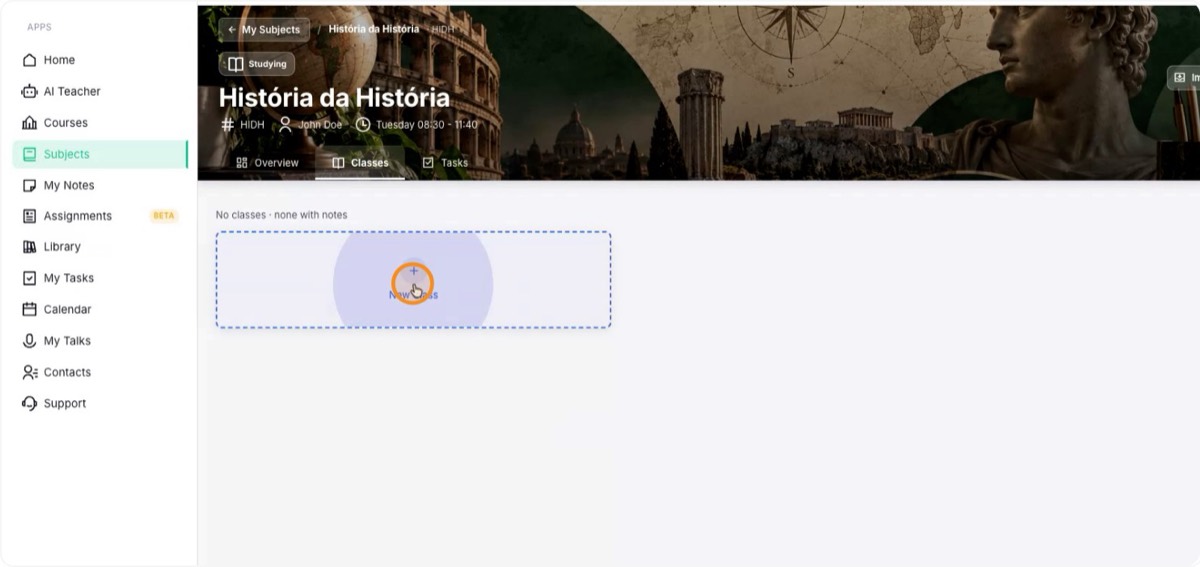
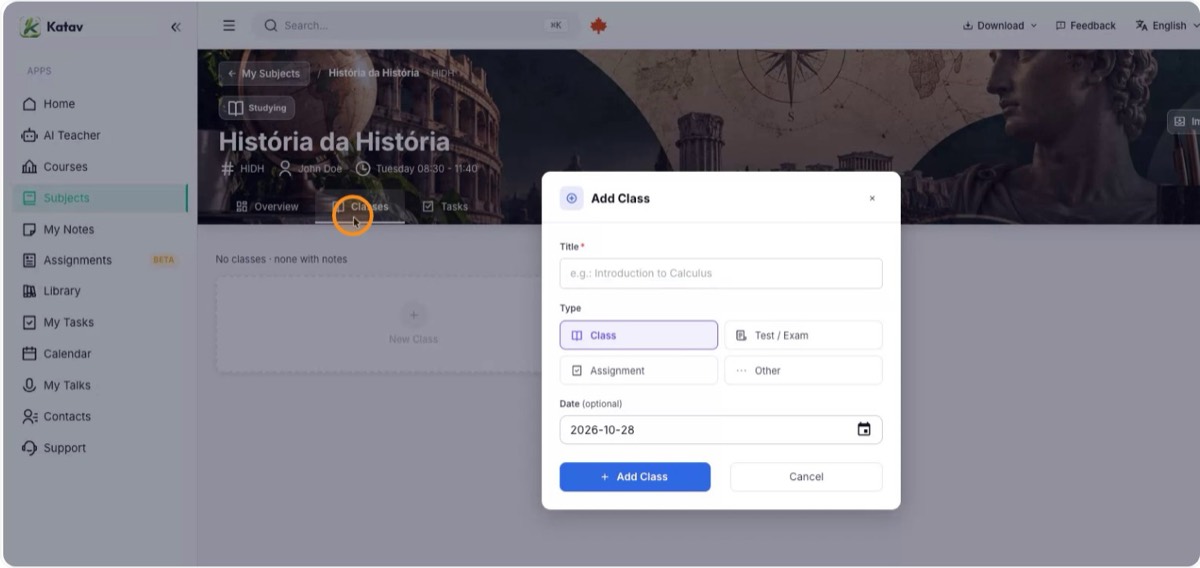
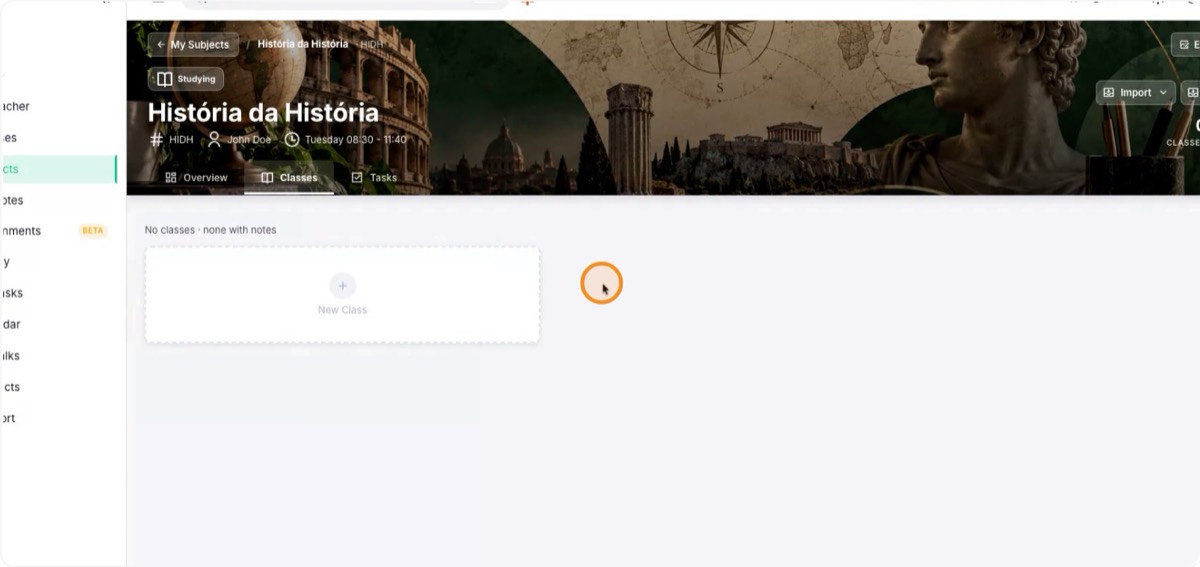
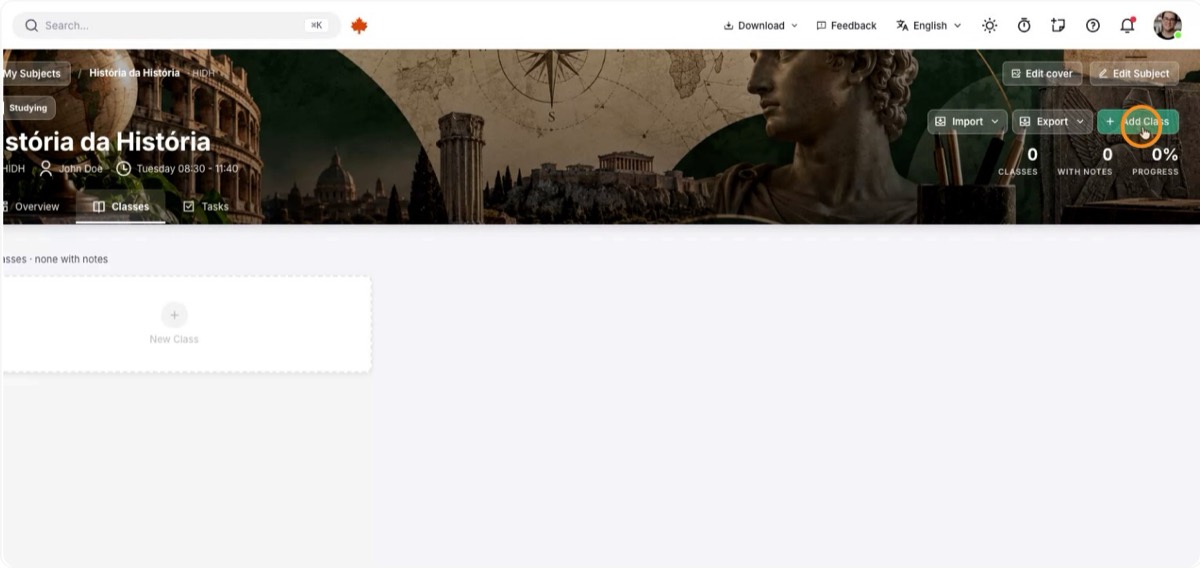
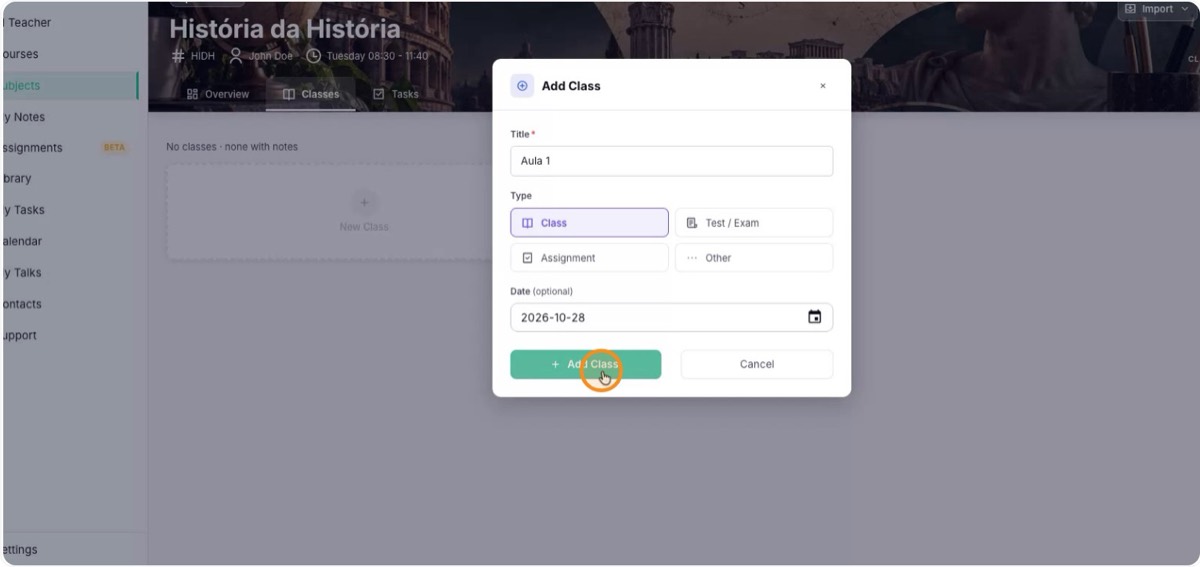
Alternatively, open the subject, go to the Classes tab and click New Class. You get the same creation dialog you see after clicking New Note.
4. Import from Word or OneNote
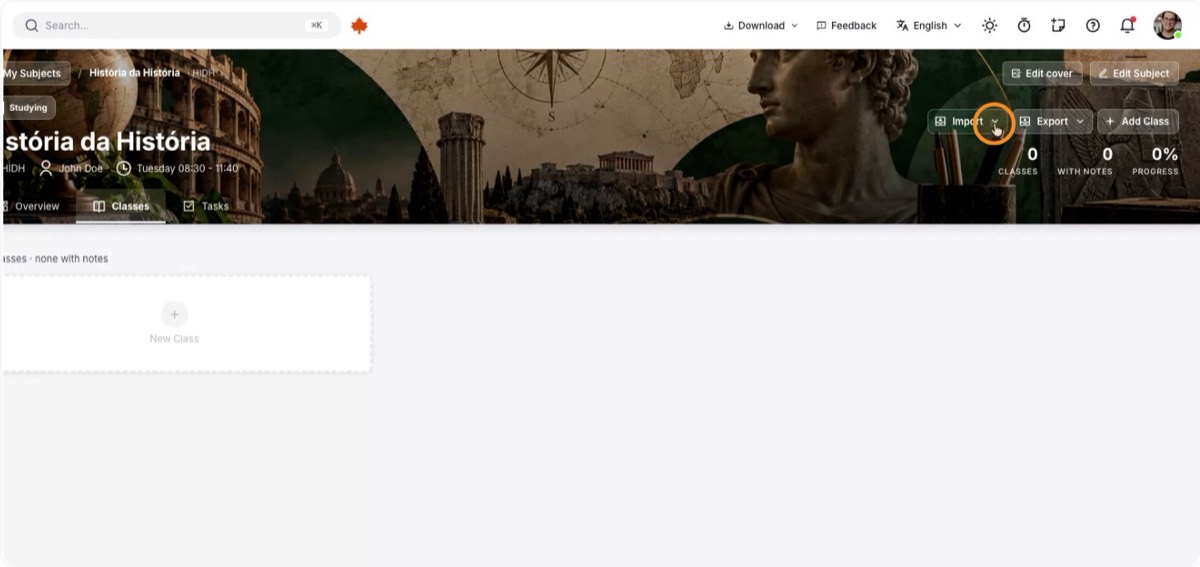
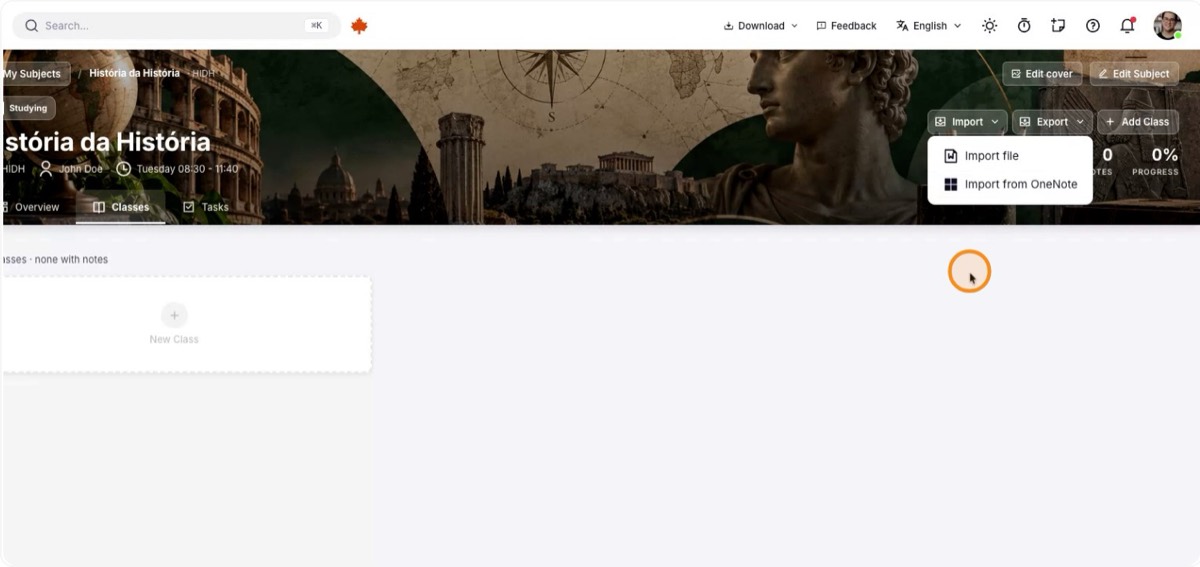
You can also create classes by importing notes from other programs. Click Import and choose:
- Import file, to bring in a Microsoft Word document.
- Import through OneNote, to bring in the classes and notes you already have there.
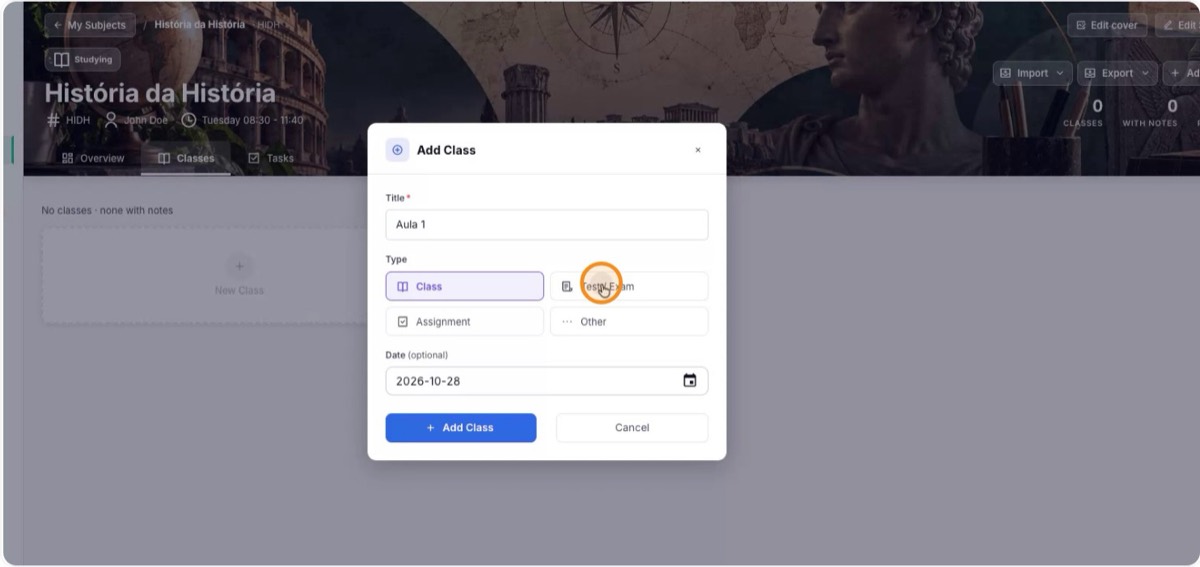
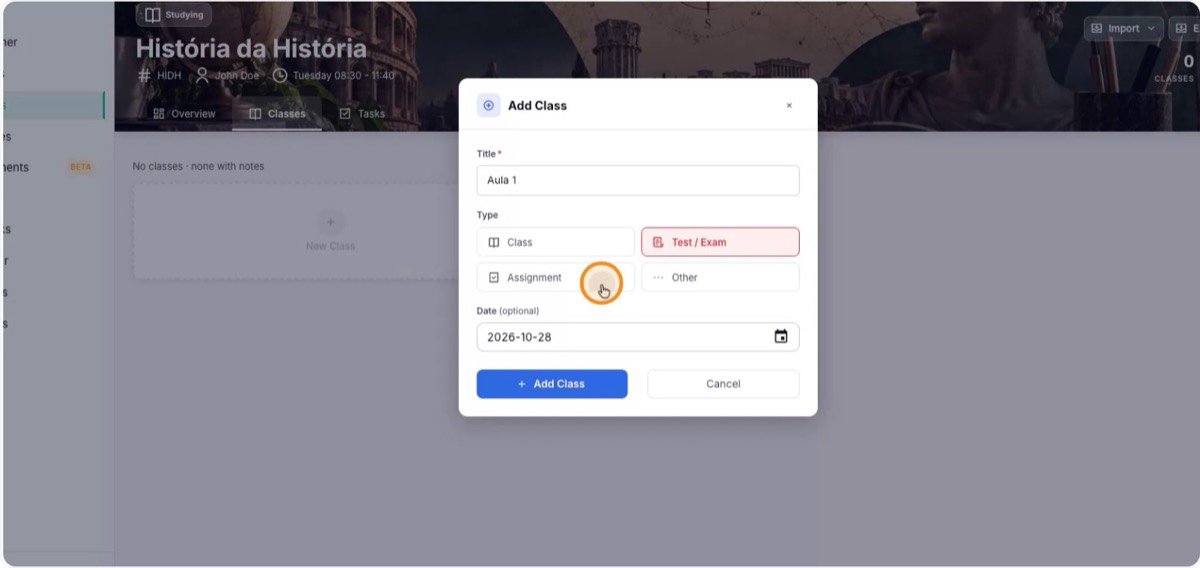
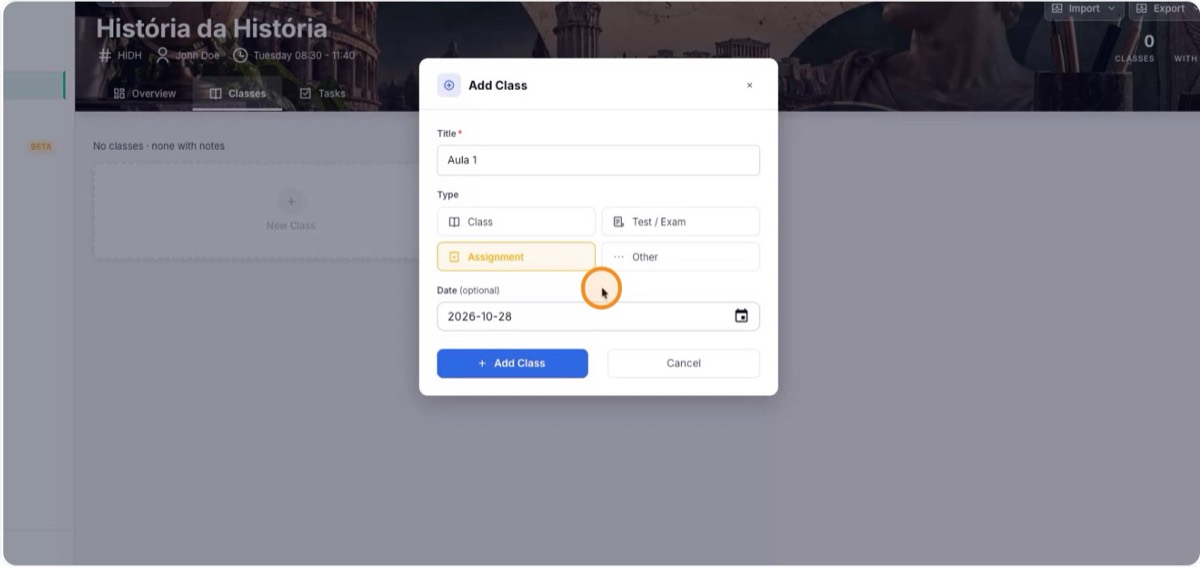
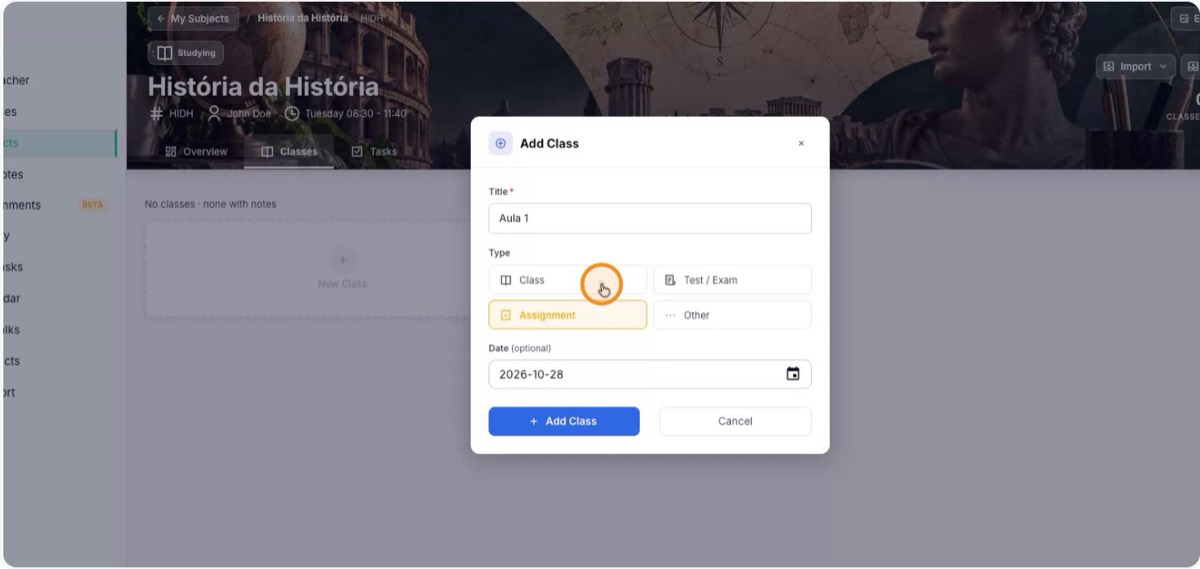
5. Set the title, type and date
Give the class a clear name, such as "Class 1", and choose its type:
- Class: for notes from a regular class.
- Test/Exam: for a day with an assessment instead of a lecture. This type has features of its own for revising before tests.
- Assignment: for tasks and papers that must be handed in or presented, with their own tools.
- Other: for anything else, such as talks and special events.
6. See the notebook and filter by type
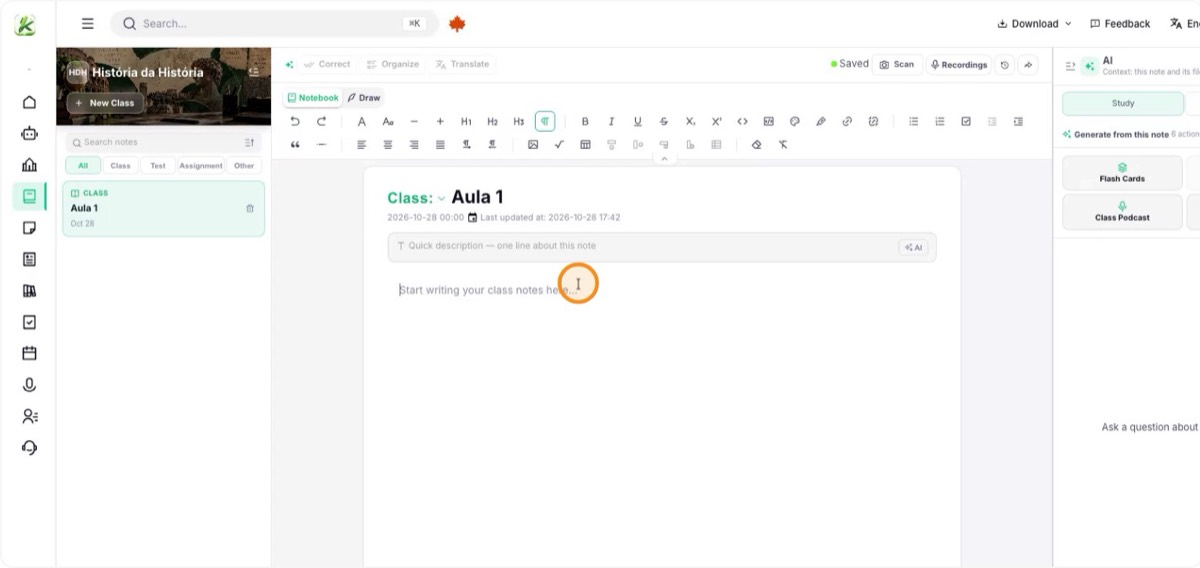
After adding the class, Katav shows the subject’s notebook with all of its classes. You can filter the list by type (class, exam, assignment or other). It works like a notebook that gathers all of a subject’s notes in one place.
7. Take notes and generate an AI summary
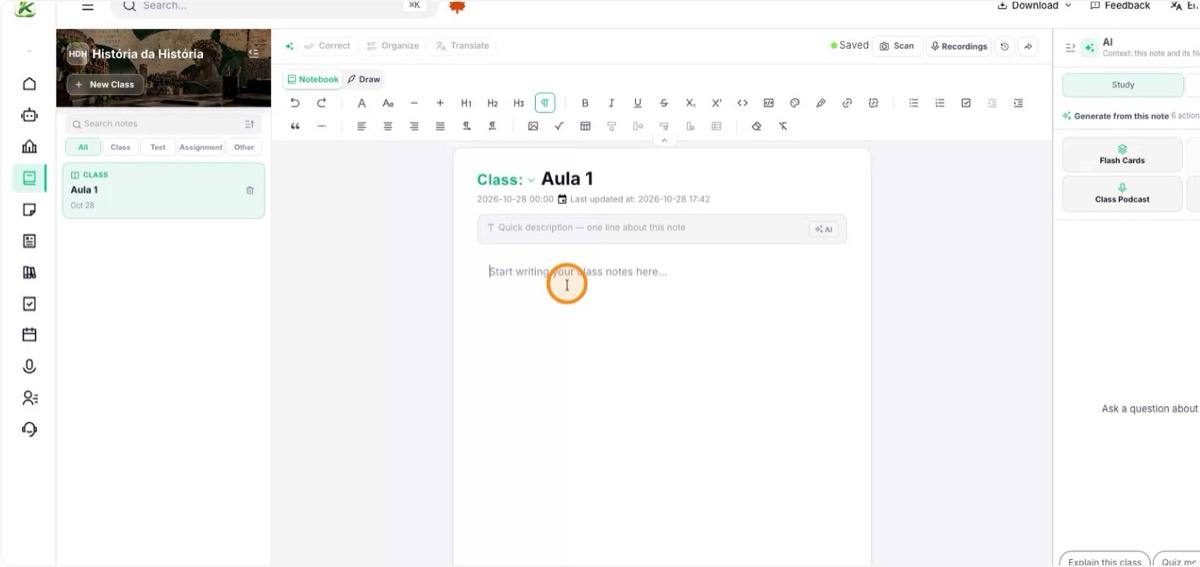
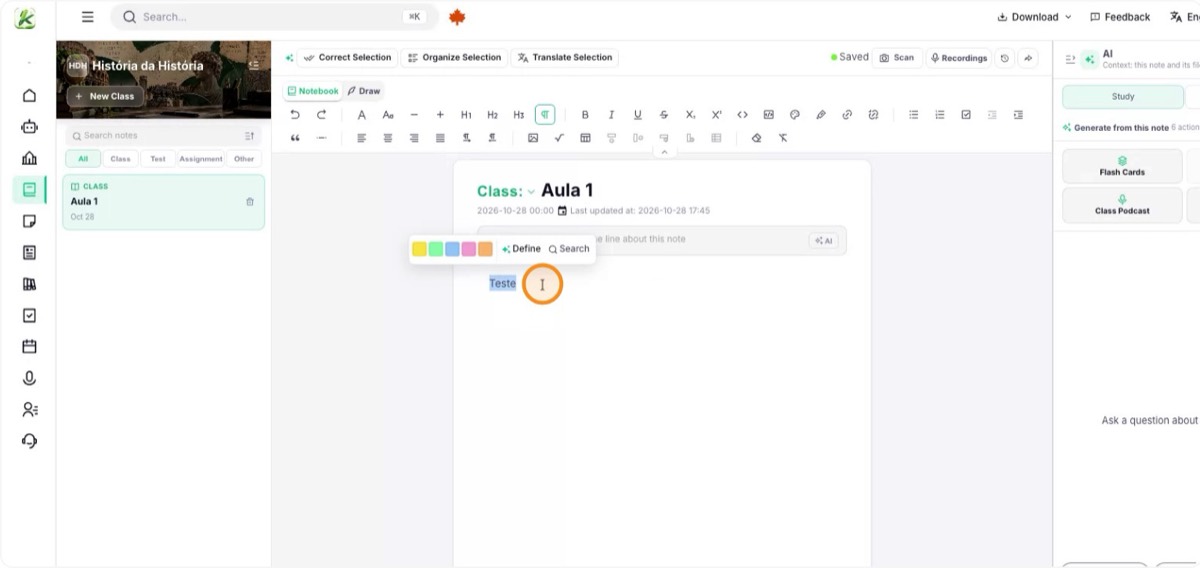
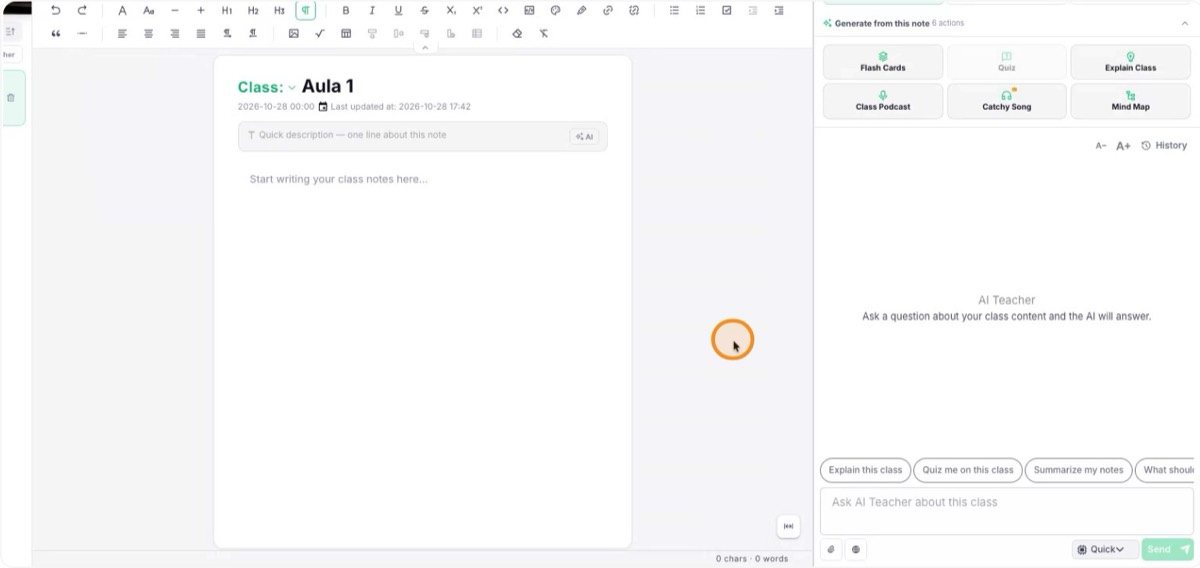
In the class editor, use the main field to write during or after class. When you finish, click AI to automatically generate a summary of the class and recall the content without rereading everything.
8. Enlarge the text field
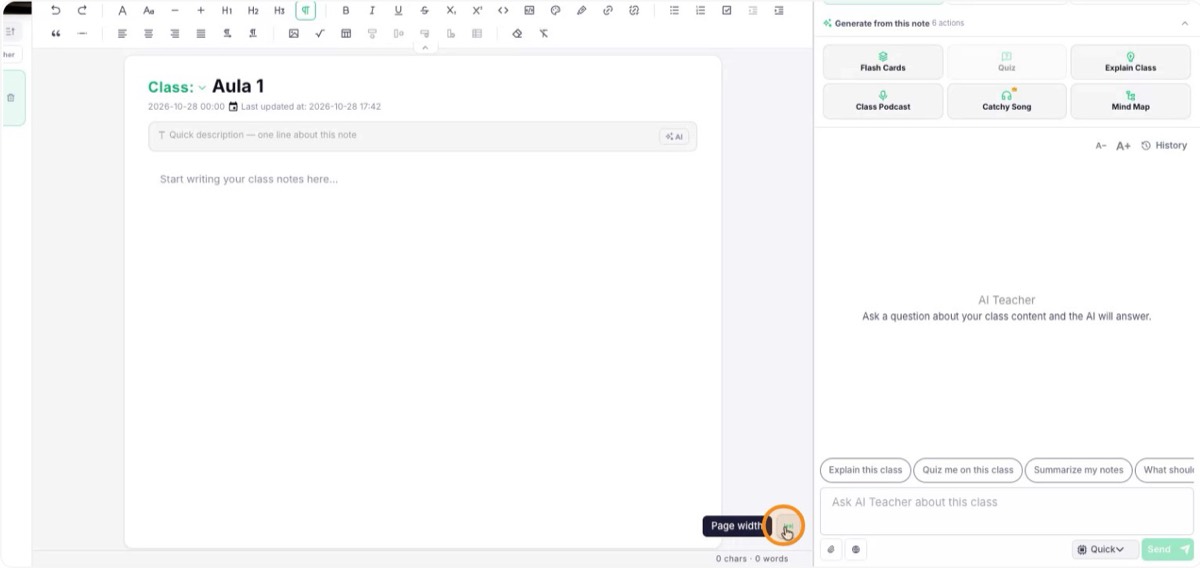
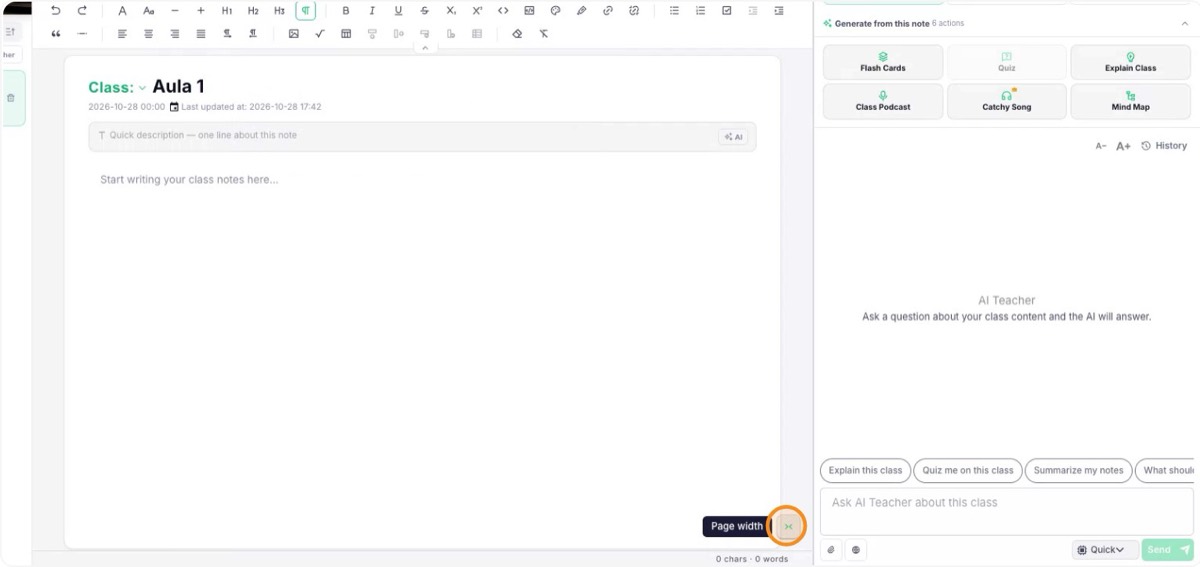
If you need more room, use the resize mode to enlarge the text field. It helps on smaller screens or when there is a lot of content.
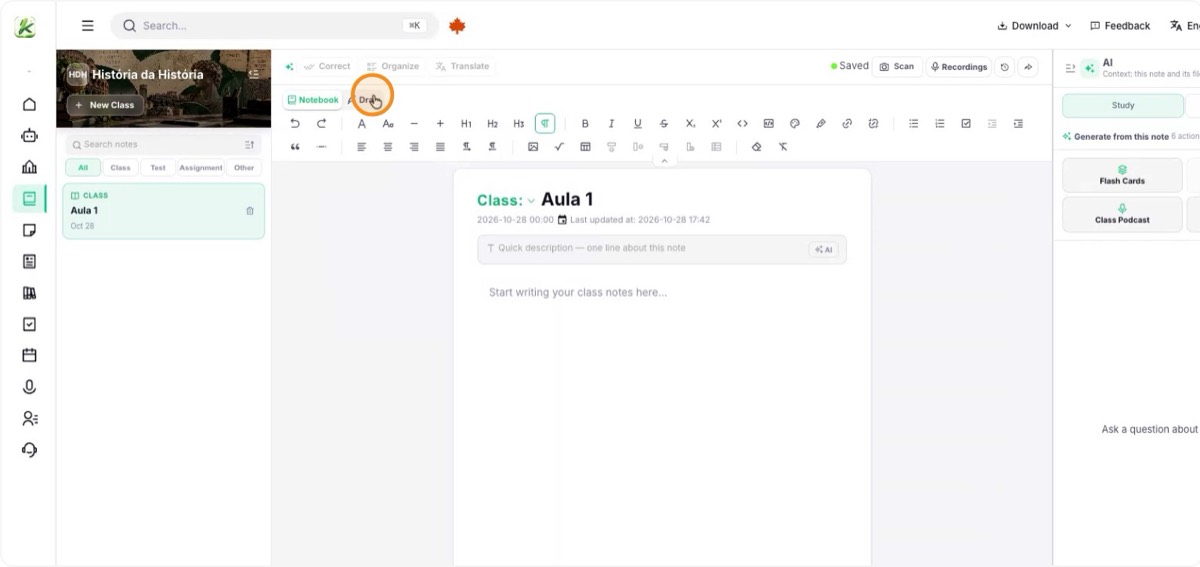
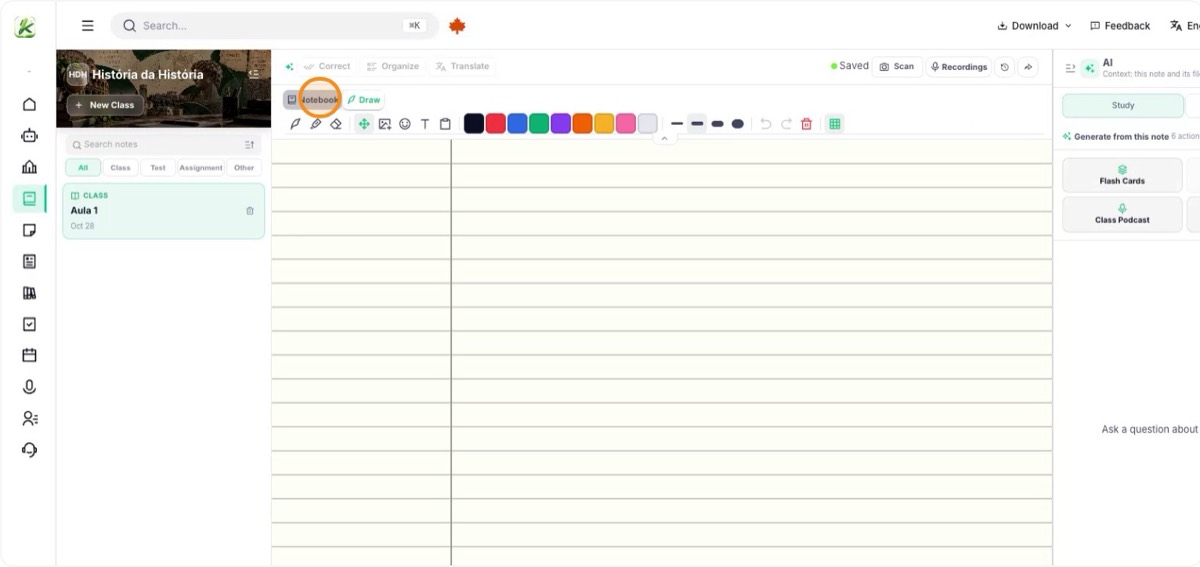
9. Use drawing mode and scan your notebook
Turn on drawing mode to write by hand. It is more limited on a computer, but great on tablets for sketches, diagrams and formulas.
The same module is used to scan classes from a physical notebook: scan the pages and Katav reads the content and converts it into text inside the class.
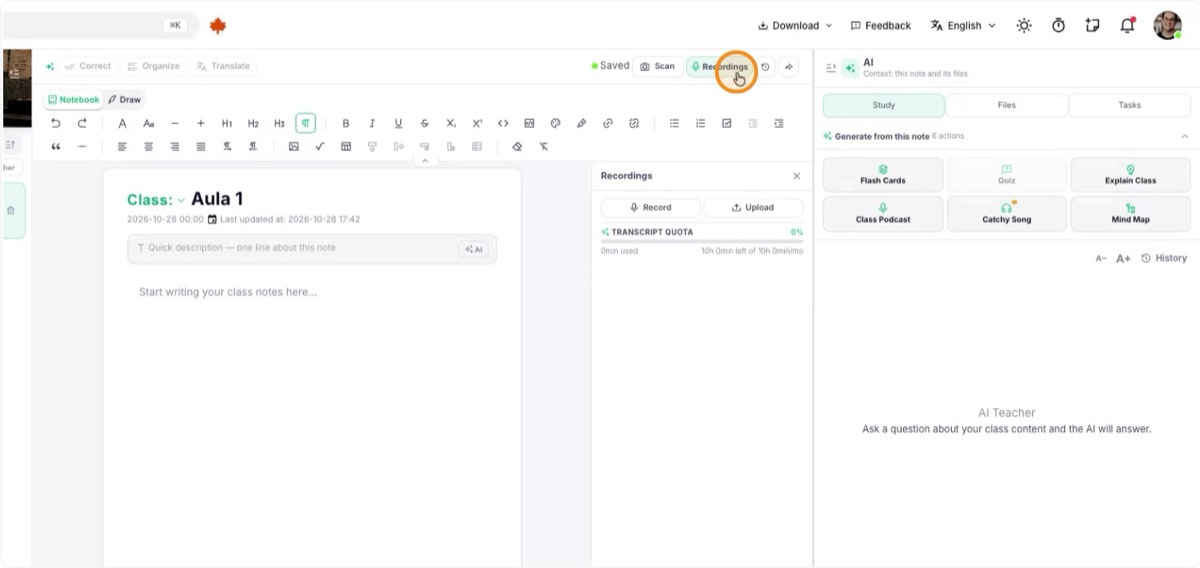
10. Record and transcribe the class
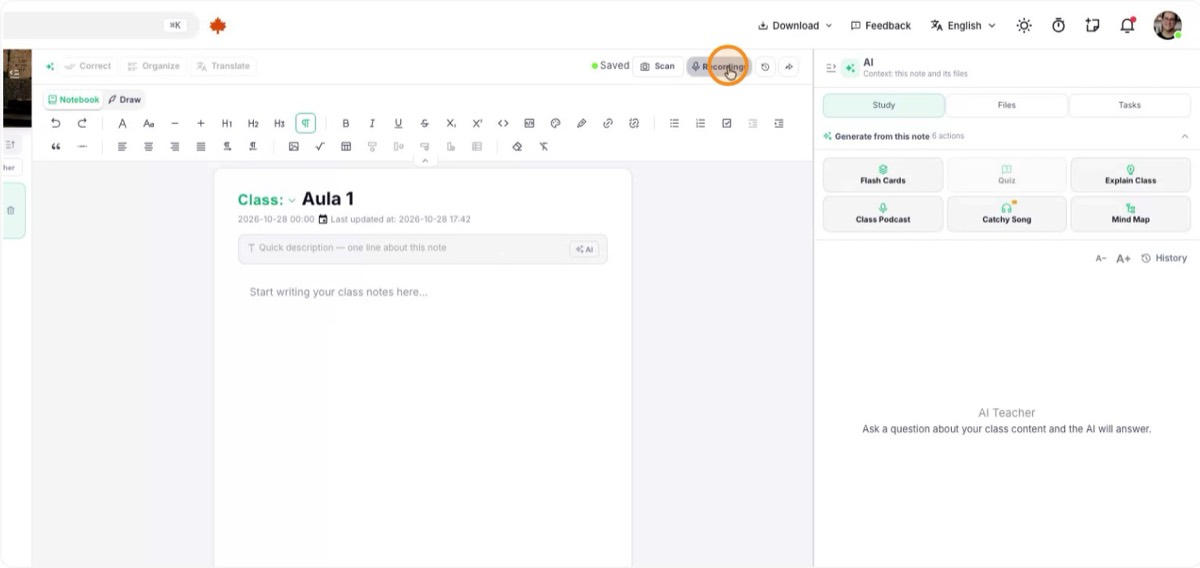
Use recording to capture the audio of the class. Afterwards, Katav can transcribe it, producing text you can search and study.
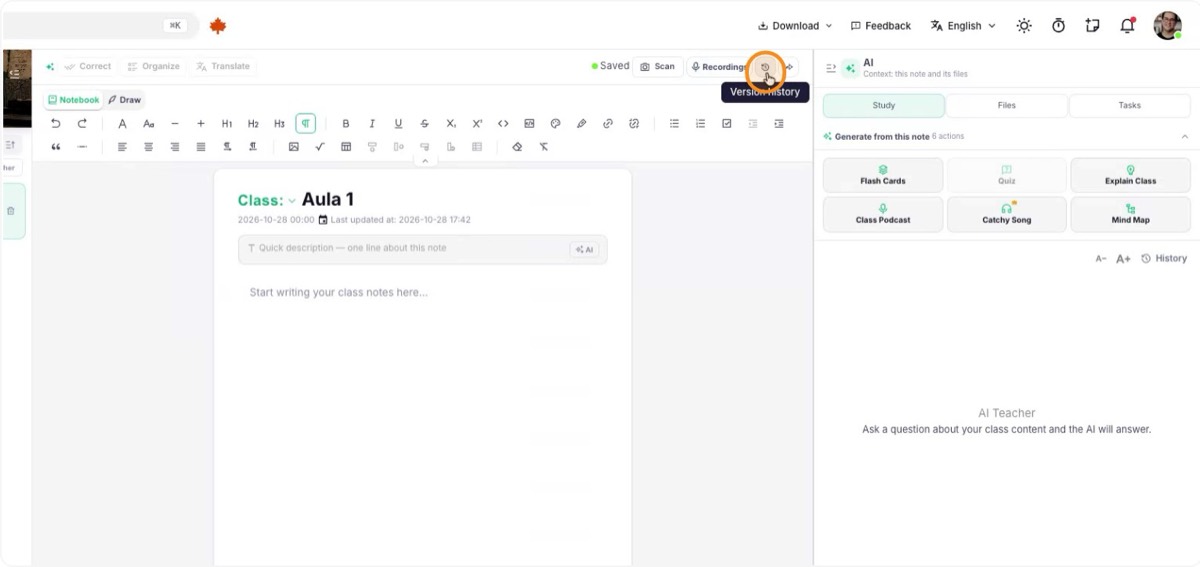
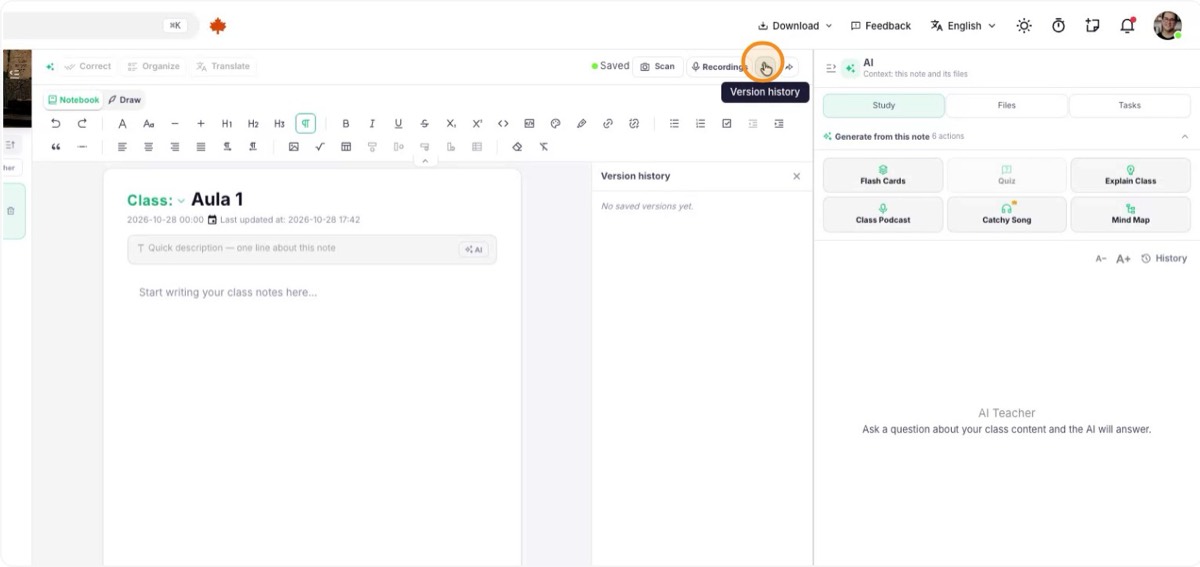
11. Open the change history
In the class menu, open the change history. You can see earlier versions and recover content deleted by mistake, even from previous days, as long as it is still recorded.
12. Share notes and summaries
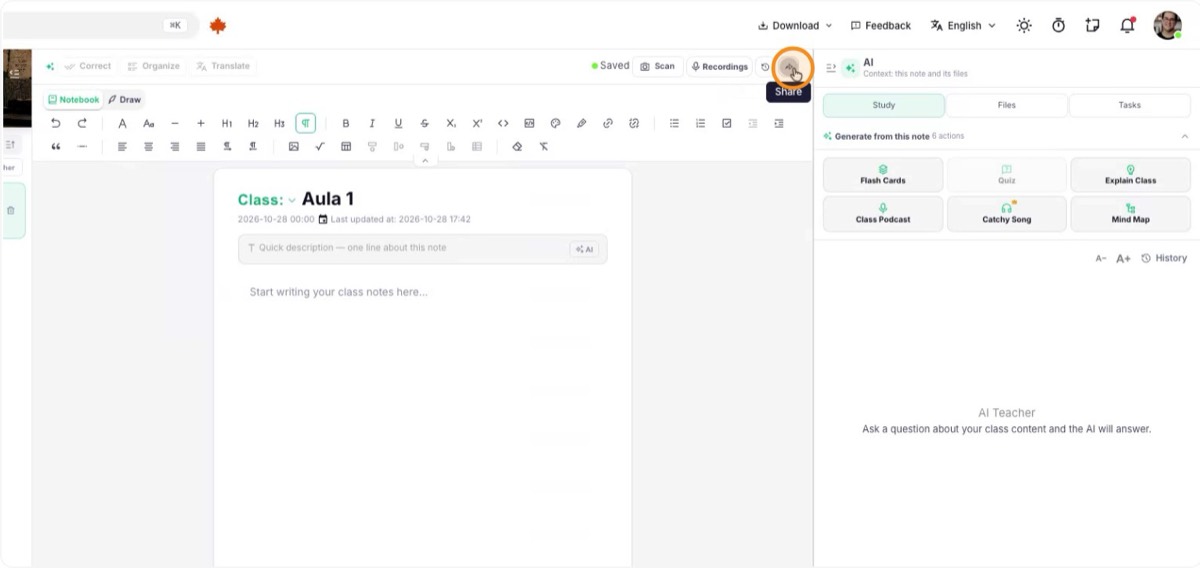
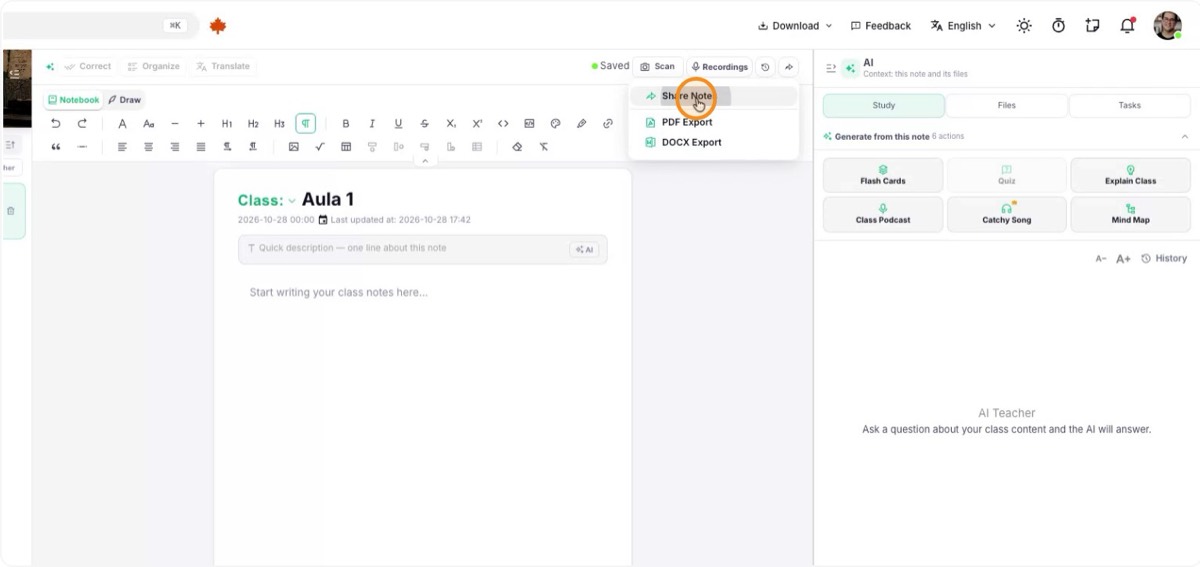
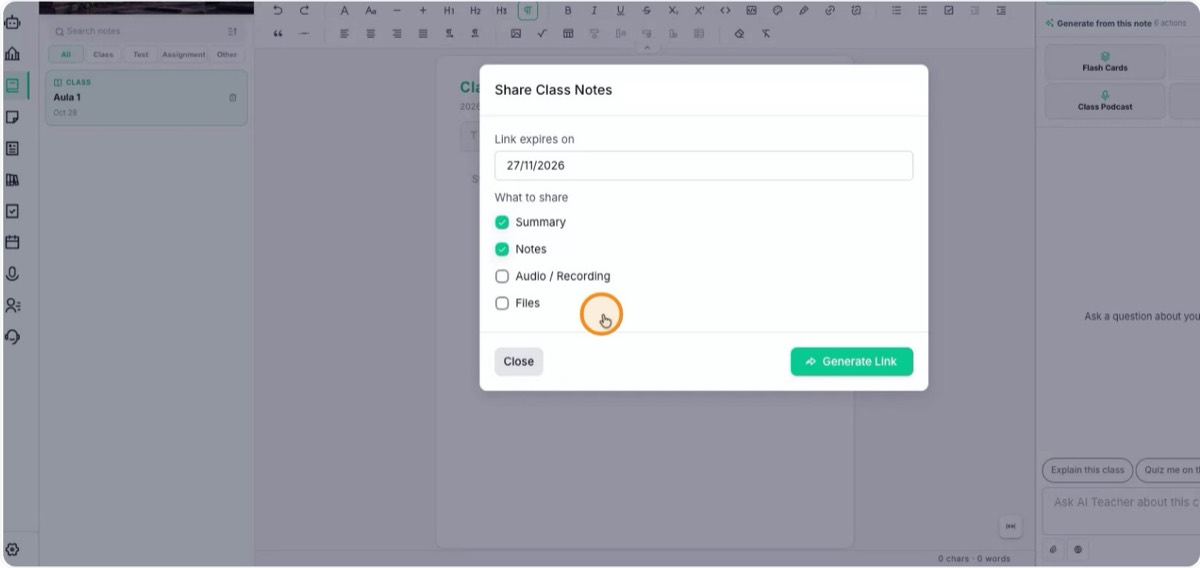
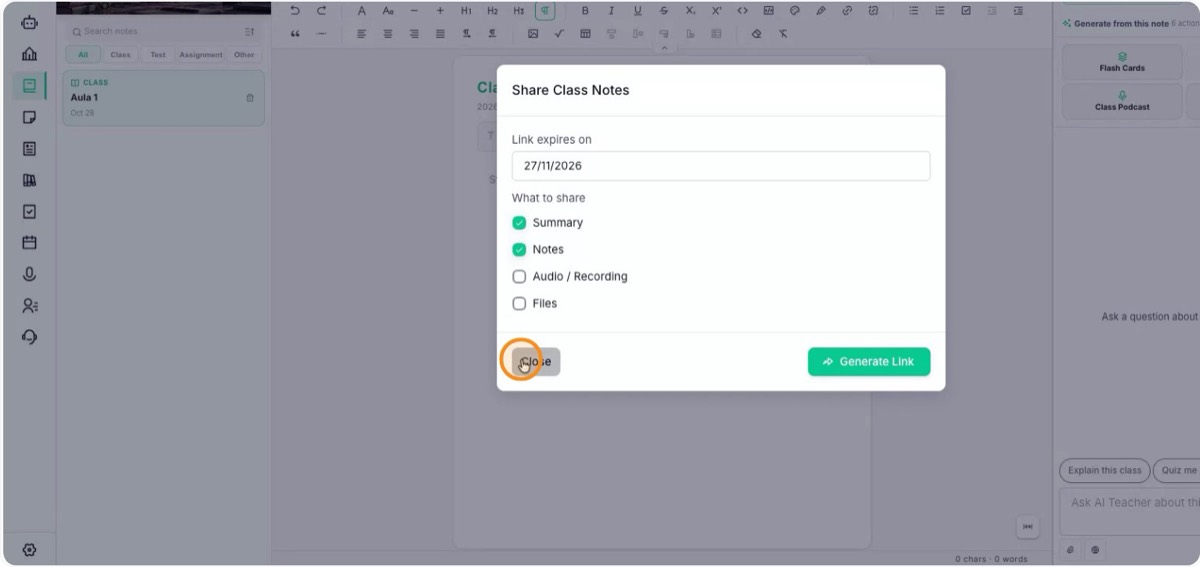
Click Share to export as PDF or DOC, or to generate a link that classmates can open without changing your notes. Under Share Notes you set the link’s expiration date and what is shared:
- Only the notes.
- The AI-generated summary.
- The class recording, if any.
- The files attached to the class.
13. Get to know the toolbars
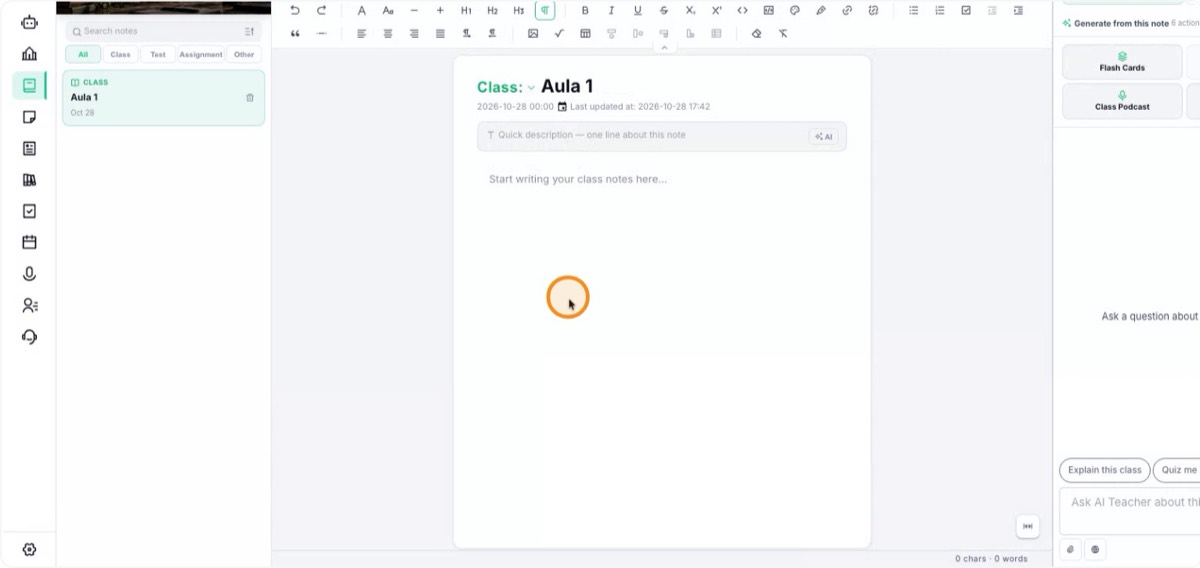
The editor has a text editing toolbar, with bold, italic, lists and headings, and a study toolbar with extra tools for learning. You can also explore the files and tasks linked to the class.
14. Rely on autosave
Everything you write is saved automatically. You never need to save by hand: Katav records changes as you type.